

Ever hosted a Facebook event but worried guests might forget to show up? Sending reminders at the right time can dramatically improve attendance. This guide explains how to send Facebook event reminder using built-in tools and smart methods. Follow along with Video Download Free to explore the full details in this article.
Quick Guide
To send reminders for a Facebook event, you have several options depending on who you want to notify. You can post an update on the event page so all attendees see it, send messages to guests individually or in groups, or resend invitations to people who haven’t responded yet. All of these actions are available from the event’s page, using options such as Write Post, Message, or Invite Friends within the event details.
How to send Facebook event reminder
Sending a Facebook event reminder helps ensure guests don’t forget important dates, times, or last-minute updates. Below are the easiest and most effective ways to remind attendees directly through Facebook.
Method 1: Share a Public Reminder on the Event Page
Posting a public reminder on your Facebook event page is the simplest way to notify all attendees and interested guests at once. This method works well for important updates such as event start times, location changes, or last-minute notes. When you post on the event timeline, Facebook sends a notification to people who have marked themselves as Going or Interested, helping keep everyone informed without sending individual messages.
Step 1: Open Facebook and go to the Events section, which you can find in the main menu or under your profile shortcuts.
Step 2: Click on the event you’re hosting to open its event page.
Step 3: On the event timeline, locate the “Write Post” or “Write something…” box at the top of the page.
Step 4: Type your reminder message clearly, including key details like the event date, start time, location, or any instructions guests should know.
Step 5: Click Post to publish the reminder. Once posted, Facebook will notify attendees and interested users so they see your update in their notifications and event feed.
>>> See Also: How to set up events on Facebook and get 10X more attendees

Method 2: Message Specific Guests (Individual or Bulk)
If you want to send reminders only to certain people such as invited guests who haven’t responded or key attendees messaging them directly is a more targeted approach. This method is useful for personalized reminders, follow-ups, or sharing extra details without notifying the entire event audience.
Step 1: Open Facebook and go to the event page you’re hosting.
Step 2: Scroll down to the Guest list section and click See All to view the full list of attendees.
Step 3: Select the Invited tab to see people who have been invited but may not have responded yet.
Step 4: Click More (the three-dot icon) and choose Message to send a reminder to all invited guests at once.
Step 5: To message individuals instead, click Message next to a specific person’s name and send a custom reminder.

Method 3: Resend Invitations (for Non-Responders)
If some guests haven’t responded to your Facebook event, resending invitations is an effective way to remind them without sending direct messages. This method works best for nudging undecided invitees and bringing the event back to their attention in a subtle, platform-supported way.
Step 1: Open Facebook and navigate to the event page you’re hosting.
Step 2: On the event page, click Invite Friends to access the invitation panel.
Step 3: Browse the list and check the boxes next to the names of people who haven’t responded or who you want to remind.
Step 4: Review your selection to make sure you’re only re-inviting the intended guests.
Step 5: Click Submit to resend the event invitation.
Method 4: Pin the Event as an Announcement (for Groups or Communities)
If your event is shared within a Facebook Group or community, turning it into an announcement is a powerful way to keep it visible and remind members automatically. Announcements stay pinned at the top of the group feed, making sure important event details don’t get buried under new posts.
Step 1: Open Facebook and go to the Group where your event was posted.
Step 2: Find the event post within the group feed.
Step 3: Click the three-dot (•••) menu in the top-right corner of the post.
Step 4: Select Add to Announcement from the menu options.
Step 5: Choose how long you want the post to remain pinned as an announcement (for example, 1 day, 1 week, or until manually removed).
Method 5: Send Reminders Using Group Invite Manager
If you manage a Facebook Group and want to remind invited members about an upcoming event, Group Invite Manager makes the process quick and automated. Instead of messaging people one by one, this tool allows you to send reminders to multiple group invitees at once, saving time and ensuring consistent follow-ups.
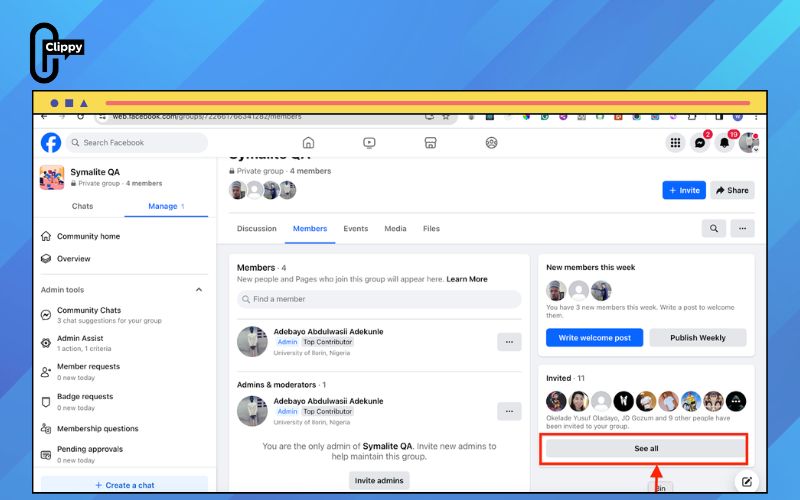
Step 1: Open the group members list
Go to your Facebook Group and navigate to the Members section. On the right-hand side of the page, click See all to view the full list of group members and invited users.
Step 2: Find the reminder option
At the top of the members page, look for a purple button labeled Send reminder. This button is provided by Group Invite Manager and appears when there are pending group invites.

Step 3: Send reminders automatically
Click the Send reminder button. Group Invite Manager will automatically send reminder notifications to all invited members who haven’t responded yet.

Why can’t I send a Facebook event reminder?
If you’re unable to send a Facebook event reminder, it’s usually due to permission limits, event settings, or Facebook’s built-in restrictions. Below are the most common reasons and how they affect your ability to notify guests.
- You’re not the event host or co-host: Only event creators or assigned co-hosts can send reminders, message guests, or resend invitations. If you’re just an invitee, these options won’t appear.
- The event is set to private or restricted: Some reminder features are limited for private events, especially bulk messaging. Facebook reduces notification access to protect attendee privacy.
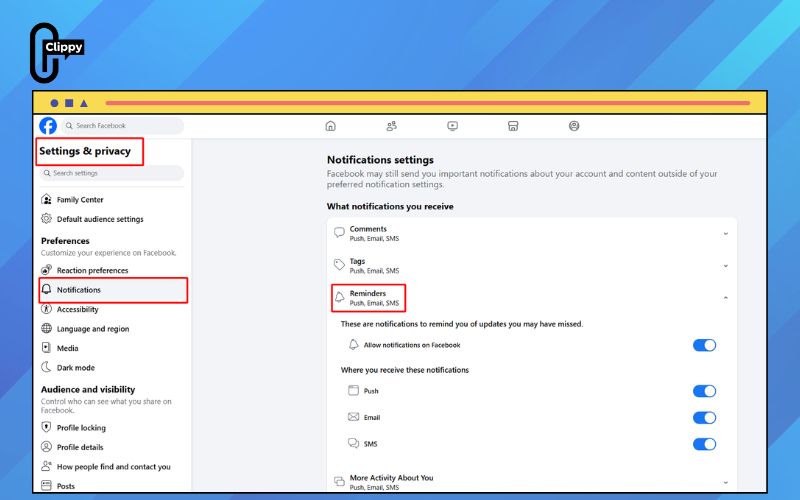
- Guests have disabled event notifications: Even if you send a reminder successfully, attendees may not receive it if they’ve turned off event or group notifications in their Facebook settings.
- The event is too old or already ended: Facebook disables reminder and messaging options for past or expired events. Make sure the event date is still upcoming.
- Temporary Facebook limits or bugs: Occasionally, Facebook restricts actions due to activity limits or system glitches. Logging out, switching devices, or waiting a few hours often resolves the issue.
FAQs about Facebook event reminders
Facebook event reminders help hosts keep guests informed, but many users still have questions about how they work and what limitations apply. Below are common FAQs, answered from a Facebook expert perspective to ensure accuracy and clarity.
Do Facebook event reminders notify all guests automatically?
Not always. Posting on the event page notifies people marked Going or Interested, but invited guests who haven’t responded may not receive the same notification unless you message them or resend invitations.
How many Facebook event reminders can I send without being spammy?
Best practice is 1 – 2 reminders before the event and one on the event day. Sending too many messages may reduce engagement and can be muted by guests.
Can guests turn off Facebook event reminders?
Yes. Users can disable event notifications or mute specific events in their notification settings, which means they may not see reminders even if you send them correctly.
Can I schedule Facebook event reminders in advance?
Facebook does not currently support scheduled event reminders. Hosts must manually post updates, message guests, or resend invites at the desired time.
With a clear plan for how to send Facebook event reminder, you’re no longer relying on chance. Every reminder method serves a purpose when used correctly. Combine them thoughtfully for best results. A well-reminded event is a well-attended event.

