


Constant Facebook Messenger emails can quickly clutter your inbox and break your focus. If you’re searching for how to turn off Facebook Messenger email notifications, you’re not alone. The good news is that you can control exactly what gets sent to your email. Let’s find out with Video Download Free in the following article.
Quick Guide
To turn off Facebook Messenger email notifications, go to your Facebook Settings > Notifications > Email, then choose “Only about your account” or turn off specific categories like messages, activity, or reminders, or disable them all under “Where you receive notifications” to stop most email alerts from Messenger and Facebook.
How to turn off Facebook Messenger email notifications
Facebook Messenger can send email notifications for new messages, which many users find unnecessary or distracting. This section shows you how to turn off Facebook Messenger email notifications and take back control of your inbox.
On the Facebook App (iOS & Android)
If Facebook Messenger emails are cluttering your inbox, you can easily turn them off from the app’s notification settings. The steps are similar on iOS and Android and let you control exactly which emails if any you want to receive.
Step 1: Open the Menu
Tap the Menu icon (three lines or your profile picture). On iOS, it’s usually in the bottom right; on Android, it’s in the top right.
Step 2: Go to Settings
Scroll down and tap Settings & privacy, then select Settings.
Step 3: Open Notifications
Under the Preferences section, tap Notifications to manage how Facebook contacts you.
Step 4: Choose Email notifications
Scroll to Where you receive notifications and tap Email.
Step 5: Turn off unwanted emails
Toggle off the categories you don’t want emails for, such as Messages, Activity, or Reminders.
If you prefer minimal emails, select Only notifications about your account to receive essential updates only.
>>> See Also: How to download voice message from Facebook Messenger safely

On a Web Browser (Desktop)
If you prefer managing Facebook email notifications on a computer, you can turn them off directly from the desktop settings. This method gives you full control over which Messenger-related emails are sent to your inbox.
Step 1: Open Facebook on desktop
Go to Facebook.com and click your profile picture in the top-right corner.
Step 2: Access Settings
Select Settings & Privacy, then click Settings from the menu.
Step 3: Open Notifications
In the left-hand menu, click Notifications to view all notification options.
Step 4: Manage Email notifications
Scroll down to How you get notifications and click Email.
Step 5: Adjust your preferences
Choose Only notifications about your account for essential alerts, or turn off specific email notification types you no longer want to receive.
>>> See Also: How to change Facebook messenger emoji (2026 update)
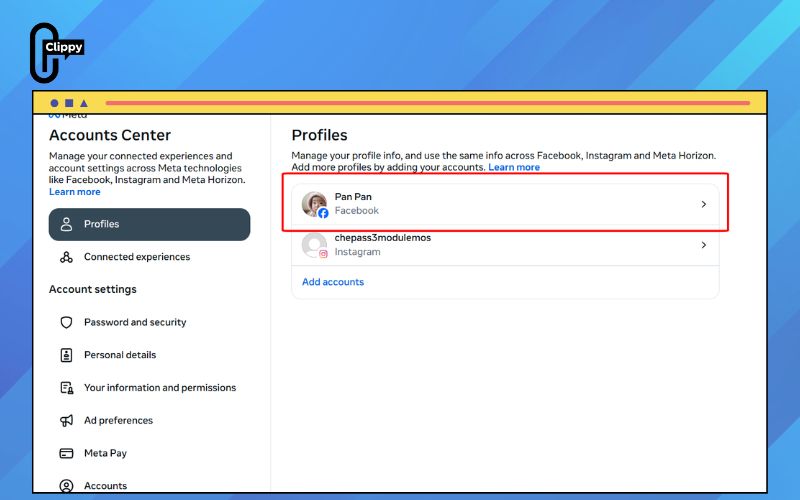
Pro Tip: Still Getting Messenger Notifications?
If you’ve already adjusted your Facebook settings but are still receiving notifications, there are a couple of quick checks that can save you time. These tips help you stop alerts at the source and avoid confusing email notifications with browser pop-ups.
- Unsubscribe directly from the email: Scroll to the bottom of any Facebook notification email and click Unsubscribe. This immediately stops that type of email without changing other notification settings.
- Check browser notification permissions: Some alerts come from your browser, not email. Review your browser’s notification settings and block Facebook or Messenger if pop-up notifications are enabled.
Why Facebook Messenger Sends Email Notifications
Facebook Messenger sends email notifications by default to make sure you don’t miss important activity, especially when you’re not actively using the app. Understanding why these emails are sent helps you decide which notifications to keep and which ones to turn off safely.
Default system settings
Email notifications are enabled by default on many accounts, especially for messages and activity. Facebook uses this as a backup way to reach you when push notifications are missed.
New or recently updated accounts
New Facebook accounts, or accounts after major updates, often have email notifications turned on automatically. This ensures users stay informed while learning the platform.
Multiple devices signed in
If you’re logged in on several devices, Messenger may send emails to keep all sessions in sync. This helps alert you when messages arrive on a device you’re not currently using.
Security and account activity alerts
Messenger also sends emails for security-related actions, such as new logins or suspicious activity. These emails are important and may not be fully disabled for account protection.
>>> See Also: How to reset Facebook Messenger PIN when you forgot it
FAQs about turning off Facebook Messenger email notifications
Many users turn off Messenger email notifications but still have questions about how these settings actually work. The FAQs below clarify common concerns and help you manage notifications without missing anything important.
Will turning off email notifications affect app notifications?
No. Disabling email notifications only stops messages sent to your email inbox. Push notifications inside the Facebook or Messenger app will continue to work normally unless you turn them off separately.
Can I turn off Messenger emails but keep Facebook emails?
Yes. Facebook allows you to manage email notifications by category. You can disable Messenger-related emails while still receiving emails for Facebook activity, groups, or account updates.
Why do emails still arrive after I turned them off?
This can happen if your settings haven’t fully synced or if the emails are related to security or account activity. In some cases, browser notification settings or email unsubscribe links also need to be updated.
Are security emails mandatory?
Yes. Security-related emails, such as new login alerts or suspicious activity warnings, are usually required and can’t be fully disabled. Facebook sends these emails to protect your account and prevent unauthorized access.
>>> See Also: How to turn off read receipts on Facebook Messenger fast
>>> See Also: How to share location on Facebook Messenger and meet easily
If Messenger emails have become overwhelming, the solution is simpler than you think. Understanding how to turn off Facebook Messenger email notifications lets you reduce noise while staying connected in the app. The changes take effect quickly. Small tweaks make a big difference.

