


How to post videos on Facebook is one of the most important skills for anyone looking to boost visibility, engagement, or brand presence on the platform. Whether you’re a creator, business owner, or casual user, understanding the right steps helps your videos upload smoothly and retain high quality. Explore each section with Video Download Free to learn how to master Facebook video uploads effortlessly.
Key Takeaways
- The best methods for uploading videos on both desktop and mobile devices
- Recommended video specifications to maintain HD clarity and avoid compression
- Essential tips to optimize your video’s visibility and audience engagement
- Solutions to common upload issues and answers to frequently asked questions
Why knowing how to post videos on Facebook matters
Videos dominate Facebook’s algorithm. They stop the scroll, spark conversations, and generate stronger emotional reactions compared to static images or text posts. Whether you’re a content creator, entrepreneur, or social media manager, mastering how to post videos on Facebook ensures higher visibility and better storytelling power.
However, many users experience these common issues:
- Video becomes blurry after upload
- Wrong aspect ratio causing black bars
- Poor sound quality
- Long upload or processing time
- Rejected video due to wrong format or size
- Difficulty uploading from both desktop and mobile
This guide solves all of them by helping you understand how to post videos on Facebook the correct way.
>>> See Also: How to post photos on Facebook like a pro in minutes 2026

How to post videos on Facebook from a computer
Before getting started, log in to your Facebook account through a web browser and open your profile or Page. Then follow these steps:
Step 1: Select your video
Click the “Photo/Video” button on your timeline or at the top of your News Feed. Choose the video file you want to upload from your computer.

Step 2: Customize your video
Once the video is uploaded, you can add a thumbnail, description, emojis, tags, feelings, location, and hashtags. You can also adjust your audience settings to control who can see the post.
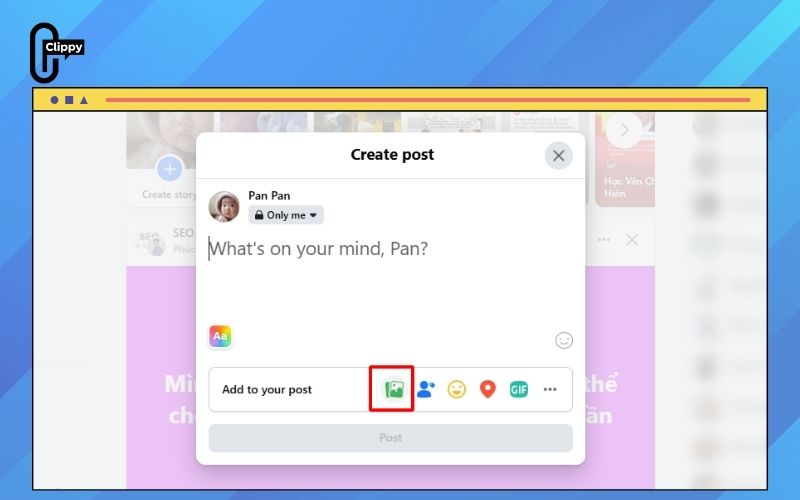
Step 3: Publish your video
After reviewing your edits, click “Post” to upload your high-quality video to Facebook.

How to post videos on Facebook using a mobile device
When posting videos from your mobile device, you can choose between two options: uploading a video you already recorded or sharing a live video in real time.
Uploading pre-recorded videos
To share an existing video from your phone, follow these steps:
Step 1: Pick your video
Open the Facebook app, tap the “What’s on your mind?” box at the top of your timeline or News Feed, and choose “Photo/Video.” Select the video you want to upload from your phone’s gallery.
Step 2: Make edits
After the video loads, you can add a caption, tag locations or people, and choose to include it in an album. It’s best to do any basic editing – such as trimming, adding music, inserting text, or applying effects before posting for the best result.
Step 3: Publish
When you’re done customizing, tap “Post” to upload your edited video to Facebook.
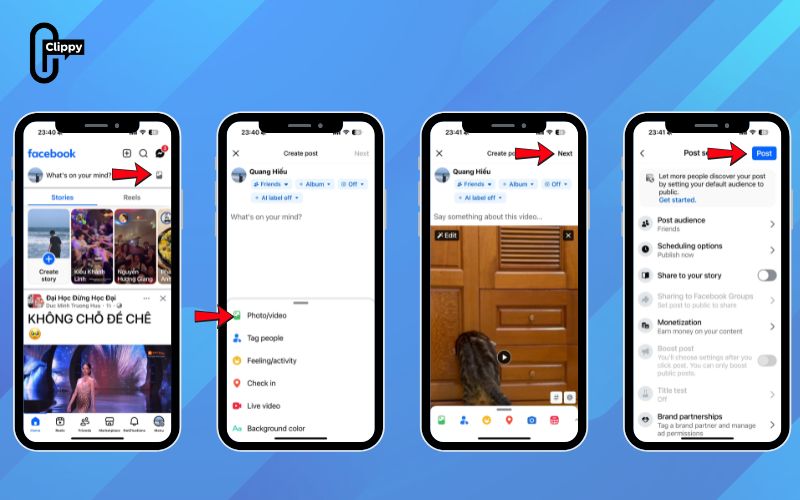
Uploading real-time videos (Live streaming)
If you want to broadcast instantly, Facebook Live lets you share what’s happening right now.
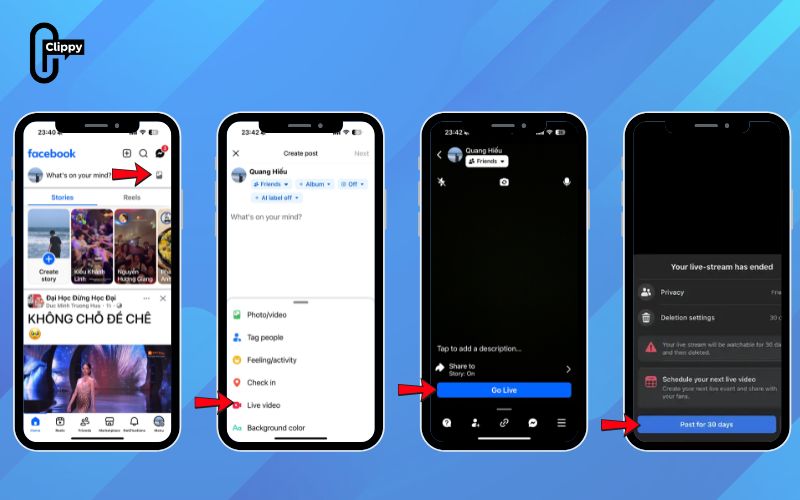
Step 1: Start a Live video
Open the Facebook app and go to your timeline or News Feed. Tap “Live” to begin setting up your stream.
Step 2: Adjust your settings
You can improve your live video using filters, turn flash on or off, and choose whether your microphone is muted. You can also select your audience or invite friends to watch.
Step 3: Go live
Once everything is set, tap “Go Live” to start streaming. After finishing, Facebook lets you keep the video on your profile or delete it within 30 days.
Facebook does place certain limits on video uploads, and many users find mobile editing tools restrictive. However, using third-party apps can help you enhance video quality and create longer, more polished content before sharing.
Recommended video specifications for posting on Facebook
Videos look sharper and more professional when they follow Facebook’s recommended upload settings.
Use the technical standards below to make sure your content keeps its quality after posting.
| Category | Recommended Specifications |
| Resolution | Minimum: 1280 × 720 Ideal: 1080p or 4K |
| Aspect Ratio | Horizontal: 16:9 Vertical: 9:16 |
| File Format | Preferred: MP4 or MOV Also Supported: GIF |
| Frame Rate | Recommended: 30fps |
| Video Length | Maximum: 240 minutes |
| File Size | Maximum: 4GB |
Pro tips before publishing videos to Facebook
Before sharing your video on Facebook, it’s important to prepare your file and settings so the upload goes smoothly and your content performs well. The tips below help you avoid common issues and ensure your video reaches viewers in the best possible quality.
- Check the format: Use MP4, MOV, or GIF for the most reliable upload results. These formats also preserve quality better and meet Facebook’s recommended specs for HD videos.
- Review Facebook’s guidelines: Make sure your content follows community standards to avoid being flagged or removed. Staying within policy helps your video remain visible and safe to share.
- Ensure a stable internet connection: Large video files upload faster and more smoothly on strong Wi-Fi or wired internet. A steady connection prevents failed uploads or incomplete processing.
- Make your content visually engaging: The first few seconds matter, especially with autoplay. Use strong visuals or a custom thumbnail to capture attention right away.
- Write a compelling caption: A clear, interesting title or description encourages viewers to watch longer. Short, curiosity-driven lines often perform best.
- Set the right audience: Choose who can see your video before posting. Adjusting privacy settings helps you target the right viewers or limit visibility when needed.

FAQ about posting videos on Facebook
Before posting videos on Facebook, many users run into common questions about upload time, privacy, editing, and troubleshooting. Understanding these basics can help you avoid issues and ensure your videos upload smoothly. Below are the most frequently asked questions with simple, clear answers.
How long does it take to upload a video to Facebook?
Upload time varies based on your internet connection and video size. Short clips usually upload within seconds, while longer HD or 4K videos may take several minutes to fully process.
Can I upload videos longer than one hour?
Yes. Facebook allows videos up to 240 minutes in length, as long as the file meets size and format requirements. However, shorter videos generally perform better in terms of engagement.
Are videos posted in Facebook groups private?
This depends on the group’s privacy settings. Videos shared in private groups are only visible to members, while posts in public groups can be viewed by anyone.
Can I edit or delete a video after posting?
You can remove a video at any time, but Facebook offers very limited editing options once it’s live. If you need to make major changes, you will usually have to delete and re-upload the updated version.
Why isn’t my video playing?
Playback issues often occur due to unsupported formats, slow internet, or Facebook still processing the file. Checking these factors usually resolves the problem quickly.
How to post videos on Facebook isn’t just about hitting the upload button—it’s about understanding the right steps, formats, and techniques to make your content stand out. Whether you’re posting from a computer, uploading from your phone, sharing pre-recorded clips, or going live, this guide gives you everything you need to handle the entire process confidently and professionally.
And once you’ve mastered how to post videos on Facebook, the next step is optimizing how you save and manage video content from the platform. If you want to download Facebook videos in HD, without watermarks, and save them directly to your device for inspiration or repurposing, try the Clippy App. With fast downloads and high-quality output, it’s the perfect companion tool to support your Facebook video workflow.

