


Learning how to post photos on Facebook may look simple, but doing it the right way with the best quality, perfect layout, and the right privacy settings can completely change how your audience sees your content. Whether you’re sharing daily moments or building a professional online presence, mastering this skill helps your photos stand out. In this guide of Video Download Free, you’ll discover every method to upload images from your phone, computer, or even third-party tools.
Key Takeaways
- Posting photos on Facebook is simple, but choosing the right method improves quality and visibility.
- You can upload images from phone, computer, or social media management tools.
- Enabling HD upload settings helps maintain sharpness and color accuracy.
- Proper image dimensions (1080px+) reduce blur and compression issues.
- Privacy settings let you control who can see each photo you share.
- Stable internet and correct file formats (JPEG/PNG) ensure better upload results.
How to post photos on Facebook on phone
Posting photos on Facebook using your phone is quick and simple, but many users don’t realize they can also add captions, tag locations, or express activities to make their post more engaging.
Whether you want to share a daily moment, a travel highlight, or an important update, the steps below will help you publish your photo smoothly and with full customization. With just a few taps, you can upload high-quality images and personalize your post exactly the way you want.
Step 1: Open the Facebook app on your phone and tap the status box labeled “What’s on your mind.”
Step 2: Select “Photo/Video” to begin uploading your picture.
>>> See Also: How to post videos on Facebook without losing HD quality
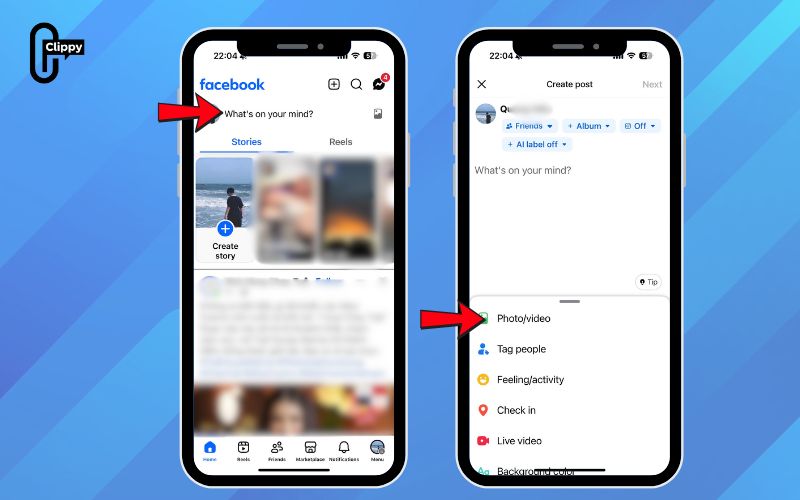
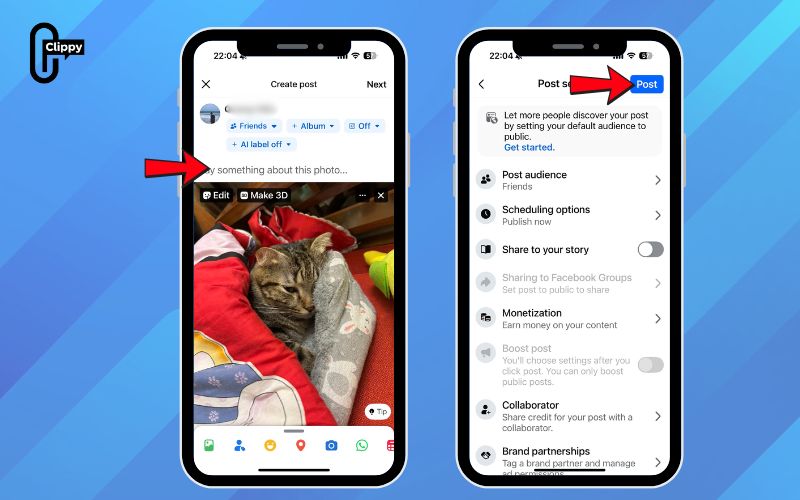
Step 3: Choose the image you want to post from your mobile gallery. Before publishing, you can add a caption, emojis, a location tag, or select an activity to make the post more expressive.
Step 4: After reviewing and editing your post, tap “Post” to share it on your timeline.
How to post pictures on Facebook from computer
Posting photos to Facebook from your computer is a convenient option when you want to upload high-resolution images, manage multiple files, or edit your pictures beforehand. The desktop interface also gives you more control over formatting and allows you to add captions, tag locations, or choose your audience before publishing.
If you’re updating your profile, sharing an album, or posting event photos, the steps below will guide you through an easy and efficient process.
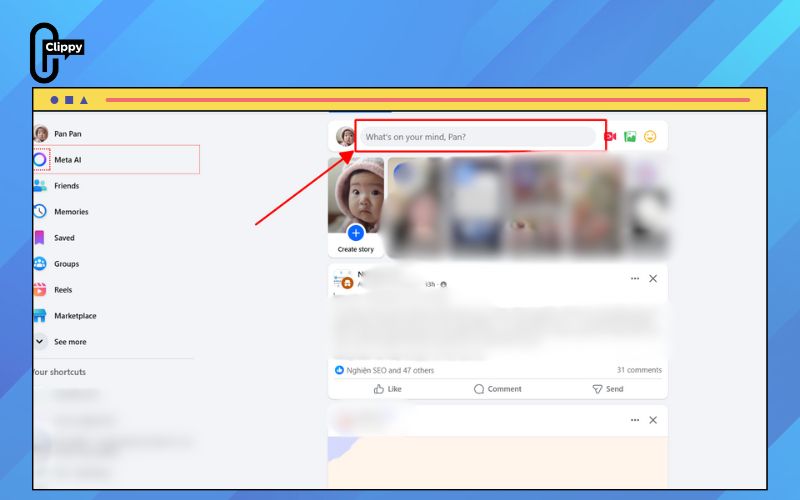
Step 1: Open Facebook in your web browser and go to your News Feed or profile page. Click the “Photo/Video” icon located just below the “What’s on your mind” status box.
Step 2: Select “Add Photo/Video” and choose the image(s) you want to upload from your computer’s file library. You can add a caption, insert emojis, tag friends, or include a location to make your post more engaging.
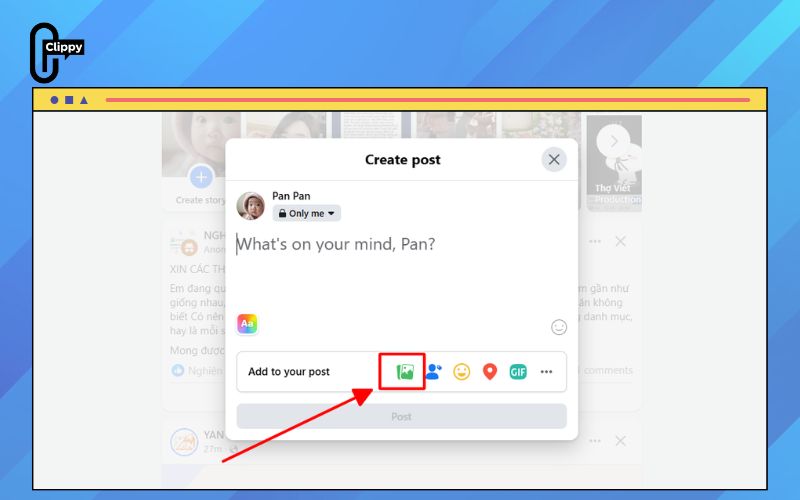
Step 3: After the photos finish uploading and you have completed all edits, review your post to ensure everything looks correct. When you’re ready, click “Post” to publish your photos to your timeline.

Post pictures using a social media management tool
Using a social media management tool is one of the easiest ways to publish photos across multiple Facebook accounts at the same time. ContentStudio streamlines the entire process with features like Canva integration, real-time analytics, an AI writer, a visual content calendar, and competitor insights – all designed to help you manage and scale your Facebook strategy efficiently.
Step 1: Log in to ContentStudio and click “Compose” on the dashboard.
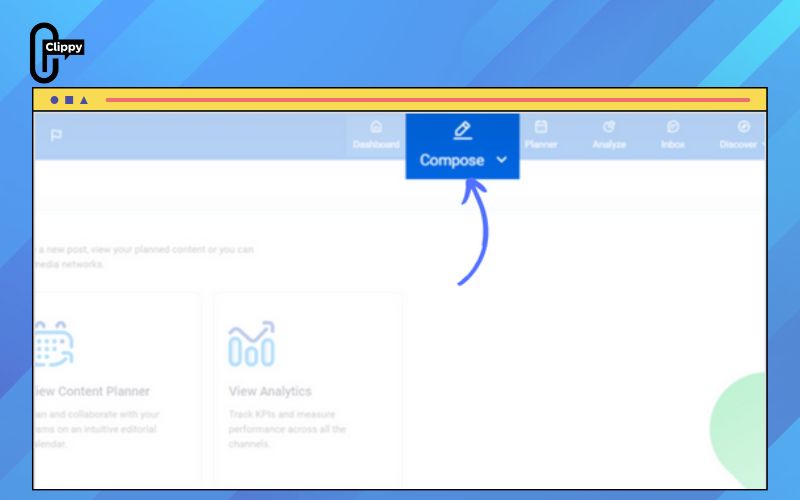
Step 2: A menu will appear on the left. Select “Social Post”.
Step 3: Choose the Facebook account(s) where you want to publish your photo. You can upload the same image to multiple profiles simultaneously.

Step 4: A post preview will appear in the top-right corner so you can see how your content will look once published.
Step 5: Upload your photo and customize your post by adding a caption, emojis, hashtags, or any additional elements.
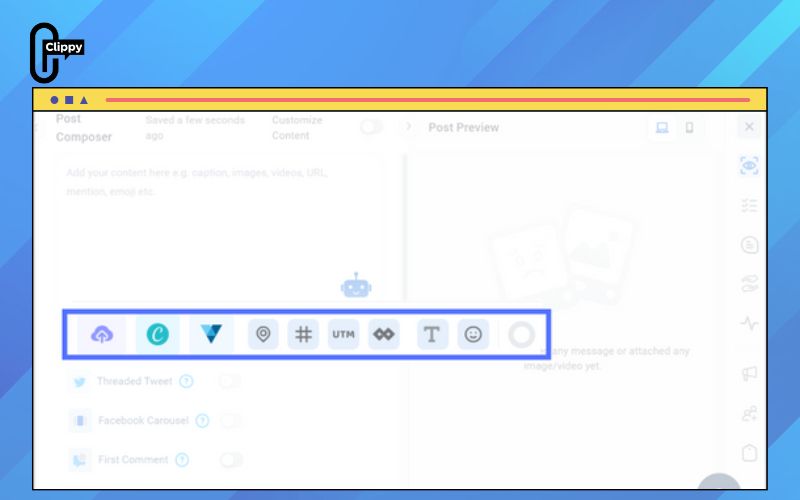
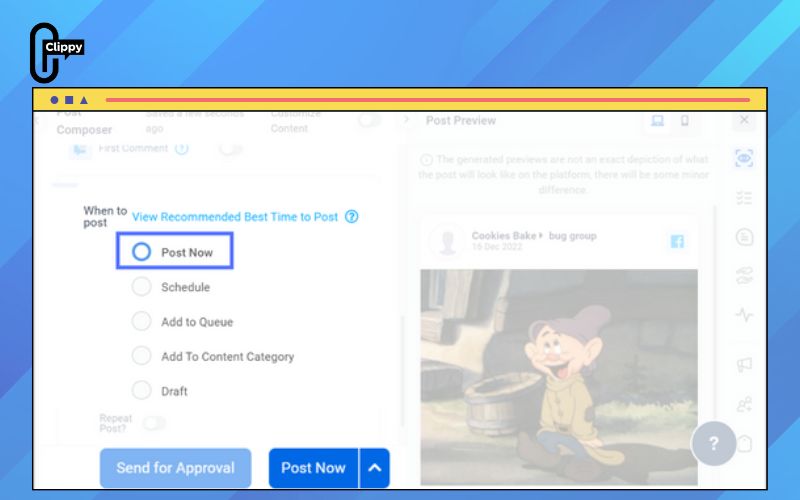
Step 6: When you’re satisfied with the final version, click “Post Now” to publish it immediately.
Tips to upload high-quality photos on Facebook
Uploading photos to Facebook seems simple, but keeping the original sharpness and color accuracy can be challenging due to Facebook’s compression. To help your images stay crisp, clear, and professional, here are practical tips backed by real use cases and content-creation best practices.
Enable HD uploads in your Facebook settings
Facebook automatically compresses images, but you can reduce this by turning on Upload HD in Settings. This ensures your photos retain more detail when uploaded from mobile. For example, content creators who post product photos often notice sharper textures and more accurate colors after enabling HD mode.
Use the correct image dimensions (at least 1080px on the shorter side)
Posting low-resolution images increases the chance of blur. Facebook recommends using photos at least 1080 × 1080 px or higher. For instance, travel bloggers typically export their landscape shots at 2048 px width to maintain clarity across both desktop and mobile feeds.

Upload from a computer when possible
Desktop uploads tend to lose less quality than mobile uploads because the source files are larger and less compressed. Photographers often upload albums from laptops after editing in Lightroom, ensuring the final photos remain sharper and more vibrant.
Use JPEG for everyday photos and PNG for graphics or text-heavy images
Facebook handles JPEGs well for real-life photos. But if your image contains text, UI elements, or illustrations (such as infographics or social media posters), use PNG for cleaner edges. Designers frequently export social posts as PNG to prevent pixelation around typography.

Avoid screenshots; export original files instead
Screenshots usually have lower DPI and can look grainy on Facebook. Instead, save or export the original image. For example, instead of screenshotting a design mockup, download the file directly from Canva or Figma for the highest clarity.
Check your internet connection before posting
Poor network connections can interrupt or partially compress uploads. Many users report sharper results after switching to stable Wi-Fi before posting high-resolution albums, especially wedding or event photographers who upload dozens of large files at once.

FAQs about how to post photos on Facebook
If you run into issues while uploading pictures to Facebook whether it’s cropping, privacy settings, or image quality, you’re not alone. Below are the most common questions users ask, along with clear and simple answers to help you post photos smoothly and without confusion.
When I upload a picture, the preview cuts off part of the image. But when I open the editor, the full picture appears. Will the final post be cropped or full?
What you’re seeing is just a reduced preview. Facebook often shows a smaller framed version before posting. Your photo will remain complete unless you manually crop it. The full image will appear once published.
When I choose two or more pictures, why does the same caption automatically appear on all of them?
This usually happens due to a temporary device or app glitch. Try updating the Facebook app, restarting your phone, or clearing your app history. If the issue continues, uninstall and reinstall Facebook to refresh the app settings.
How can I upload a picture so that only I can see it?
Before posting, tap the audience selector (often labeled “Who can see this post?”). Choose “Only Me.” This makes the post completely private and visible only to you.
Why is my photo taking a long time to upload?
Slow uploads are often caused by weak internet connections or large file sizes. Try switching to a stronger Wi-Fi network, closing background apps, or reducing the image resolution before posting.
Why does Facebook lower the quality of the photos I upload?
Facebook compresses images to improve loading speed. To keep higher quality, enable Upload HD in your Facebook app settings, or upload from a computer where compression is slightly less aggressive.
Mastering how to post photos on Facebook isn’t just about tapping “Post” – it’s about sharing your moments with clarity, confidence, and the highest quality possible. Now that you know how to upload from your phone, computer, and even scheduling tools, you can publish photos that truly stand out. Remember to enable HD settings, choose the right formats, and control your privacy for the best results. With these tips, you’re ready to elevate every photo you share on Facebook.

