

Dark Mode has become an essential visual preference for millions of Instagram users worldwide. It provides a more comfortable viewing experience, makes the interface easier on the eyes at night, and reduces battery consumption on OLED screens. However, Instagram’s Dark Mode settings can sometimes be confusing because the feature often relies on your device’s system settings rather than an in-app toggle. This guide of Video Download Free explains exactly how to turn on dark mode on Instagram across all platforms, why some users cannot see the option, and how to fix common problems.
Key Takeaways
- Instagram Dark Mode usually depends on your device’s system theme rather than an in-app toggle.
- You can enable Dark Mode on iPhone through Display & Brightness or the Control Center.
- On Android, Dark Mode is controlled through the device’s Display settings and may vary by brand.
- Instagram Web includes a built-in Switch appearance option for desktop users.
- If Dark Mode does not appear, updating the app and OS, clearing cache, or disabling Battery Saver often fixes the issue.
- Older devices or outdated software versions may not support Dark Mode fully.
What Is Instagram Dark Mode and How Does It Work?
Instagram Dark Mode replaces the traditional bright white interface with a darker layout. This helps reduce glare during nighttime use and gives the app a modern, visually balanced look. Understanding how Instagram applies Dark Mode is important: the app normally synchronizes with your device’s operating system theme. This means that even if you search inside the app for a Dark Mode button, you may not find one. Instead, Instagram adapts automatically when you switch your device to a dark theme.
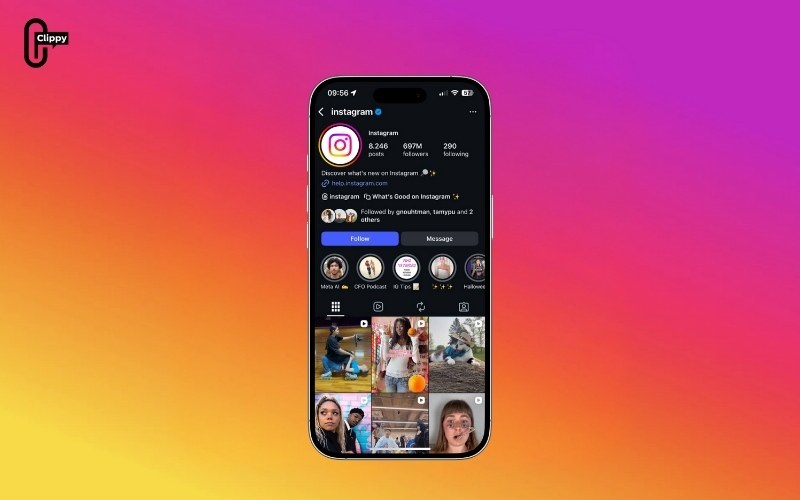
Instagram originally tested a built-in appearance toggle in specific regions, but this feature is no longer consistently available. Today, for most users, enabling Dark Mode begins at the system level.
Benefits of Enabling Dark Mode on Instagram
Dark Mode offers several noticeable advantages for daily Instagram use.
- Better for nighttime browsing: The reduced brightness helps minimize glare and eye fatigue.
- Improved battery performance: On OLED and AMOLED screens, black pixels consume less power, helping your device last longer.
- Cleaner visual experience: The darker interface provides better focus on photos, Reels, and videos, especially in low-light situations.
- Modern, visually appealing UI: Many users prefer the darker look because it feels more premium and less distracting.
How to Turn On Dark Mode on Instagram on iPhone (iOS)
Instagram Dark Mode works on iPhones running iOS 13 or later. If your device is updated, switching between light and dark themes is simple.
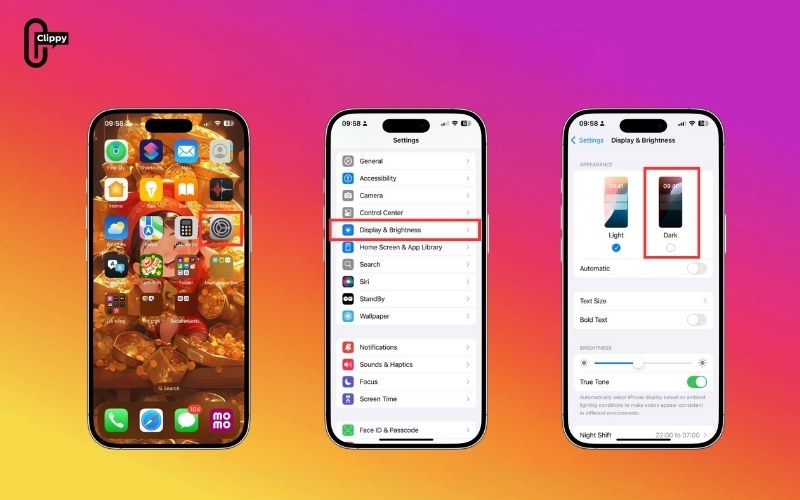
Method 1: Enable Dark Mode in iOS settings
- Open the Settings app
- Tap Display & Brightness
- Select Dark under Appearance
Once the system appearance switches, Instagram automatically updates its interface the next time you open the app.
Method 2: Enable Dark Mode through the Control Center
Many users prefer using Control Center because it provides quicker access.
- Swipe down from the upper-right corner of the screen
- Press and hold the brightness control
- Tap Dark Mode to switch it on
This method helps if you frequently alternate between light and dark themes throughout the day. Open Instagram after enabling the system theme to ensure the UI elements have changed. The background should appear black or dark grey, with white text and darker navigation elements.

How to Turn On Dark Mode on Instagram on Android
Android devices support Instagram Dark Mode on Android 10 and above. If your phone is older or running a heavily modified brand skin, Dark Mode behavior may vary slightly.
Step 1: Enable Dark Mode in Android settings
- Open your device’s Settings
- Tap Display
- Toggle on Dark theme or Dark mode
If your device supports per-app appearance settings, ensure the system theme is set to reflect across all apps.
Each Android manufacturer edits the UI differently:
- Samsung: Display → Dark mode
- Xiaomi: Display → Dark mode
- Oppo: Display & brightness → Dark mode
- Pixel: Display → Dark theme
Regardless of the naming difference, enabling the system theme ensures Instagram follows the chosen appearance.
How to Turn On Dark Mode on Instagram App Directly (If Available)
Instagram once included an appearance setting called Theme or Appearance. While not consistently available, some users, especially those in test groups or using older app versions, may still see it.
To check:
- Open Instagram
- Go to your profile
- Tap Menu → Settings
- Look for Appearance, Theme, or Dark Mode
If the option exists, you can choose Light, Dark, or System default. If not, your device settings control the appearance.
How to Turn On Dark Mode on Instagram Web (Desktop Browser)
Instagram Web has a built-in Dark Mode toggle, making it more flexible than the mobile app.
Step 1: Visit instagram.com and select the More
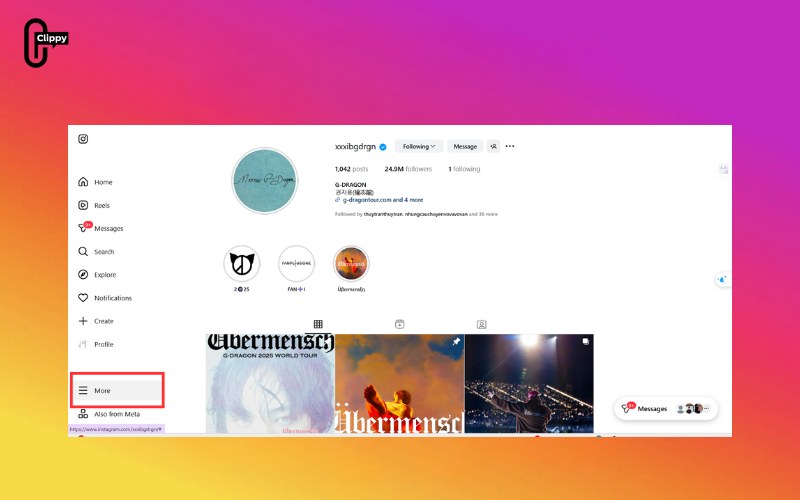
Step 2: Click Switch Appearance
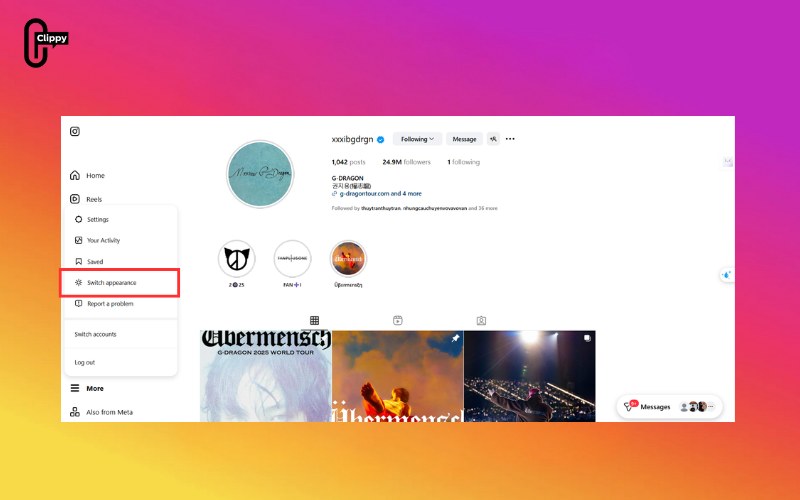
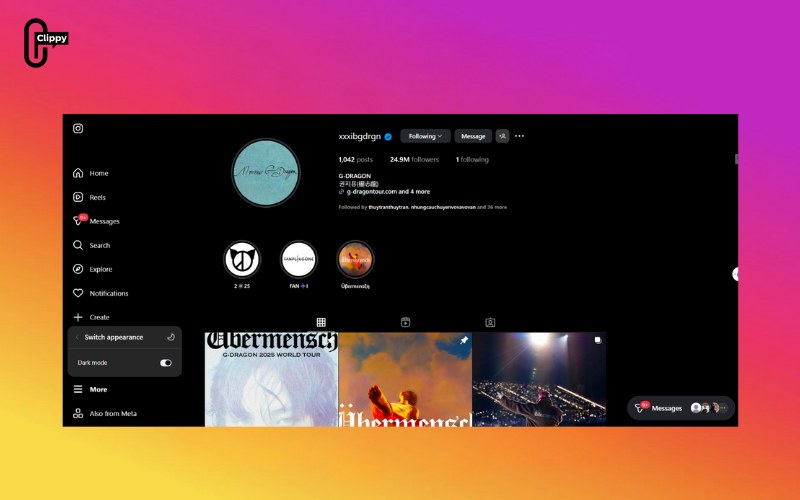
Step 3: Choose Dark
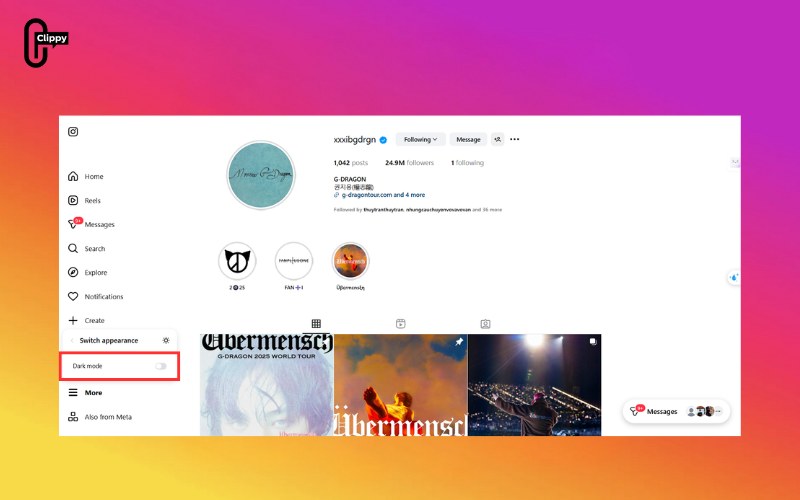
The interface will instantly switch to a darker layout. This setting remains active until you switch it manually.
Some browsers, such as Chrome, Edge, and Safari, allow forcing Dark Mode across websites. If Instagram’s toggle is missing or not working, your browser’s theme settings may override the website.
Why is Instagram Dark Mode not Showing Up?
Many users report that Instagram remains in Light Mode even when their device is set to Dark. These are common causes:
Your app is outdated
Older versions may not fully support Dark Mode. Go to the App Store or Google Play and update Instagram.
Your phone’s operating system is outdated
Dark Mode requires:
- iOS 13 or higher
- Android 10 or higher
Your app is temporarily bugged
Instagram frequently rolls out UI changes slowly; some regions may temporarily lose the toggle or experience delays.
Power Saving Mode is affecting the appearance
On some Android phones, Battery Saver mode disables Dark Mode entirely.
Cache problems
Android cache issues can cause UI settings to freeze. Clearing the cache can restore appearance changes.
How to Fix Instagram Dark Mode Not Working
If Instagram still won’t switch to Dark Mode, try the following troubleshooting steps:
- Update Instagram to the latest version to ensure full Dark Mode compatibility.
- Restart your device to refresh the system UI and clear temporary glitches.
- Log out of your Instagram account and sign back in to reset app settings.
- Clear the Instagram cache on Android to remove outdated interface files.
- Turn off Battery Saver mode, as some devices disable dark themes automatically.
- Reinstall Instagram if the interface appears stuck or unresponsive.
- Update your phone’s operating system to a version that fully supports Dark Mode.
- Check for theme conflicts caused by device settings or force-light-mode options.
- Enable automatic or scheduled Dark Mode to see if the app responds correctly.
Applying these methods typically resolves most issues related to Instagram Dark Mode not appearing.
Conclusion
Knowing how to turn on dark mode on Instagram helps create a more comfortable, energy-efficient, and visually attractive browsing experience. Whether you are using an iPhone, Android phone, or desktop browser, Dark Mode can be enabled easily once you understand where the settings are controlled. Ensure your device is updated, your Instagram app is current, and your system theme is set correctly. With this complete guide, you can consistently enjoy Instagram’s sleek and eye-friendly Dark Mode across all platforms.
Frequently Asked Questions
Does Instagram have its own Dark Mode toggle?
For most users, no. Instagram follows device-level appearance settings. Only older or test versions may include a toggle.
Can Dark Mode save battery?
Yes, particularly on OLED phones, where dark pixels require less energy.
Why does my Instagram stay bright even after switching my phone to Dark Mode?
This usually means the Instagram app or your phone’s system software is outdated.
Does Dark Mode affect content quality?
No. Photos, videos, Stories, and Reels remain unchanged. Only the interface is darker.
Can I use Dark Mode on Instagram Web?
Yes. Instagram Web provides a built-in Switch appearance option.

