

If you’re wondering how to sign up to Facebook, you’re in the right place. Facebook remains one of the most widely used social platforms, but many users still face sign-up issues. This guide explains the easy steps, hidden tips, and essential settings you should know. Join Video Download Free to find out everything you need to get started.
Key Takeaways
- You can sign up to Facebook using the mobile app, desktop browser, or an existing Instagram account.
- Always use accurate personal information to avoid verification issues or temporary restrictions.
- A phone number or email is required, and you must confirm it to complete account setup.
- Strong passwords and enabling 2FA help protect your account from unauthorized access.
- New accounts should avoid spam-like actions such as sending too many friend requests at once.
- Adjust privacy settings early to control who can find, view, or contact you on Facebook.
Understanding Facebook sign-up requirements
Before you learn how to sign up to Facebook, here are the official requirements:
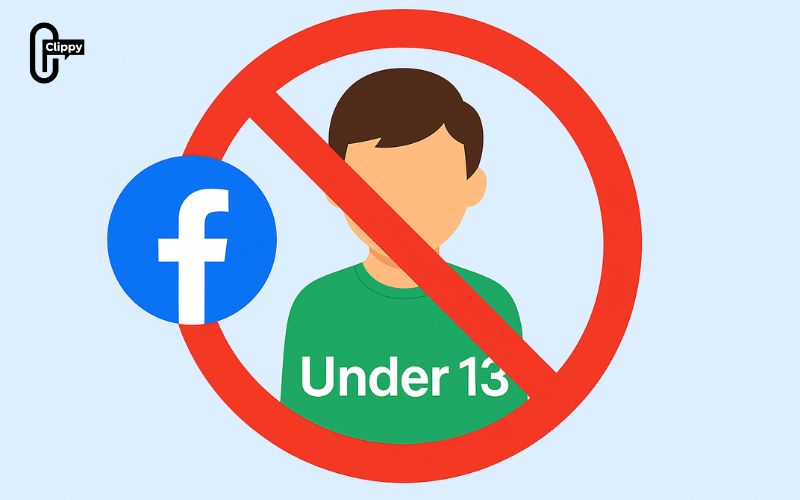
- You must be at least 13 years old. This age requirement applies globally, including the US.
- You need a valid email or mobile phone number. Facebook uses this to send a verification code.
- You must provide accurate personal information. Facebook may temporarily restrict accounts that use:
- Fake names
- Nicknames instead of full names
- Symbols, numbers, or emojis in names
- Impersonation-style names
- You must follow Facebook’s Community Standards. Violations can lead to immediate removal.
How to sign up to Facebook on Mobile
Creating a Facebook account is simple, and you can complete the entire process in just a few minutes. Here is a step-by-step guide to get you started:
Step 1: Launch the Facebook app on your phone and select Create New Account to begin.
Step 2: Press Get Started to enter the guided setup.
>>> See Also: How to make Facebook private and hide all your info easily
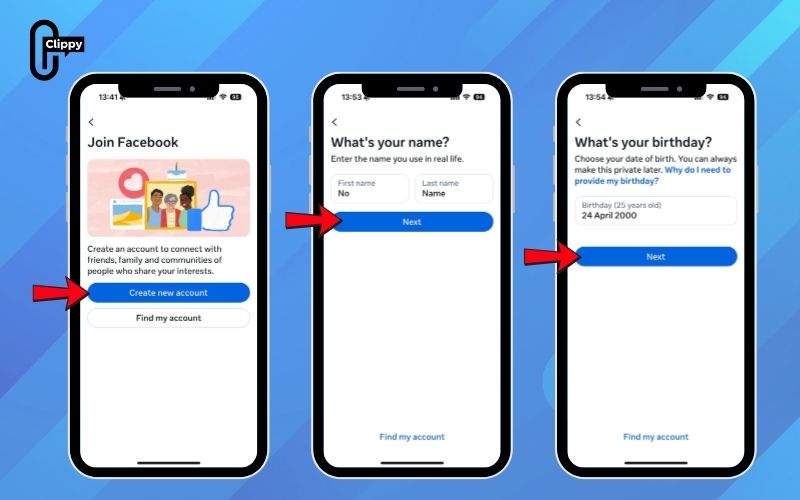
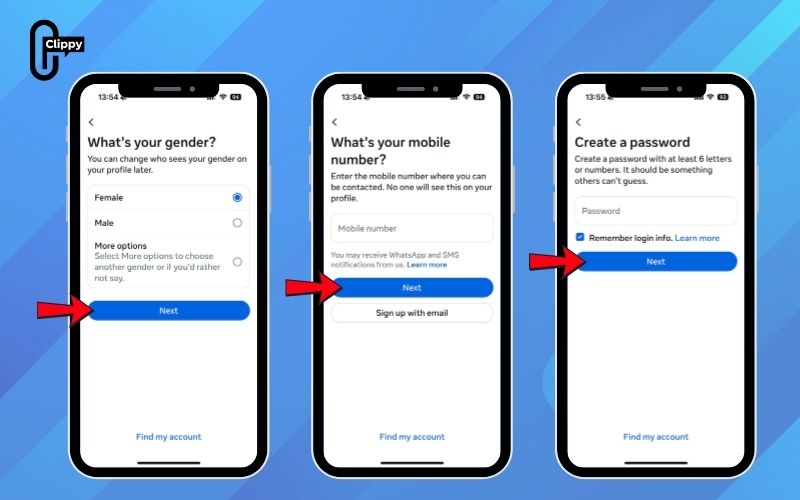
Step 3: Follow the on-screen instructions and provide your first and last name, date of birth, and gender.
Step 4: Enter your mobile phone number, or tap Use your email address if you prefer signing up with email.
Step 5: Choose a strong password that’s easy for you to remember but hard for others to guess.
Step 6: Once you tap Sign Up, Facebook will send a verification code.
Step 7: Enter the code sent to your phone or click the verification link in your email to complete your account setup.
>>> See Also: How to deactivate Facebook account securely with zero hassle
How to sign up to Facebook on Desktop
If you prefer a bigger screen or you’re using a work laptop, signing up on desktop is easy.
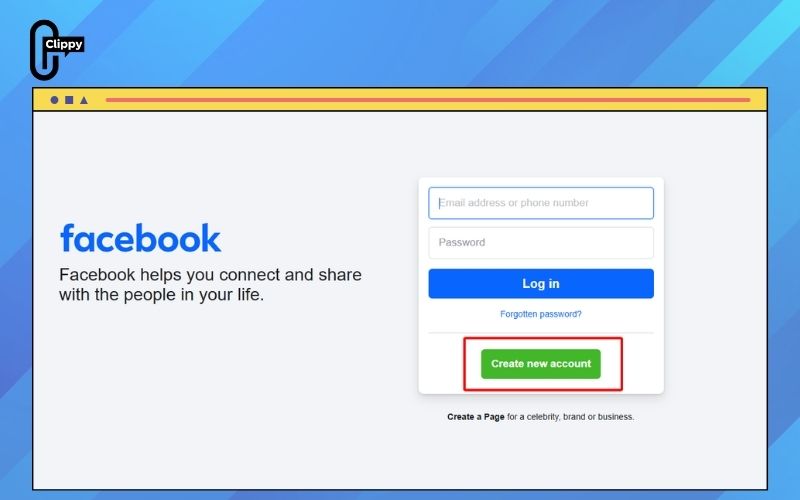
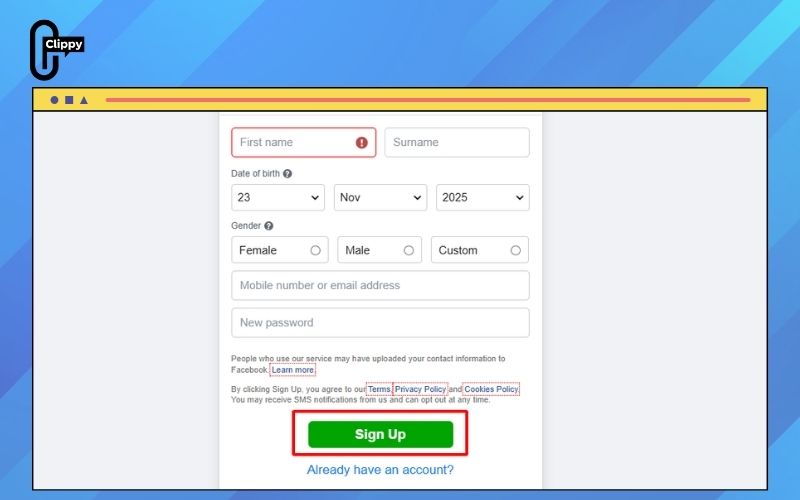
Step 1: Visit www.facebook.com. Click “Create New Account”.
Step 2: Fill in your information. You must enter:
- First & last name
- Phone number or email
- Password
- Birthday
- Gender
Step 4: Click “Sign Up”
Step 5: Verify your email or phone. Check your inbox or SMS for the code.
Step 6: Add personal details (optional). Complete your profile to improve account trust.
>>> See Also: How to change Facebook profile picture for a fresh look
How to sign up to Facebook using an Instagram account
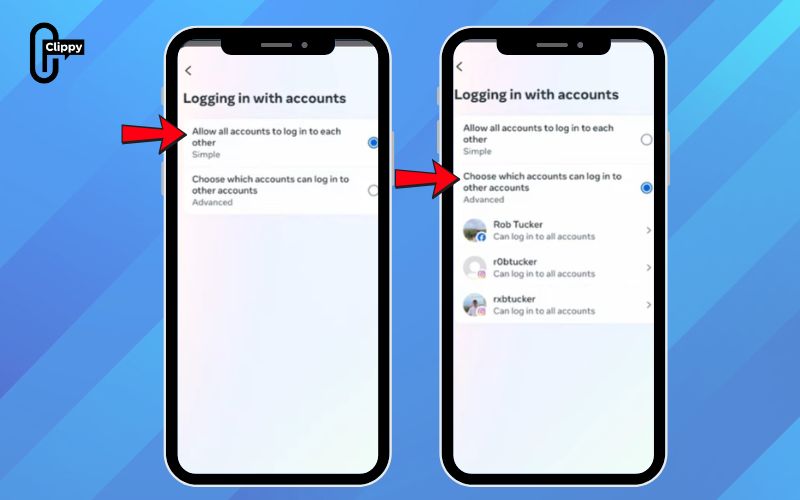
If you create a new Facebook account through your Instagram account, both accounts will share the same login details. You can also choose to sync certain profile information such as your name, profile photo, username, and avatar across both apps. These syncing options can be adjusted anytime in Accounts Center.
To create a Facebook account using an existing Instagram account:
Step 1: Open the Facebook app on a mobile device where you’ve previously logged into Instagram. When the Facebook app loads, you should see your Instagram account(s) displayed on the login screen.
Step 2: Tap the Instagram account you want to use to create your new Facebook account.
Step 3: On the next screen, you’ll see a brief explanation of what happens when you sign up for Facebook using Instagram.
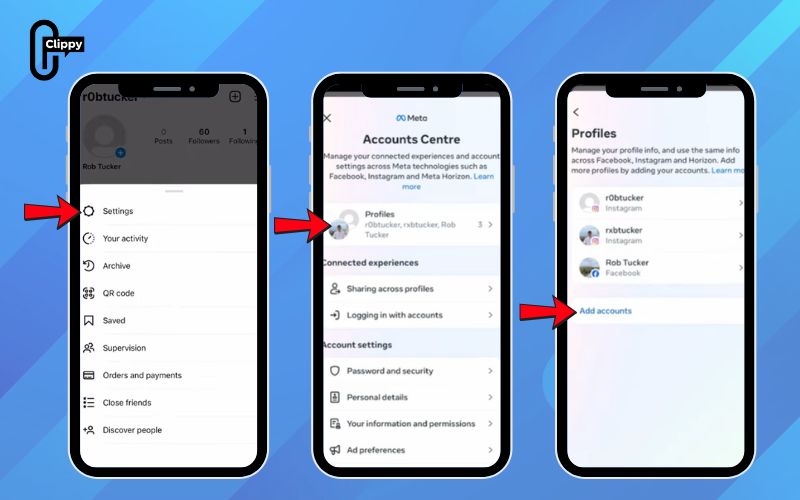
Step 4: Tap Yes, continue to proceed, or choose Continue without Instagram if you prefer not to link them.
Step 5: Choose whether you want to sync profile information like your name or profile picture between the two apps. Tap Sync this info or Not now. If you select Not now, you’ll need to enter your name manually.
Step 6: Select your gender, then tap Next. Review Facebook’s terms and policies, then tap I agree if you accept them.
You may be asked whether you want to save your login information. If you choose not to save it, you’ll need to re-enter your login details the next time you sign in.
Common sign-up errors & how to fix them
Even with the correct steps, new users often encounter issues during the Facebook sign-up process. According to Meta’s user support data, over 22% of failed registrations in the US come from incorrect information, verification delays, or security-flagged behavior. Below are the most common errors and the most effective ways to resolve them quickly and safely.
Error 1: This email or phone number is already in use
This error appears when the email or phone number you entered is already tied to an existing Facebook account, something that happens to thousands of users every day. Facebook stores login identifiers to prevent duplicates, so even an old or forgotten account may trigger this alert. Before trying again, it’s important to confirm whether you’ve previously registered with the same information.
How to fix it:
- Try logging in, you may have created an account in the past.
- Use password recovery to regain access.
- Delete or deactivate the old account linked to that email/number.
- Use a different email or phone number to register.
Error 2: We can’t send verification code
This issue commonly occurs when your mobile carrier blocks automated SMS, when the number is mistyped, or when verification emails land in the spam folder. Meta reports that over 30% of verification failures happen because users don’t notice their code being filtered or delayed by carriers. Temporary disruptions in Meta’s servers may also prevent code delivery.
How to fix it:
- Check your spam/junk email folder.
- Tap Resend Code and wait 1–2 minutes.
- Try signing up with email instead of phone.
- Restart your device to refresh network settings.
- Use a different number if the issue persists.
>>> See Also: [Updated 2025] How to sign in Facebook safely on any device

Error 3: Your name doesn’t follow our guidelines
Facebook’s naming policy is strict because names help verify identity and reduce impersonation. Names with symbols, numbers, emojis, unusual capitalization, or incomplete surnames often trigger the automated review system. According to Meta, fake-name detections increased 11% in the last two years, making it even more important to use a real and authentic name.
How to fix it:
- Use your real name or a close variation you commonly use.
- Avoid symbols, emojis, double capitalization, or fictional names.
- Add a legitimate surname if you’re using a nickname.
Error 4: Your birthday is invalid
This error appears if your date of birth is entered in the wrong format or if the system detects that you’re under the minimum age requirement. Many US users mistakenly enter Day/Month/Year, while Facebook uses the Month/Day/Year format. You must be at least 13 years old, based on US COPPA regulations.
How to fix it:
- Re-enter your birthday using MM/DD/YYYY format.
- Ensure the year reflects that you are 13 or older.
- Double-check for typos before submitting.
>>> See Also: How to lock Facebook profile to stop stalkers immediately
Error 5: Temporary Account Block During Sign-Up
Facebook may temporarily block new accounts during registration if the system detects unusual patterns such as signing up through a VPN, using disposable emails, or attempting mass actions too quickly. Meta’s transparency reports show that over 40% of blocked sign-ups are triggered by automated anti-spam systems designed to prevent abuse.
How to fix it/ avoid it:
- Do not use VPNs or proxy networks during sign-up.
- Avoid temporary or disposable email services.
- Complete your profile gradually to appear natural.
- Wait a few hours before trying again if temporarily blocked.
Pro tips to optimize your Facebook account after signing up
Setting up your profile is only the first step optimizing it helps improve security, credibility, and long-term account stability. Apply these practical tips to keep your new Facebook account trusted and protected.
- Use a real profile picture: Facebook’s systems are more likely to trust accounts with a clear, genuine photo, reducing the chance of being flagged as suspicious.
- Complete your “About” section: Add key details such as your workplace, education, city, relationship status, hobbies, and contact info – this builds authenticity and strengthens your profile.
- Enable two-factor authentication (2FA): Turning on 2FA adds an extra layer of security, making it much harder for hackers to access your account.
- Review your privacy settings right away: Disable search engine indexing to prevent your profile from appearing in Google results and adjust visibility settings to control who can see your posts.
- Avoid adding too many friends at once: Sending dozens of friend requests in a short time may trigger spam detection and result in temporary restrictions.
- Don’t join too many groups on the first day: Keep your activity natural and gradual rapid group joining often activates Facebook’s automated security checks.
>>> See Also: How to log out of Facebook on all devices 2026

FAQs about “How to sign up to Facebook”
This section answers the most common questions users face when creating a Facebook account, based on official Meta guidelines and real user experiences.
Do I need my real name to sign up?
Yes. Facebook requires a name that represents your real identity, and nicknames are only allowed when they’re connected to your actual name.
Can I sign up without a phone number?
Yes. You can create your account using an email address instead of a mobile number.
Why didn’t I receive the verification code?
This often happens due to carrier filtering, entering the wrong number, or the email going to your spam/junk folder.
Can I create multiple Facebook accounts?
Yes, but each account requires a unique phone number or email, and must represent a real person or a legitimate business.
How long does Facebook verification take?
SMS or email verification is usually instant, while ID verification (if required) can take 24 – 48 hours.
Can I sign up to Facebook using Gmail?
Absolutely. Gmail is fully compatible and works smoothly for Facebook sign-ups.
Will Facebook ask me for ID?
Only if your account triggers security checks, has unusual activity, or violates Facebook’s naming policies.
Understanding how to sign up to Facebook helps you create a secure, verified, and fully optimized account from day one. By following the right steps and reviewing your privacy settings, you ensure a safer experience on the platform. Remember to enable 2FA and keep your information accurate. With these fundamentals, you’re ready to use Facebook confidently and responsibly.

