

If you’re wondering how to delete Facebook Dating account safely, you’re not alone. One wrong tap could permanently erase your matches and chats. Read this before making a final decision. Video Download Free breaks it down in a news feature below.
Quick Guide
To delete your Facebook Dating profile, open the app, go to the menu, select “Dating,” tap the gear icon (Settings), choose “General,” then “Account,” and tap “Delete Profile”. This removes your profile, likes, and conversations, and you cannot create a new one for 7 days.
How to delete Facebook Dating account
If you no longer want to use Facebook Dating or prefer to remove all your dating data, you can delete your Facebook Dating account directly from the Facebook app. The process is simple and works the same on both iPhone and Android devices.
Steps to delete your Facebook Dating account:
Step 1: Open the Facebook app on your iPhone or Android device.
Step 2: Tap the three horizontal lines at the bottom-right corner of the screen to open the menu.
Step 3: Scroll down and tap Dating to access your Facebook Dating profile.
Step 4: In the top-right corner of the Dating screen, tap the gear icon to open Settings.

Step 5: At the top of the Settings menu, select the General tab.
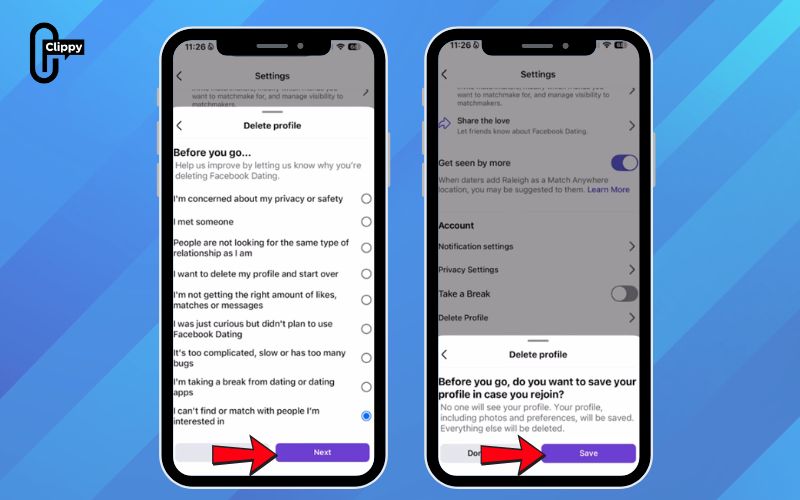
Step 6: Under the Account section, tap Delete Profile.

Step 7: You may be asked to provide a reason for deleting your profile. This step is optional: enter a reason if you wish, then tap Next.
Step 8: Facebook will suggest the option Take a Break, which temporarily hides your profile while keeping your matches and conversations.
Step 9: If you want to permanently remove your account and erase all associated data, select Delete Profile instead.
Step 10: Confirm your choice to complete the deletion process.
How to Use “Take a Break” on Facebook Dating
If you’re not ready to delete your Facebook Dating profile but want some time off, the Take a Break feature is a flexible option. It lets you pause your dating activity without losing existing matches or conversations, and you can return whenever you’re ready.
Step 1: Open the Facebook app on your iPhone or Android device.
Step 2: Tap the menu icon (three horizontal lines) and select Dating.
Step 3: In the Dating interface, tap the Settings (gear icon) in the top-right corner.
Step 4: Go to the General tab.
Step 5: Scroll down to the Account section and find Take a Break.
Step 6: Tap the button next to Take a Break to enable it.
Step 7: Select Continue to confirm and put your Facebook Dating profile on pause.
Once enabled, your profile will no longer appear to new potential matches. However, you can still chat with people you’ve already matched with or who have liked you.
How to resume Facebook Dating: To start matching again, return to menu > Dating in the Facebook app and tap Start matching again to reactivate your profile.

FB Dating Profile: Delete vs Take a Break
When managing your Facebook Dating profile, you have two main options: Delete or Take a Break. Each choice serves a different purpose, depending on whether you want a clean break from Facebook Dating or just a temporary pause. To help you decide which option fits your situation best, the table below compares what happens in each case.
| Feature | Delete Profile | Take a Break |
| Purpose | Stop using Facebook Dating permanently | Pause dating activity temporarily |
| Profile visibility | Completely removed from Facebook Dating | Hidden from new matches |
| Matches | All matches are permanently deleted | Existing matches are kept |
| Conversations | All chats are erased and cannot be recovered | Conversations remain accessible |
| Messaging ability | Cannot message any previous matches | Can still message existing matches |
| Data removal | All Dating data is permanently deleted | Dating data is preserved |
| Rejoining Facebook Dating | Must create a new profile from scratch | Can resume anytime with one tap |
| Best for | Users who are done with Facebook Dating or switching apps | Users who need a break but plan to return |
What changes when you remove Facebook Dating
When you delete your Facebook Dating profile, all data related to Dating will be permanently removed. This includes your profile answers, likes, matches, and all conversations you’ve had within Facebook Dating. Once deleted, this information cannot be recovered, and you would need to set up a brand-new Dating profile if you decide to use the feature again in the future.
However, deleting Facebook Dating does not affect your main Facebook account. Your regular Facebook profile, photos, friends list, posts, and Messenger conversations will remain completely intact. Facebook Dating operates as a separate feature inside Facebook, so removing it won’t impact your normal activity on the platform. Keep in mind, though, that if you delete your entire Facebook account, your Facebook Dating profile will also be automatically deleted.

Important Things to Know Before Deleting Facebook Dating
Before you delete your Facebook Dating profile, it’s important to understand what happens next and how it may affect your experience. The points below highlight key limitations and alternatives so you can make the right decision with confidence.
- Wait Period: After deleting your Facebook Dating profile, you must wait 7 days before creating a new one. This cooldown period cannot be skipped.
- Data Loss: All your Dating information—including profile answers, likes, matches, and conversations will be permanently deleted and cannot be recovered.
- Conversation Visibility: Even after you delete your profile, your previous matches may still be able to see the conversations you had with them on their side.
- Alternative Option: If you only need a temporary break, choose “Take a Break” instead. This pauses your profile without deleting data and lets you return anytime.
Now that you know how to delete Facebook Dating account, you can decide whether to leave Dating for good or just pause it. The process is simple, but the consequences are permanent. Make sure you choose the option that fits your situation best. Deleting it the right way helps you avoid regrets later.

