


If Facebook Stories are distracting you from the content you actually care about, muting is the perfect solution. Understanding how to mute stories on Facebook lets you personalize your feed quietly and effectively. No awkward unfriending or blocking is required. Together with Video Download Free, let’s dive into the details in this News post.
Quick Guide
To mute Facebook Stories, tap on a story at the top of your Feed, then tap the three dots (Options) in the corner and select Mute [Username] story, confirming with Mute, which hides it to the end of the stories tray without unfriending them. You can manage muted stories later in your Settings under Audience & Visibility > Stories > Stories you’ve muted.
How to mute stories on Facebook
Facebook Stories can quickly fill up your feed with updates you may not always want to see. Learning how to mute stories on Facebook helps you customize your experience, reduce distractions, and keep your feed focused on the content that matters most to you.
Mute a story (Quick Method)
- Go to Stories: Open the Facebook app and find the Stories section at the top of your Feed.
- Tap a story: Tap on any story from the person or page you want to mute.
- Find Options: Tap the Options (three dots) icon in the top-right corner of their story.
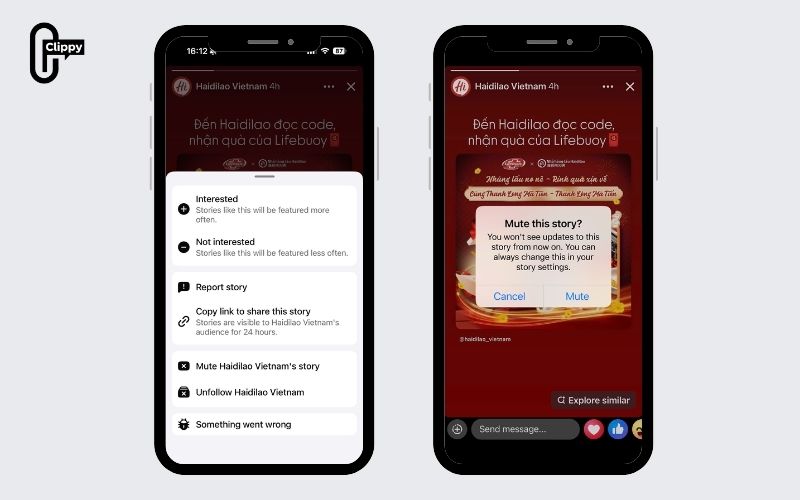
- Confirm Mute: Tap Mute [Username] story, then tap MUTE to confirm.
On Mobile
Muting stories on Facebook is a quick way to hide updates from specific people without unfriending or blocking them. The feature works directly within the Facebook app and only takes a few taps, helping you keep your feed clean and distraction-free.
- Step 1: Open the Facebook app on your phone or tablet. You’ll land on the Home tab, where stories appear in a row at the top of your feed.
- Step 2: Find the story you want to mute, then press and hold on that story.
- Step 3: A small menu will pop up – tap Mute to hide future stories from that person.
- Step 4: Alternatively, tap to view the story, then select the three-dot icon in the top-right corner and choose Mute from the options.
On Computer
If you’re using Facebook on a desktop or laptop, muting stories is just as simple as on mobile. This method lets you hide story updates from specific people while keeping them on your friends list, giving you better control over what appears in your feed.
Step 1: Log in to Facebook using your preferred web browser on a Mac or PC.
Step 2: At the top of your News Feed, locate the Stories section and click See all to view the full list of active stories.
Step 3: Select a story from the list on the left, then click the blue circle to open the story details.
Step 4: Click the three-dot menu in the top-right corner of the story.
Step 5: Choose Mute from the dropdown options.
Step 6: When the confirmation pop-up appears, click the blue Mute button to finalize the action.

How to unmute a story on Facebook
If you’ve muted a story before and want to start seeing updates from that person again, Facebook makes it easy to reverse the action. You can unmute stories directly from your settings in just a few steps, without affecting your friend or follow status.
Step 1: Open the Facebook app and tap the Menu icon (three horizontal lines) in the top-right corner.
Step 2: Scroll down and tap Settings & privacy, then select Settings.
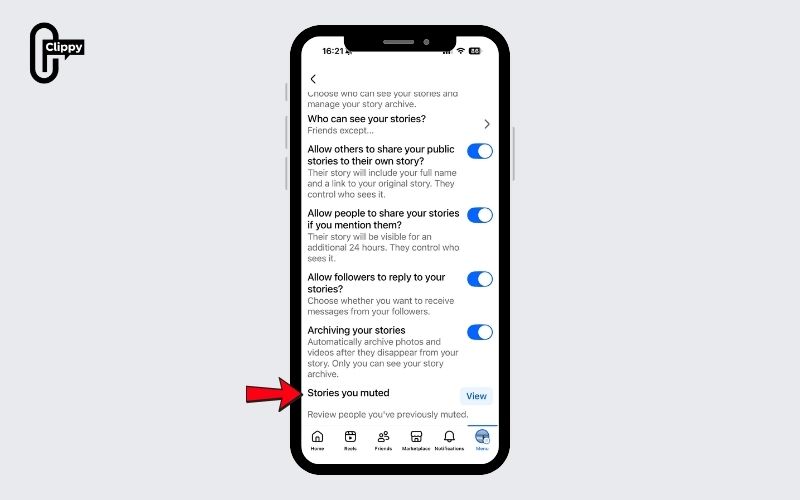
Step 3: In the Audience and visibility section, tap Stories, then choose Stories you’ve muted.
Step 4: Find the person whose stories you want to restore and tap Unmute next to their name.
Key things to know
Before muting or unmuting stories on Facebook, it’s helpful to understand how this feature actually works and what it affects. Knowing these key details ensures you manage your feed without unintentionally impacting your connections or visibility.
- Muting only affects stories, meaning the person’s story will no longer appear at the top of your Feed, while their regular posts remain visible as usual.
- Your friendship status stays unchanged, so muting does not unfriend, unfollow, or restrict the person in any way.
- The action is completely private, and only you can see when a story is muted or unmuted.
- You can reverse it anytime, allowing you to unmute stories whenever you want to see their updates again.
- It helps personalize your feed, giving you control over what content appears without causing awkward social interactions.

FAQs about how to mute stories on Facebook
Muting stories is a simple feature, but many users still have questions about how it works and what impact it has on their Facebook experience. Below are some of the most frequently asked questions to help you understand story muting more clearly.
Will someone know if I mute their Facebook story?
No. Facebook does not notify users when their stories are muted or unmuted. This action is completely private and only visible to you.
Does muting a story also mute posts from that person?
No. Muting a story only hides their stories from the top of your Feed. You will still see their regular posts in your News Feed as usual.
Can I unmute a story later if I change my mind?
Yes. You can unmute stories at any time through Facebook’s settings. Once unmuted, that person’s stories will appear again like normal.
Is muting the same as unfollowing or blocking someone?
Not at all. Muting is a lighter option that only affects stories. Unfollowing hides posts, while blocking removes all interaction and visibility.
Can I mute stories on both mobile and desktop?
Yes. Facebook allows you to mute stories on both the mobile app and desktop version, using slightly different but equally simple steps.
Now that you know how to mute stories on Facebook, customizing your feed becomes effortless. You can hide unwanted stories without unfriending or blocking anyone. The feature is private, flexible, and easy to reverse at any time. Enjoy a cleaner, more focused Facebook experience starting today.

