

Imagine hearing someone’s laugh instead of just reading “LOL.” That’s why knowing How to send voice message on Facebook Dating matters more than ever. It builds connection, trust, and chemistry faster. Video Download Free walks you through the process in the News article below.
Quick Guide
To send a voice message on Facebook Dating, open the conversation with your match, look for the microphone icon in the chat bar, hold it to record, and release to send. If unavailable directly, you can record audio using your phone’s voice recorder app and share the file, or check for microphone permissions in your settings.
How to send voice message on Facebook Dating
Voice messages can make your conversations on Facebook Dating feel more personal and engaging. Instead of typing long texts, you can share tone, emotion, and personality in just a few seconds. Below is a clear guide on how to send a voice message, along with troubleshooting tips if the feature isn’t working on your device.
How to Access the Voice Message Feature
To send a voice message, open the Facebook app and tap the Menu, then go to the Dating section. Select the match you want to message and open your chat conversation.
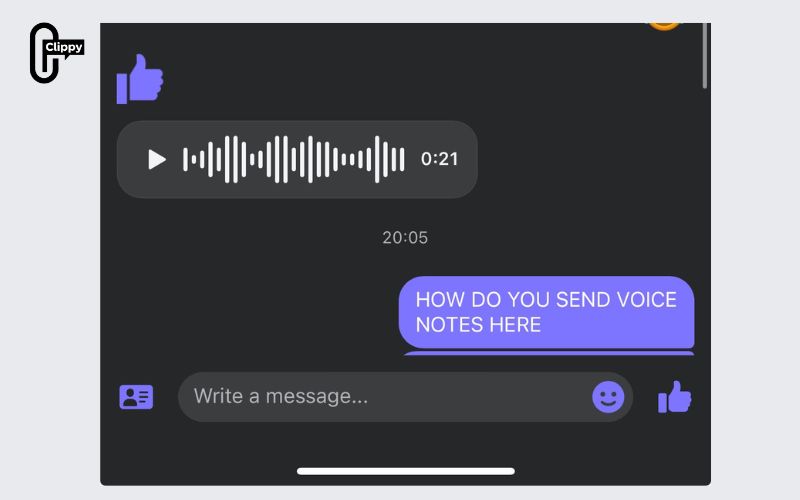
Inside the chat window, look for the microphone icon next to the message input field. If you see it, you’re ready to record and send a voice message instantly.
How to Record and Send a Voice Message
Once inside the chat, press and hold the microphone icon to start recording your voice. Keep holding it while you speak your message clearly. When you release the icon, the recording will automatically send to your match.
Voice messages are usually limited to around 60 seconds, so keep your message short and natural. If you make a mistake, simply record again before sending another one.
Troubleshooting on iOS and Android
If you don’t see the microphone icon, try closing and reopening the Facebook app. You can also check your device’s app permissions to ensure that microphone access is enabled.
Make sure your Facebook app is updated to the latest version via the App Store or Google Play Store. Some users report that the voice feature is gradually rolled out, meaning it may not be available to everyone at the same time.
Alternative Method to Send Audio
If direct voice recording doesn’t work, you can use your phone’s built-in voice recorder app to record an audio file. After recording, return to the Dating chat and attach the audio file manually (if file sharing is supported).
This workaround allows you to still send voice-based communication even if the in-app microphone feature isn’t functioning properly.
Why Can’t I Send a Voice Message on Facebook Dating?
If you’re trying to send a voice message on Facebook Dating but can’t find the microphone icon or the recording feature isn’t working, you’re not alone. This issue is usually caused by app permissions, outdated software, regional limitations, or connectivity conflicts. Below are the most common reasons — and how to fix them quickly.
Microphone Permission Not Enabled
One of the most common reasons you can’t send a voice message is that Facebook doesn’t have permission to access your microphone. Without this permission, the recording feature simply won’t appear or function properly.
On iPhone, go to Settings → Privacy & Security → Microphone → Facebook and toggle it on. On Android, go to Settings → Apps → Facebook → Permissions → Microphone and allow access. Once enabled, reopen the app and check your Dating chat again.
Outdated Facebook App Version
If your Facebook app isn’t updated, certain features — including voice messaging — may not work correctly or may not be available at all. Facebook frequently rolls out updates that fix bugs and enable new tools.
Visit the App Store (iOS) or Google Play Store (Android) and check for updates. Install the latest version, restart the app, and see if the microphone icon appears in your Dating conversation.
Feature Not Available in Your Region
Facebook Dating features are sometimes released gradually, meaning voice messaging may not yet be supported in your country or account. Facebook often tests features with limited groups before full rollout.
If everything else is working properly but the microphone option is missing, it could simply be a regional restriction. In this case, you may need to wait for Facebook to enable the feature in your area.
Network Issues or VPN Conflicts
A weak internet connection or active VPN can interfere with app functionality. VPNs may change your IP location, which can cause certain features to malfunction or disappear.
Try switching to a stable Wi-Fi connection and temporarily disabling your VPN. After that, close and reopen Facebook Dating to check if the voice message feature works properly.

Temporary App Glitch or Cache Problem
Sometimes the issue is just a temporary bug. Cached data or background conflicts can prevent features from loading correctly.
Try restarting your phone first. If that doesn’t help, clear the Facebook app cache (Android) or reinstall the app (iOS & Android). This often resolves hidden technical errors and restores missing tools.
Are Voice Messages on Facebook Dating Safe and Private?
Voice messages on Facebook Dating are designed to stay private between you and your match. They only appear within your Dating conversation and are not posted to your main Facebook profile, News Feed, or visible to friends. Facebook Dating operates as a separate space inside the app, so your activity there remains discreet. If you ever feel uncomfortable, you can unmatch or block the person, which immediately limits further interaction and helps you maintain control over your privacy.
Now you know exactly How to send voice message on Facebook Dating and why it can completely transform your conversations. A simple voice note adds emotion, authenticity, and confidence that text alone can’t deliver. If you want to stand out and get faster replies, this is your secret weapon. Don’t just type… let your voice do the magic.

