

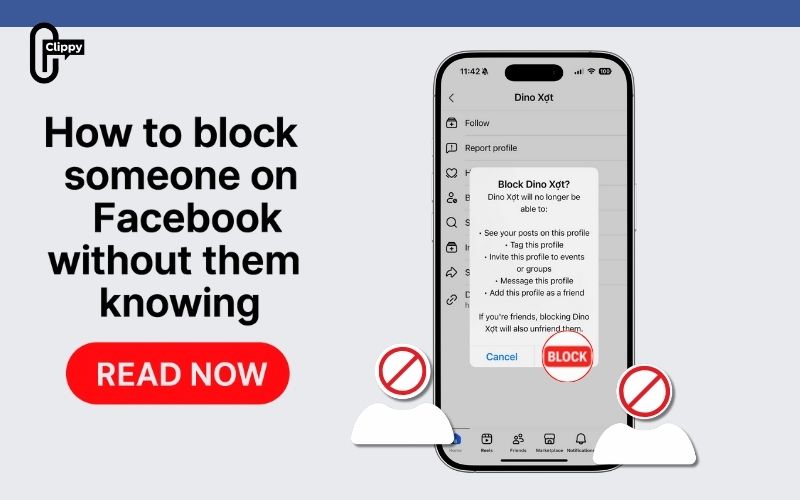
How to block someone on Facebook is a common concern for users who want to protect their privacy or avoid unwanted interactions. Blocking is a simple but powerful feature that instantly stops someone from contacting you. Whether it’s for safety or peace of mind, knowing how it works is essential. Let’s find out with Video Download Free the most effective way to block someone.
Key Takeaways
- Understand what blocking does on Facebook and how it affects interactions.
- Learn how to block someone using both the desktop website and the mobile app.
- Know how to block a nickname in a Facebook group and how it differs from blocking a main profile.
- Find out how to unblock someone and manage your blocked list.
- Get clear answers to common questions about notifications, Messenger limitations, and blocking rules.
What does blocking mean on Facebook?
Blocking someone on Facebook stops them from interacting with your profile in nearly every way. They won’t be notified that they’ve been blocked, though certain clues may allow them to guess.
Keep in mind that blocks apply to each individual profile you own. So if you use multiple Facebook profiles and want to restrict someone from all of them, you’ll need to block that person separately on each account.
What happens when you block someone on Facebook?
Knowing how to block someone on Facebook also means understanding the effects. Blocking someone instantly stops all interactions between you and that person.. When you initiate a block from your settings or their profile, Facebook will display a pop-up explaining the effects. Once blocked, the person will no longer be able to:
- View anything you post on your profile
- Tag you in posts, comments, or photos
- Invite you to groups, pages, or events
- Send you messages
- Send you a friend request or add you as a friend
>>> See Also: How to Facebook friend request super fast in just 3 seconds
How to block someone on Facebook using the desktop website
Blocking someone on Facebook prevents them from viewing your posts, tagging you, messaging you, or sending friend requests. The process is straightforward, and you can do it either through your settings or directly from their profile. Follow the steps below to block anyone quickly and safely.
Method 1: Block through Facebook settings (desktop)
Step 1: Open Facebook and go to your profile. Click the downward arrow in the top-right corner of the page.
Step 2: Select Settings & Privacy from the dropdown menu. Click Settings.
Step 3: In the left sidebar, choose Privacy. From the same sidebar, click Blocking.
Step 4: Under Block users, type the name of the person you want to block. Tip: You can also unblock someone from the list displayed below this field.
Step 5: Click Block, then choose the correct person from the list. Click Block again to confirm.
>>> See Also: How to know who unfriended you on Facebook easily, safely

Method 2: Block directly from someone’s profile
Step 1: Visit the person’s Facebook profile.
Step 2: Click the three dots (…) near the upper-right corner of their profile.

Step 3: Select Block from the dropdown menu.

Step 4: Click Confirm to finalize the action.

How to block someone on Facebook using the mobile app
Blocking a user on the Facebook mobile app takes only a few taps and works the same on any smartphone or tablet. It’s a quick way to stop unwanted interactions and control who can see or contact you.
Step 1: Open Facebook, search for the person’s profile, and tap to open it.
Step 2: Tap the three horizontal dots next to the Message button.
Step 3: Select Block from the menu options.
Step 4: When the confirmation pop-up appears, tap Block again to finalize.
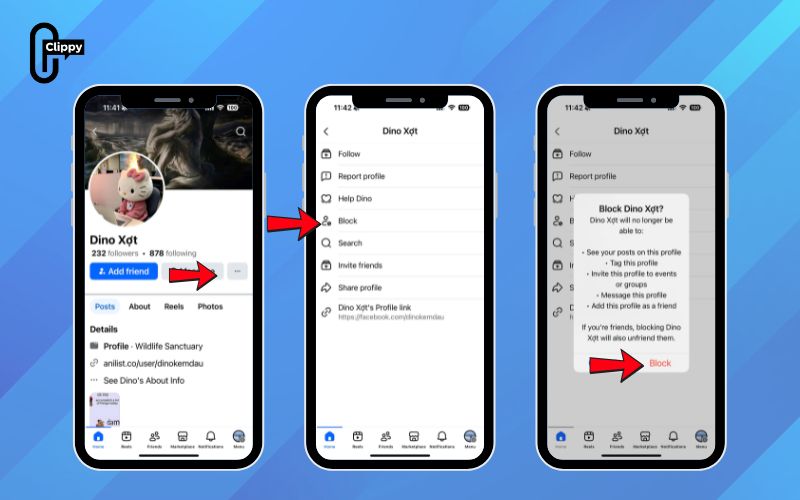
This is the most convenient way for mobile users searching how to block someone on Facebook on iPhone or Android.
How to block a nickname in a Facebook group
Blocking a nickname in a Facebook group is useful when you want to stop specific members from interacting with you without blocking their main profile. This action only affects the nickname used inside that group and doesn’t impact the user elsewhere on Facebook.
Step 1: Find a post or comment made by the nickname you want to block.
Step 2: Click on the nickname or its profile photo to open the group profile.
Step 3: Next to the nickname, click Options.
Step 4: Select Block [Nickname], then confirm by clicking Block again.
Note: Blocking a nickname only applies inside that group and does not block the user’s main Facebook profile.
>>> See Also: How to unfriend someone on Facebook without them knowing

Top questions users ask about Facebook blocking
With different devices and multiple ways to block or unblock someone, the process can easily feel confusing. To help you navigate it, we’ve answered the most common questions about Facebook blocking below.
Will I know if someone blocked me on Facebook?
Not directly. Facebook doesn’t tell you when someone blocks you. However, if you search for their profile and it no longer appears, they may have blocked you or simply unfriended you.
Does Facebook notify someone when they’re blocked?
No. Facebook does not notify users when they’ve been blocked, and you also won’t receive notifications if someone blocks you.
Can you block someone on Facebook but not on Messenger?
In short, NO. Blocking someone on Facebook automatically blocks them on Messenger because the two platforms are tightly connected.
However, there are alternative settings such as restricting, muting, or ignoring conversations that can limit someone’s access without fully blocking them. These tools offer more flexible ways to manage your interactions.
How do I unblock someone on Facebook Messenger?
If you unblock a person on Facebook, they’re automatically unblocked on Messenger as well.
How do I find and unblock someone on Facebook?
Go to Settings → Privacy → Blocking. Under Manage blocking, open Block users and click Edit. From here, you can view your blocked list and choose to block or unblock anyone.
How can I make someone unblock me on Facebook?
You can’t. There’s no feature that forces someone to unblock you, you’ll need to ask them directly. You can only unblock people you yourself have previously blocked.
How to block someone on Facebook gives you clear control over who can reach or view your profile. With these easy steps, you can stop unwanted contact instantly. Blocking is discreet, effective, and reversible, making it perfect for managing your online space. You now have everything you need to keep your account safer. Remember to check out other articles in our Blog for more useful Facebook tips.

