


Learning how to block Facebook stories is the easiest way to declutter your feed and take back control of what you see every day. Whether you’re tired of constant updates, avoiding certain people, or simply want a cleaner browsing experience, blocking Stories helps you stay focused and distraction-free. In this guide of Video Download Free, you’ll discover the fastest and most effective methods to hide, mute, or remove Stories across all devices.
Key Takeaways
- Blocking Facebook Stories helps clean up your feed and reduce distractions.
- You can block, mute, or hide Stories from specific friends or pages without unfriending them.
- Facebook allows Story blocking on both mobile and desktop through simple settings.
- Muting Stories does not affect your ability to post your own.
- There’s no limit to how many accounts you can block from your Stories bar.
Why may you need to turn off Facebook stories?
Facebook Stories appear everywhere from your News Feed to Messenger and while they’re designed to be quick, engaging updates, not every user wants to see them constantly.
With hundreds of Stories posted every minute, muting certain accounts can help clean up your feed, save time, and remove content you don’t want to interact with. Turning off Stories is also a subtle way to filter your experience without unfriending or blocking anyone.
- Some users flood your Stories bar: When someone posts too many Stories throughout the day, they dominate the top of your feed and can feel overwhelming. Muting their Stories helps you skip all of their updates at once without having to tap through each one.
- You want to reduce distractions and stay focused: If you’re trying to save time or maintain productivity, constant Story updates can pull your attention away from more important tasks. Turning Stories off keeps your feed cleaner so you can stay focused on what matters.
- You want to avoid negative or irritating content: Certain users may repeatedly share content that feels negative, cringe-inducing, or simply not aligned with your interests. Muting their Stories allows you to protect your mindset without taking drastic actions like unfriending.
How to block Facebook stories from someone on Mobile
If you prefer a cleaner, distraction-free feed, Facebook allows you to mute Stories from specific accounts right inside the mobile app. Just follow the simple steps below to disable Stories on both Android and iOS.
Step 1: Log in to Facebook
Open the Facebook mobile app and sign in. At the top of your feed, you’ll see a row of Stories. Press and hold the Story from the account you want to mute.
Step 2: Hold the story you want to mute
A pop-up menu will appear, giving you options to view the profile/page or mute Stories from that account.
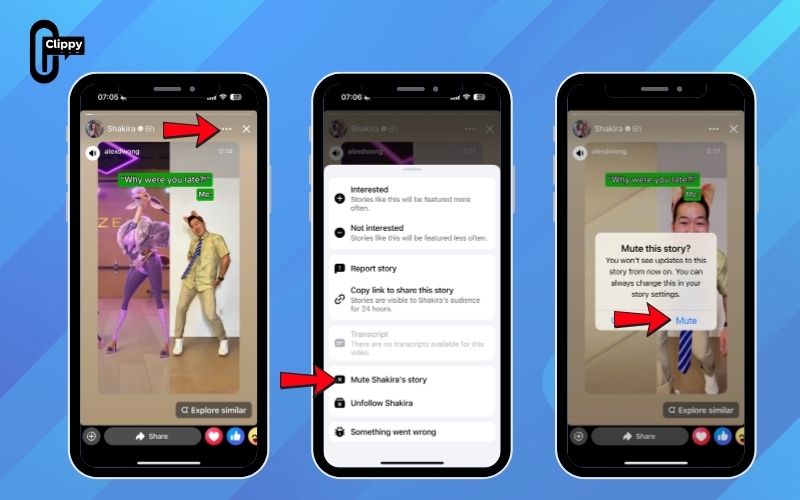
Step 3: Tap the Three Dots (Alternate Method)
If you don’t want to long-press, you can tap the Story to open it. Then select the three dots in the upper-right corner to access more options similar to the desktop version.
Step 4: Select “Mute <Account Name>”
Choose the Mute option. Facebook will ask you to confirm that you want to hide all future Stories from this account.
Step 5: Confirm story mute
Tap Mute to complete the action. All Stories from that account will be hidden, but their regular posts will still appear in your feed.
>>> See Also: How to view Facebook stories anonymously without being seen
How to block stories on Facebook feed on computer
If you’re using Facebook on a Mac or PC, you can easily mute Stories from specific accounts directly through your browser. This method gives you full control over which Stories appear at the top of your News Feed.
Step 1: Log in to your Facebook account using any browser on your Mac or PC.
Step 2: At the top of your News Feed, you’ll see all active Stories. Click “See all.” (You can also click a single Story to jump directly to its detail view.)
Step 3: If you haven’t selected a Story yet, choose one from the list on the left-hand side. Click the blue circle next to the account to open the Story details.

Step 4: In the upper-right corner of the Story, click the three dots to open more options. Select “Mute”.
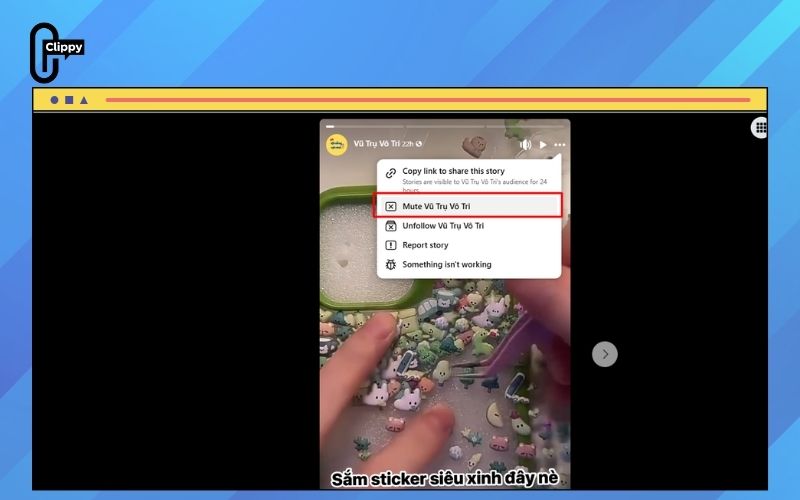
Step 6: A confirmation pop-up will appear. Click the blue “Mute” button to finalize your choice.

How to unmute Facebook stories you previously hid
If you muted someone’s Stories by mistake or simply want their updates back in your feed, Facebook makes it easy to reverse the action. You can restore any hidden Stories in just a few clicks whether you’re using a computer or mobile device.
Step 1: Log in to your Facebook account
Open Facebook on your computer and sign in.
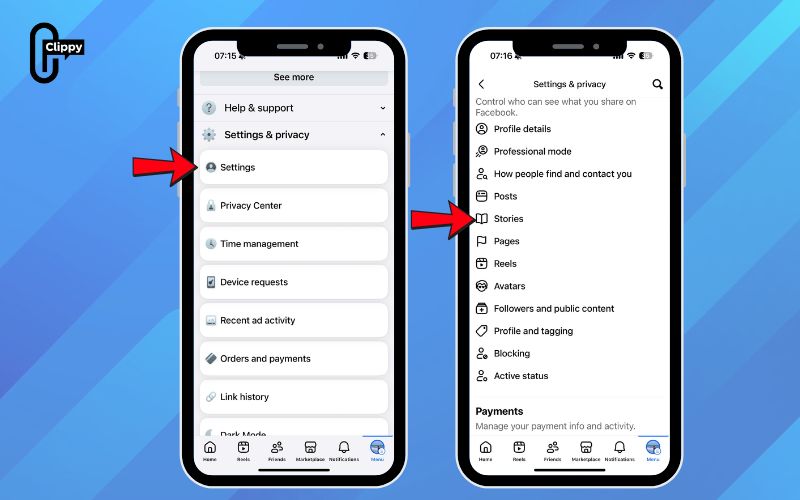
Step 2: Open your settings
Click your profile photo or the down arrow in the upper-right corner, then choose “Settings & privacy”.
Step 3: Go to feed preferences
Select “Settings” where you can control what content appears in your feed including Stories, posts, and Reels.
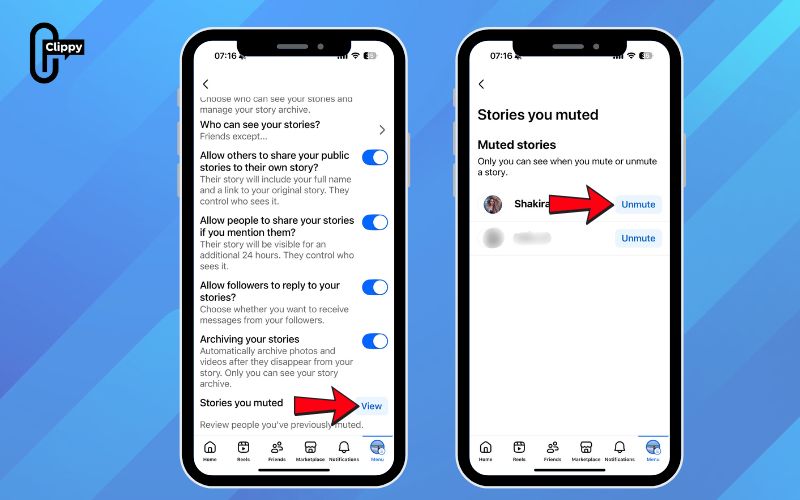
Step 4: Locate muted stories
In the Stories section, look for “Stories you muted”. This menu lists all profiles and pages whose Stories you previously hid.
Step 5: Unmute the stories
Find the account you want to restore and click “Unmute”. Their Stories will immediately start appearing in your Story bar again.
Once you’ve learned how to mute and unmute Stories, you can better manage what appears in your feed and tailor Facebook to your preferences. Now, let’s explore a few advanced features that can help strengthen your Facebook presence even further.
FAQs about how to block Facebook stories
If you want more control over what appears in your Facebook Stories bar, you’re not alone. Many users prefer a cleaner, distraction-free feed and look for ways to hide, remove, or even download Stories. Here are the most common questions and detailed answers.
How do I remove Stories from the Facebook bar completely?
When you mute or turn off Stories from specific accounts, Facebook automatically hides them from your Stories bar. You won’t see updates from those users anymore unless you manually unmute them.
How can I download Facebook stories?
Facebook doesn’t offer a built-in feature to download someone else’s Story. To save Stories from others, you’ll need a reliable third-party downloader; many free and paid options exist online. A typical example is the Clippy app, which you can download directly from CH Play to use!
Can I permanently remove Facebook stories from my feed?
Yes. You can customize your feed in the Settings menu and permanently hide Stories so they no longer appear at the top of your Facebook interface.
Will hiding or removing stories affect my ability to post my own?
Not at all. Muting or removing Stories only affects what you see, not what you can create. You can continue posting your own Stories normally.
Can I hide stories from specific friends or pages?
Absolutely. Facebook allows you to mute Stories from chosen friends or pages without unfriending or unfollowing them. This can be done from the Stories menu on both mobile and desktop.
Is there a limit to how many stories I can hide?
No. Facebook places no limit on the number of accounts you can mute. You can hide as many Stories as needed to customize your feed exactly the way you prefer.
Now that you know exactly how to block Facebook stories, you can finally browse your feed without clutter, noise, or unwanted updates. Whether you’re minimizing distractions or avoiding specific content, blocking Stories makes your Facebook experience cleaner and more intentional. Take charge of your feed today and enjoy a more focused, personalized Facebook journey.

