


Instagram’s Explore page is built to show content tailored to your interests, but as your activity changes, those recommendations can quickly become outdated or irrelevant. Likes, searches, follows, and even how long you watch certain posts all influence what appears on Explore, which is why unwanted content can start to dominate your feed over time.
If you are wondering how to reset Instagram Explore Page suggestions, there are now effective ways to do it. Instagram has introduced an official reset option for some users, and even if that feature is not available on your account, you can still refresh Explore by clearing old signals and retraining the algorithm. This guide of Free App Download Video explains every method step by step so you can regain control over your Explore page.
Key Takeaways
- Instagram Explore recommendations are based on your activity, including likes, searches, follows, and watch behavior.
- Some users can reset Instagram Explore page content using the built-in “Reset Suggested Content” feature.
- If the reset option is unavailable, manual methods like marking posts as “Not Interested” and clearing search history still work.
- Changing how you engage with content is essential for retraining the Explore algorithm after a reset.
- Results are not instant and usually take several days or weeks of consistent behavior to fully update.
Can you reset the Instagram Explore Page?
Yes, you can reset or refresh the Instagram Explore page, but the method depends on what features are available on your account. Instagram has introduced an official “Reset Suggested Content” option for some users, which provides the fastest and cleanest reset.

If you do not see this option yet, you can still apply how to reset Instagram Explore Page techniques manually by clearing old signals and changing how you interact with content. It is important to understand that results are not always instant, as Instagram’s algorithm needs time to learn from your new behavior.
>>> See more: Broadcast Channel Instagram: Full Guide for Creators and Followers
Use Instagram’s Reset Suggested Content Feature (Best Method)
The most effective way to apply how to reset Instagram Explore page recommendations is by using Instagram’s built-in “Reset Suggested Content” feature, when it is available on your account. This option allows you to refresh suggestions across Explore, Reels, and Feed in one action.
This feature works by removing past recommendation data that Instagram has collected from your activity. After the reset, Instagram will begin rebuilding suggestions based on what you engage with going forward, rather than relying on old interests.
To reset the Instagram Explore page using this feature, follow these steps:
Step 1: Open the Instagram app on your mobile device and make sure you are logged in to the correct account.
Step 2: Go to your Profile by tapping your profile photo in the bottom-right corner of the screen.

Step 3: Tap Settings & Privacy by selecting the three-line menu in the top-right corner of your profile.
Step 4: Scroll down and tap Content Preferences to access recommendation controls.

Step 5: Select Reset Suggested Content to refresh Explore, Reels, and Feed recommendations.

Step 6: Confirm the reset when prompted to allow Instagram to clear past suggestion data.
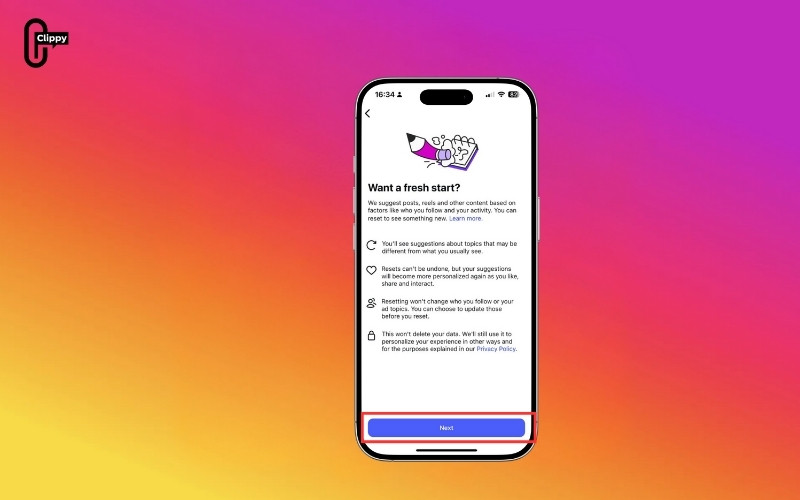
After completing these steps, Instagram will start showing more neutral content while it relearns your preferences. Keep in mind that this feature is rolling out gradually. If you do not see it yet, it may not be available in your region, on your device, or on your current app version.
How to reset the Instagram Explore Page manually
If the reset option is not visible on your account, you can still follow How to Reset Instagram Explore Page methods manually. These approaches take more time but are effective when used consistently.
Mark Explore Posts as Not Interested
One of the simplest ways to reset the Instagram Explore page content is to tell Instagram what you do not want to see. On the Explore tab, you can tap the three-dot menu on a post and select “Not Interested.” Doing this repeatedly helps Instagram understand which topics, creators, or formats you want to avoid. Over time, this reduces similar content from appearing in your Explore feed.
>>> See more: How to Turn On Dark Mode on Instagram (Full Guide)

Stop Engaging With Irrelevant Content
Instagram treats engagement as a strong signal. Even watching a video to the end, tapping into a post, or pausing on content can reinforce similar recommendations. To successfully apply How to Reset Instagram Explore Page, avoid liking, commenting, saving, or fully watching content you no longer care about.

Clear Instagram Search History to Refresh Explore
Your search activity plays a major role in shaping what appears on the Explore page. Searching for a topic multiple times often causes related content to dominate Explore results.
To clear your Instagram search history, open the search tab, tap the search bar, choose “See All” next to recent searches, and then select “Clear All.” Confirm the action to remove your past searches.
Removing old searches helps Instagram stop associating your account with outdated interests, allowing Explore suggestions to adjust more quickly to your current behaviour.
>>> See more: How to Unsync Facebook and Instagram: Fast & Easy Methods
Optional advanced methods to refresh the Instagram Explore Page
For users who want a deeper refresh, there are additional steps that may help remove lingering recommendation data stored locally on the device.
Clear Instagram App Cache on Android
Clearing the Instagram app cache on Android can be helpful if your Explore page seems stuck. Cache files store temporary data, and clearing them can remove leftover signals without deleting your account, supporting long-term results after learning How to Reset Instagram Explore Page.
Reinstall Instagram on iPhone
On iPhone, clearing cache directly is not an option, but deleting and reinstalling the Instagram app achieves a similar result. Reinstalling removes local app data but does not delete your account, followers, or posts. While this does not reset the algorithm completely, it can help refresh how content loads on your device.
How long does it take to reset the Instagram Explore Page?
Resetting the Instagram Explore page content is not instant. If you use the official reset feature, you may notice changes within a few days. Manual methods usually take longer, often one to two weeks of consistent behavior changes. The key is to be patient and intentional with your engagement so Instagram can accurately relearn your interests.
Conclusion
Resetting your Instagram Explore page is not about flipping a single switch but about removing old signals and consistently showing Instagram what you actually want to see. Whether you rely on the official reset feature or manual techniques tied to How to Reset Instagram Explore Page, long-term results depend on mindful engagement. By interacting only with relevant content and avoiding unwanted posts, your Explore page will gradually reflect your true interests.
Frequently asked questions about how to reset the Instagram Explore Page
Does resetting Instagram Explore affect my followers or posts?
No, resetting the Explore page does not affect your followers, posts, likes, or comments. It only changes the content Instagram recommends to you.
Can I reset Explore without clearing search history?
Yes, it is possible, but clearing search history helps speed up the process. Without clearing searches, Instagram may continue to associate your account with older interests.
Will Instagram Explore reset automatically over time?
Yes, Explore content can change naturally if your interests and engagement habits change. However, this process is slower than actively resetting or retraining the algorithm.
Does resetting Explore affect ads or sponsored posts?
No, ads and sponsored posts are shown based on Instagram’s advertising system and may still appear even after resetting Explore recommendations.
>>> See more: Types of Instagram Accounts: Which One Is Right for You?

