

Facebook and Instagram are often linked through the Meta Accounts Center, allowing users to sync profile details, share posts across platforms, and log in using a single account. While this integration is convenient, many users eventually prefer keeping the two platforms separate, whether for privacy reasons, clearer audience segmentation, or better control over how content is shared.
Learning how to unsync Facebook and Instagram ensures you can manage each account independently and prevent automatic interactions between them. Before you disconnect your accounts, it’s important to understand exactly what unsyncing does in the background and how it affects your overall experience on both platforms.
Key Takeaways
- Unsyncing removes the connection between Facebook and Instagram in the Meta Accounts Center, giving you full control over each account.
- You can unsync using the Instagram app, Facebook app, or desktop, depending on which platform you prefer.
- Once unsynced, profile details no longer sync, and automatic cross-posting stops for posts, Reels, and Stories.
- You will need a separate login for Instagram if your account was created using Facebook.
- Unsyncing does not delete any existing content posts and shared media stay intact until removed manually.
- If you encounter issues, check Page connections, shared login credentials, or cross-posting settings, which often cause unsyncing problems.
- You can reconnect the accounts anytime through the Meta Accounts Center if needed.
What happens When You Unsync Facebook and Instagram?
When your Facebook and Instagram accounts are connected, Meta uses the Accounts Center to synchronize login methods, profile updates, and certain content-sharing features. Unsyncing breaks this connection and restores each platform to its own standalone settings.
Once disconnected, you’ll no longer be able to use your Facebook login to access Instagram, and updates to your profile photo, name, or avatar will no longer sync across both platforms. Automatic cross-posting also stops, meaning Instagram posts, Reels, and Stories will no longer appear on Facebook unless you share them manually.
The platforms will also exchange less behavioural data, which may influence ad targeting and recommendations. However, unsyncing does not delete any existing content. Anything shared while the accounts were connected will remain visible until you choose to remove it. The biggest change is that both accounts regain full independence, giving you greater control over privacy and content distribution.
How to Unsync Facebook and Instagram via the Instagram App
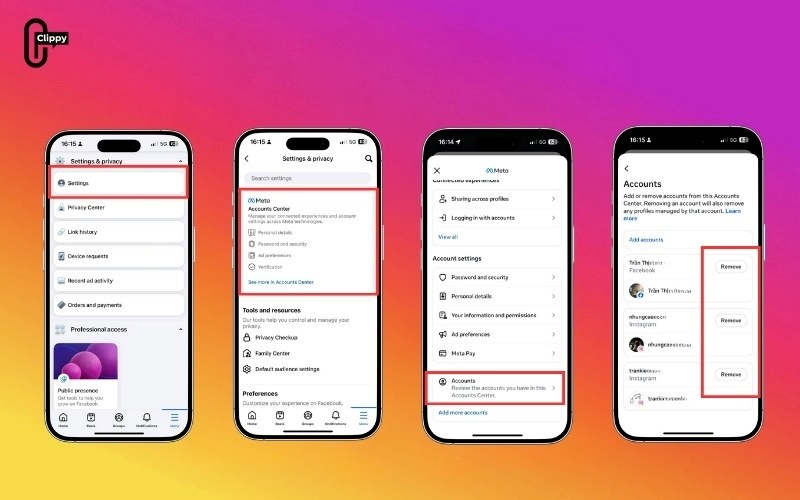
If you spend most of your time on Instagram, this is likely the easiest method for anyone looking for how to unsync Facebook and Instagram quickly.
- Step 1: Open Instagram and go to your profile.
- Step 2: Tap Settings and privacy.
- Step 3: Scroll to the Meta section and open Accounts Center.
- Step 4: Tap Accounts.
- Step 5: Select the Facebook account you want to disconnect.
- Step 6: Tap Remove from Accounts Center, then confirm your choice.
- Once completed, Instagram and Facebook stop working together, and all cross-platform features are turned off.
>>> See more: Types of Instagram Accounts: Which One Is Right for You?
How to Unsync Facebook and Instagram via the Facebook App
This approach works best if your Instagram is connected to a Facebook Page or if you manage multiple accounts under Meta Business tools.
- Step 1: Open the Facebook app.
- Step 2: Go to Settings & privacy, then select Settings.
- Step 3: Scroll down to Accounts Center.
- Step 4: Select your connected Instagram profile.
- Step 5: Choose Remove from Accounts Center and confirm.
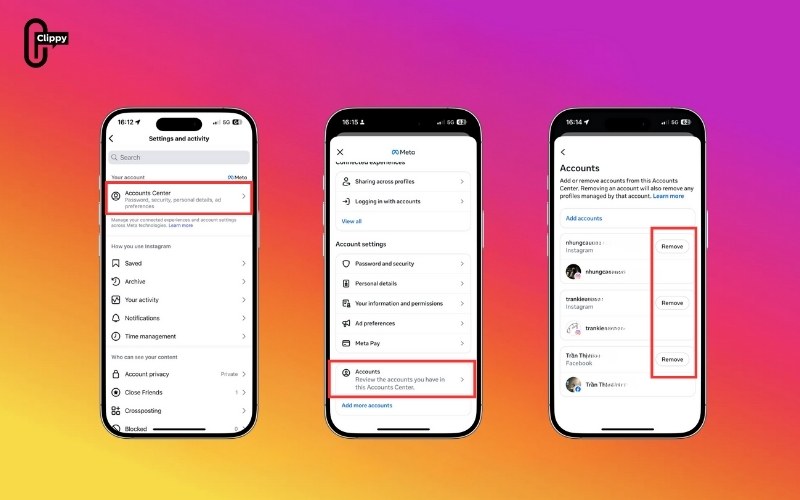
After removing Instagram here, your accounts will no longer share login data or sync content. This is one of the most reliable ways to follow how to unsync Facebook and Instagram if your Page integrations cause conflicts on Instagram.
How to Unsync Facebook and Instagram on Desktop
Some users prefer managing account settings on a computer, especially when dealing with business accounts. The desktop method is also a dependable solution for how to unsync Facebook and Instagram if the mobile interfaces feel confusing.
Step 1: Go to Facebook.com or Instagram.com and open Settings.
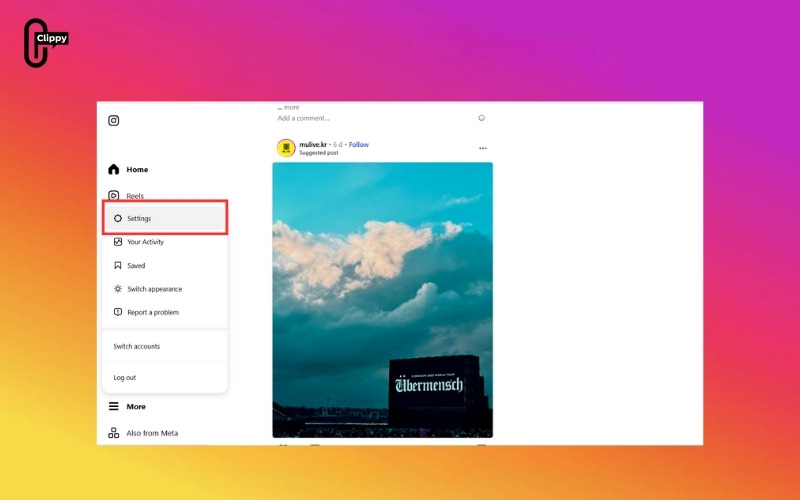
Step 2: Navigate to Accounts Center.
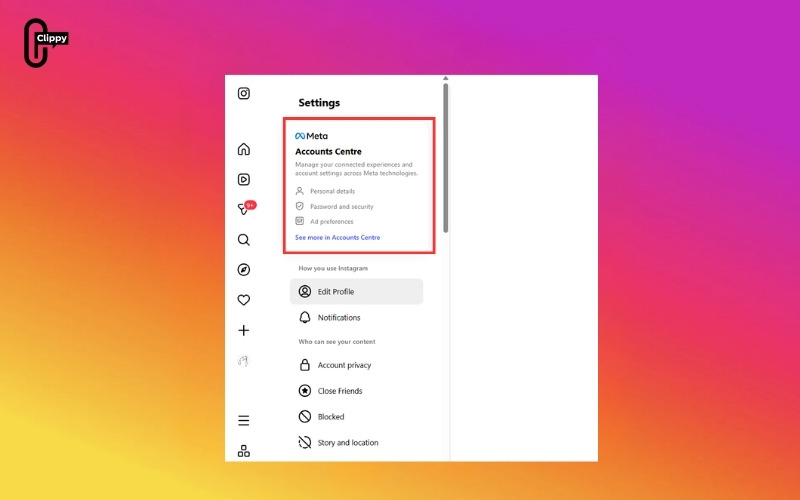
Step 3: Click Accounts.

Step 4: Select the Facebook or Instagram account you want to remove.
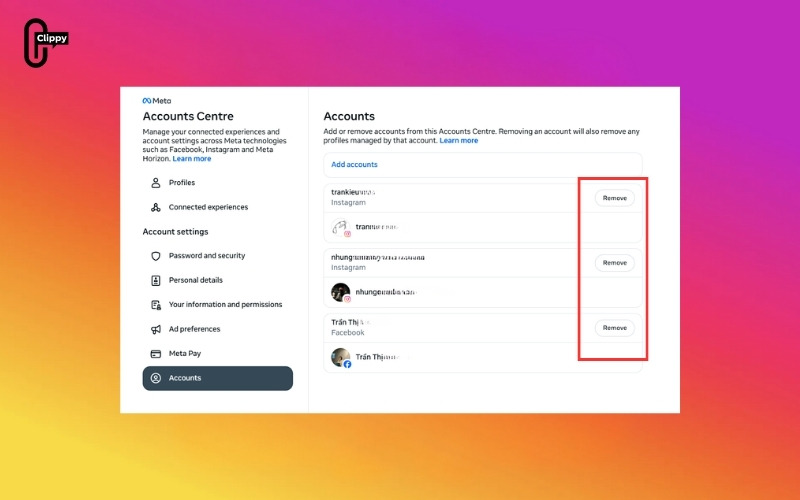
Step 5: Click Remove from Accounts Center, then confirm.
This ensures that the disconnection applies to all devices, browsers, and apps associated with your Meta accounts.
>>> See more: How to Turn On Dark Mode on Instagram (Full Guide)
What Changes After You Disconnect Facebook and Instagram
Unsyncing your accounts affects several key features that previously worked together. Here is what you can expect once they are disconnected:
- Your name, profile picture, and other profile details will no longer sync automatically between platforms.
- Automatic cross-posting of Instagram posts, Reels, and Stories to Facebook is disabled; content must be shared manually.
- Login permissions become separate; you cannot use your Facebook login to access Instagram. If your Instagram account was created through Facebook, you may be asked to set a new password.
- Meta reduces data sharing between the apps, which may influence personalized content and advertising.
- Any posts or stories shared before unsyncing will remain on both platforms until you manually remove them.
These changes help you manage each account independently with more control over your content and privacy.
How to Fix Problems When Unsyncing Facebook and Instagram
Some users may experience issues while disconnecting their accounts, often due to Page connections, shared login credentials, or enabled cross-posting settings. Below are the most common problems and the steps to resolve them.
The “Remove from Accounts Center” Option Is Missing
This typically occurs when your Instagram is linked to a Facebook Page. To fix this, open your Facebook Page settings, locate the Instagram connection, and remove it. You can then return to Accounts Center and complete the unsyncing process.
Accounts Reconnect Automatically
If your accounts share the same login information, Meta may automatically re-link them. Creating separate passwords for both Facebook and Instagram prevents automatic reconnection.
Instagram Requests a New Password
Instagram will prompt you to create a new password if your account was created using Facebook login. This is necessary because the shared login is no longer available once the accounts are disconnected.
Cross-Posting Still Occurs After Unsyncing
Cross-posting settings may remain active even after the accounts are disconnected. To stop this, go to Instagram Settings, open the Accounts Center, select “Sharing across profiles,” and turn off all sharing options.
>>> See more: How to Switch to a Personal Account on Instagram (Step-by-Step Guide)
FAQs about Unsyncing Facebook and Instagram
Can I reconnect the accounts later?
Yes. You can relink them anytime through the Accounts Center.
Will disconnecting delete anything?
No. All posts, stories, messages, and data remain intact unless removed manually.
Does unsyncing affect ads or boosted posts?
It may affect permissions for business accounts. Reconnecting the accounts will restore them.
Is there a difference for business or creator accounts?
Yes. If your Instagram is linked to a Facebook Page, you may need to remove the Page connection in addition to disconnecting from the Accounts Center.
Conclusion
Now that you understand how to unsync Facebook and Instagram, you can control how both platforms interact, protect your privacy, and manage your content workflow more effectively. Whether you choose the Instagram app, the Facebook app, or the desktop method, the process is straightforward and reversible. Once separated, each account functions independently, giving you full authority over your social presence across both platforms.
>>> See more: Broadcast Channel Instagram: Full Guide for Creators and Followers

