

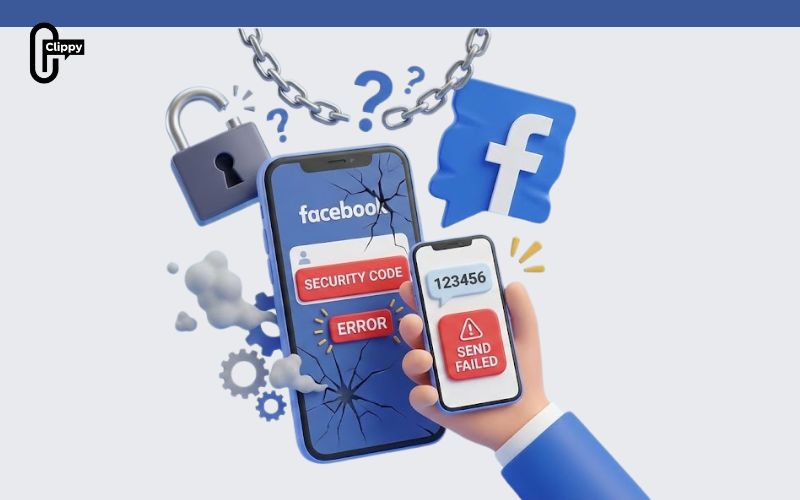
When Facebook security code not working blocks your access, panic is often the first reaction. But in most cases, the problem has a clear technical or security-related cause. Understanding how Facebook verification works can save you hours of frustration. Analyze in detail with Video Download Free in the following News article.
Quick Guide
If your Facebook security code isn’t working, first check for delays (SMS) or spam folders, ensure the correct number/email is used, clear browser cache, or try another device; if still stuck, use saved recovery codes, request a call, or use Facebook’s “Having trouble?” link to confirm identity. Common fixes involve verifying phone/email, using recovery codes from Meta Account Center, or troubleshooting network/app issues.
Initial checks & simple fixes when you don’t receive a code
Before assuming there’s a serious issue, most verification code problems can be solved with a few quick checks. Delays, incorrect information, or minor technical conflicts are common causes. Go through the steps below in order to identify and fix the problem as quickly as possible.
Wait a Few Minutes for the Code
SMS or email verification codes are not always delivered instantly. Network congestion or system load can cause short delays, especially during peak hours. Wait at least 2 – 5 minutes before requesting a new code, as sending multiple requests too quickly may temporarily block delivery.
Double-Check Your Phone Number or Email
Make sure the phone number or email address linked to your account is correct and up to date. A missing digit, wrong country code, or outdated email address will prevent the code from reaching you. Always verify this information directly in your account settings before retrying.

Check Spam or Junk Folders (Email Codes)
If you’re expecting a verification code via email, it may be filtered into your spam or junk folder. Email providers sometimes flag automated messages incorrectly. Search for keywords like “verification,” “security code,” or the platform name to locate the message faster.
Try a Different App, Browser, or Device
Technical issues can sometimes come from cached data or app glitches. Try switching to a different browser, clearing cache and cookies, or logging in from another device. This helps eliminate local software conflicts that may be blocking the verification process.
Disable VPNs and Check Your Network Connection
Using a VPN or unstable network can interfere with code delivery, especially for SMS verification. Turn off any VPN services and ensure you have a strong mobile signal or stable Wi-Fi connection. Weak or restricted networks often delay or block incoming codes.

Verify Your Device’s Date and Time Settings
Incorrect date or time settings on your device can cause verification failures, as security systems rely on accurate timestamps. Enable automatic date and time synchronization in your phone settings to ensure codes can be validated correctly.
Using recovery options to access your account
If standard verification codes don’t work, recovery options are your next best solution. These methods are designed to help you regain access securely without waiting for SMS or email delivery. Try the options below based on what you’ve previously set up.
Use Saved Recovery Codes
If you enabled two-factor authentication earlier, Meta provided one-time recovery codes. You can find or use them in Meta Account Center > Settings > Password & Security > Two-Factor Authentication. Each code works once and allows you to log in even if your phone or email is unavailable.

Approve Login via App Notifications
If you’re already logged into Facebook or Messenger on another device, Meta may send a login approval notification instead of a code. Simply open the notification and confirm it’s you. This method is fast and avoids SMS or email delays entirely.
Request a Voice Call Instead of SMS
When SMS codes fail, some accounts offer the option to receive the verification code via an automated voice call. This is useful if your carrier blocks SMS or your signal is unstable. Make sure your phone can receive calls and listen carefully for the spoken code.

When Facebook security codes still don’t work (Advanced Fixes)
If you’ve tried basic checks and recovery options but your Facebook security code is still not working, the issue may be deeper than a simple delay. At this stage, the problem often relates to account security triggers, unusual login behavior, or temporary restrictions applied by Facebook’s systems.
Facebook may block code delivery if it detects repeated failed attempts, suspicious IP addresses, or logins from new locations. Try waiting 24 hours before requesting another code, then log in from a trusted device and familiar network. Avoid refreshing or resending codes too frequently, as this can reset the verification timer and prolong the issue.
How to verify your identity without a security code
When verification codes fail completely, Facebook provides alternative identity verification methods to help you regain access. These options are especially useful if your phone number or email is no longer reachable.
Use the “Having trouble?” or “Try another way” link on the login screen to start identity confirmation. Facebook may ask you to upload a government-issued ID, confirm recent account activity, or verify friends you’ve interacted with. While this process can take 24 – 72 hours, it’s often the most reliable solution when security codes are not delivered at all.
When Facebook security code not working keeps blocking your login, the issue is usually technical not permanent. From network delays to recovery options, the right steps can restore access quickly. Don’t rush repeated code requests, as they often make things worse. Fix the cause, follow the process, and regain control of your account.

