


Adding a link to your Instagram bio is one of the most important steps if you want to drive traffic from your profile to a website, online store, blog, or landing page. Since Instagram does not support clickable links in post captions or comments, the bio link becomes the primary way for users to access content outside the platform. For creators, businesses, and brands alike, knowing how to use this feature correctly can significantly improve engagement and conversions.
In this guide on Free download video App, you’ll learn how to add a link to Instagram Bio step by step using both the mobile app and desktop version. We’ll also explain what the term “link in bio” means, how Instagram’s multiple-link feature works, and how to structure your bio links so visitors clearly understand where each link leads.
Key Takeaways
- Adding a link to your Instagram bio allows users to visit external websites directly from your profile.
- The easiest way to add a bio link is through the Instagram mobile app using the Edit Profile and Links section.
- Instagram currently supports adding up to five links in the bio, each with a custom title for clarity.
- Links added through the desktop version appear in the Website field and work the same as mobile links.
- Bio links are the primary method for driving traffic from Instagram to blogs, stores, or landing pages.
- Using clear link titles helps visitors understand where each link leads and increases click-through rates.
What Does “Link in Bio” Mean on Instagram?
The term “link in bio” refers to the clickable URL placed in the bio section of an Instagram profile. This is the only place on a profile where users can tap a link and be taken outside the Instagram app.

Creators and businesses often use this link to share blog posts, online stores, booking pages, or promotional campaigns. When captions say “link in bio,” they are directing users to tap this specific link on the profile.
Instagram now allows multiple links in the bio, making it easier to share more than one destination without constantly updating a single URL.
>>> See more: What Is Bio on Instagram? Full Guide for Beginners
How to Add a Link to Instagram Bio on the Instagram App
Using the mobile app is the fastest and most flexible way to add or manage links in your bio. The steps below apply to both iOS and Android devices.
Step 1: Open the Instagram app and log in to your account
Make sure you are logged into the correct account, especially if you manage multiple profiles. Bio links can only be edited from within the account owner’s profile.
Step 2: Tap your profile picture icon to go to your profile
This icon is located in the bottom-right corner of the app. Tapping it opens your profile page, where your bio and existing links are displayed.
Step 3: Tap the Edit Profile button
The Edit Profile button appears directly below your username and bio. This section allows you to update your name, bio text, and links.
Step 4: Locate the Links section (this may also appear as “Website” or “Add link”)
Instagram labels may vary slightly depending on updates, but the Links section is where all external URLs are managed.
Step 5: Tap Add external link
This option allows you to add a clickable URL that directs visitors outside Instagram, such as to a website, store, or landing page.
Step 6: Paste the URL you want to display in your bio
Enter the full link, including https://, to ensure it works correctly and loads securely for users.
Step 7: Enter a title for the link so visitors know what it leads to
The title appears publicly in your bio and helps users understand the purpose of the link, such as “Shop Online,” “Read the Blog,” or “Contact Us.”
Step 8: Tap Done to save your changes
Once saved, the link is active immediately and visible to anyone who visits your profile.
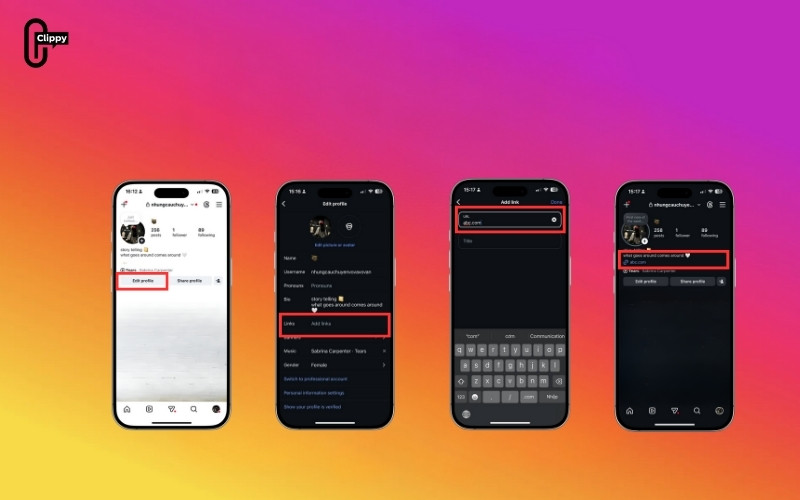
After saving, the link will appear instantly in your bio and will be fully clickable. Instagram currently allows up to five different links in the bio, each with its own title. These links appear as a labeled list under your profile information, making it easier for visitors to choose where they want to go.
How to Add a Link to Instagram Bio on the Web or Desktop
If you prefer working on a computer, you can also add a link to your bio through the desktop version of Instagram. While this method does not offer the same level of link organization as the mobile app, it is still useful for adding or updating a basic website link.
Step 1: Go to Instagram.com using a web browser
You can use any modern browser such as Chrome, Edge, or Safari to access Instagram’s web interface.
Step 2: Log in to your Instagram account
Enter your username and password and confirm you are accessing the correct profile before making changes.
Step 3: Click your profile picture and open your profile page
Your profile picture appears in the top-right corner. Clicking it takes you to your public profile view.
Step 4: Click the Edit Profile button
This opens a form to edit your profile name, bio, and website link.
Step 5: Find the Website field
The Website field is where Instagram lets you add a clickable external link in the desktop version.
Step 6: Paste the URL you want to add
Insert the full URL carefully to avoid broken or incorrect links.
Step 7: Click Save to apply the changes
Saving confirms the update and links live on your profile.
>>> See more: How to Remove Link From IG Bio (Complete Step-by-Step Guide)

After saving, the link will appear in your bio and function the same way as a link added through the mobile app. However, for managing multiple links or adding custom titles, the Instagram mobile app remains the recommended option.
Conclusions
Learning how to add a link to Instagram bio is essential for anyone who wants to turn profile visits into clicks, traffic, or conversions. Whether you use the mobile app or the desktop version, the process is quick and easy when done correctly.
For best results, keep your links relevant, use clear titles, and update them regularly to match your current content or goals. Taking full advantage of Instagram’s bio link feature helps you make the most of every profile visit.
>>> See more: How to Add a Location on Instagram: Posts, Stories, Reels, and Profile
>>> See more: How to Add Mention on Instagram Story (Step-by-Step Guide)

