


Instagram has evolved far beyond just sharing photos and videos. Its Direct Messages (DMs) feature allows users to communicate privately with friends, family, and followers. One of the lesser-known but super fun features in Instagram chats is the ability to set nicknames for your contacts. This feature not only adds personality to your conversations but also helps you organize chats, especially in group messages.
In this article, Free download video app will explain how to set nicknames on Instagram chat, provide tips, and answer frequently asked questions, so you can make the most out of your Instagram messaging experience.
Key Takeaways
- You can assign custom names to friends in Instagram chats without changing their usernames.
- Nicknames are private to the conversation and can be set in both one-on-one and group chats.
- Access the chat settings, tap “Nicknames”, select a participant, and enter the nickname.
- Especially useful in group chats to identify participants quickly.
- Combine emojis, hobbies, or inside jokes to make conversations more engaging.
- Nicknames can be edited or removed at any time.
- If the option is missing, update your app, restart, or reinstall Instagram.
What are Instagram Chat Nicknames?
Instagram chat nicknames are custom names that you assign to people in your DMs. Unlike public usernames, nicknames are visible only in your chat. This means you can call your friends whatever you like without affecting how other people see them.
Adding nicknames on Instagram chat is a simple way to make your conversations more personal and enjoyable.
- Personalization: Make your chats more fun by using playful, creative, or meaningful names for your friends.
- Organization: Easily identify friends in group chats, especially if several participants have similar usernames.
- Clarity: Avoid confusion in group conversations by assigning nicknames that clearly indicate who is speaking.
- Fun Factor: Add humor, emojis, or inside jokes to your chats without altering anyone’s actual username.
>>> See more: How to hide following list on Instagram Step by Step

Step-by-Step Guide: How to Set Nicknames on Instagram Chat
Setting nicknames is easy once you know where to look. Here’s a step-by-step guide:
Step 1: Update Your Instagram App
Ensure that your Instagram app is up-to-date. Nickname features are included in recent versions for both iOS and Android devices.
Tip: Sometimes, Instagram rolls out new features gradually, so if you don’t see it immediately, wait a few days or check for updates.
Step 2: Open Instagram Direct Messages
- Tap the Messenger icon in the top-right corner of your home screen to access Instagram DMs.
- Open the conversation where you want to set a nickname, either one-on-one or in a group chat.

Step 3: Access Chat Settings
- At the top of the conversation, tap the chat name. This opens the chat info and settings menu.
- In the chat settings, you’ll see options like “Notifications,” “Theme,” and “Nicknames.”
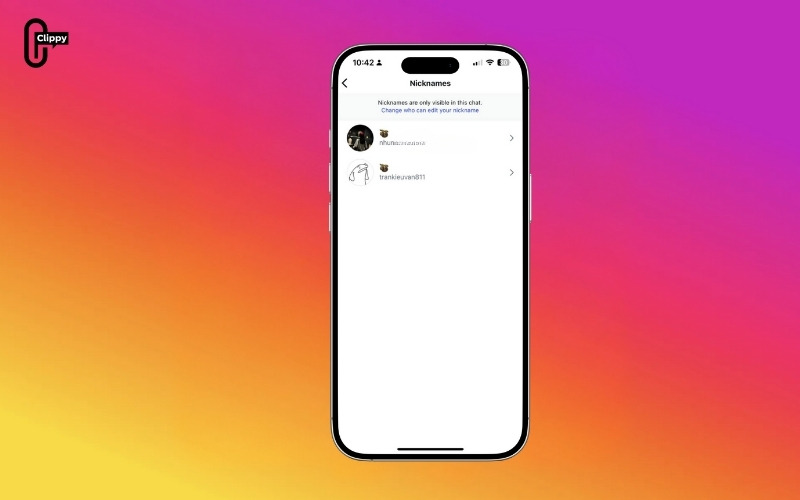
Step 4: Choose “Nicknames”
- Tap “Nicknames” (or “Edit Nicknames”).
- You will see a list of all participants in the chat.

Step 5: Set a Nickname
- Select the person you want to give a nickname to.
- Type your desired nickname. You can use letters, emojis, or even a combination.
- Tap Save or Done.

Example: If your friend’s username is john_doe123, you could set a nickname like Johnny or Bestie J.
Step 6: Repeat for Others
If it’s a group chat, you can assign nicknames to all participants. Each member can have their own nickname visible in the chat, making it more organized and fun.
Once nicknames are set, they will appear in the conversation instead of usernames. This small change can make a big difference in how you interact with friends on Instagram.

Tips and Tricks for Using Instagram Chat Nicknames
- Group Chat Organization: In large group chats, assigning nicknames prevents confusion and helps you quickly identify who is talking.
- Private Fun: Remember, nicknames are only visible to people in that chat, so you can get creative without worrying about public perception.
- Combine with Emojis: Emojis make nicknames more expressive. For example, you can set your friend as a Basketball Pro or a Pizza Lover.
- Keep It Friendly: Avoid offensive or inappropriate nicknames to maintain a positive chat environment.
- Update or Change Anytime: You can change nicknames whenever you want. Simply go back to the “Nicknames” section and edit them.
- Troubleshooting: If you can’t see the nickname option, try updating the app, logging out and back in, or reinstalling Instagram. Sometimes, features roll out gradually by region or device type.
>>> See more: How to Know Who Views Your Instagram Profile (Full Guide)
Frequently Asked Questions (FAQs)
Can I set nicknames in group chats?
Yes! You can assign nicknames to any participant in a group chat. Each person can have a unique nickname that’s visible to everyone in the chat.
Will nicknames affect my friend’s username?
No. Nicknames only appear in your chat and do not change the user’s actual Instagram username.
Why don’t I see the nickname feature?
The nickname option may not appear due to:
- Using an outdated app version.
- Regional rollout restrictions.
- Temporary app glitches (try reinstalling).
Can others see my nicknames for them?
Yes, in group chats, nicknames are visible to all participants in that chat. For one-on-one chats, only you and the other person see the nickname.
Are there any character limits for nicknames?
Instagram allows a reasonable number of characters, including emojis, but extremely long nicknames may get cut off in chat displays.
Conclusion
Learning how to set nicknames on Instagram chat is an easy way to add personality and organization to your conversations. Whether it’s for fun, clarity, or creativity, nicknames make chatting on Instagram more engaging and personal.
Start personalizing your Instagram chats today and turn every conversation into a little moment of fun.
>>> See more: How to Follow an Instagram Hashtag (Update Latest)
>>> See more: How to Reset Instagram Explore Page: Step-by-Step Guide

