

If you accidentally liked a video or simply changed your mind, you’re probably searching for how to unlike a video on Facebook quickly and without confusion. Whether you want to clean up your activity, fix your recommendations, or undo an accidental tap, the process is easier than you think. In this guide, Video Download Free learns the fastest and most reliable ways to unlike any Facebook video in just seconds.
Quick Method:
To unlike a post, simply open it and tap the Like button again to remove your reaction. For a Page, just visit the Page and click Unlike to stop following it.
How to unlike a video on Facebook feed
If you accidentally liked a video on your Facebook feed or simply changed your mind, unliking it is quick and straightforward. Removing a like helps Facebook understand your preferences, preventing similar or irrelevant content from appearing in your feed. Follow the steps below to easily unlike any video, post, comment, or Page on Facebook.
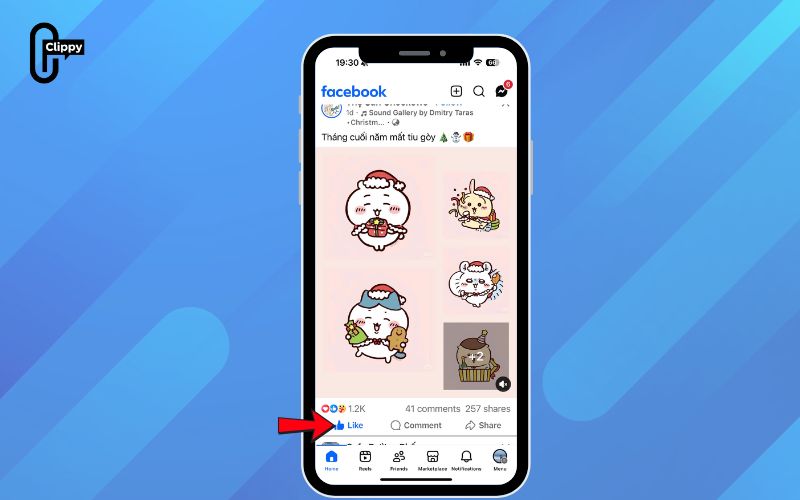
Step 1: Open the video or post you previously liked
Scroll through your feed or search for the video, post, comment, or Facebook Page where you clicked Like earlier.
Step 2: Tap the blue Like button
You’ll see a blue thumbs-up icon indicating that you’ve already liked the content. Simply tap or click the icon again.
Step 3: Confirm the action
Once you tap the Like button, it will turn grey. This indicates that you have successfully unliked the video, post, comment, or Page.
Step 4: Refresh your feed if needed
In some cases, refreshing your feed helps update your content recommendations, especially if you’re removing likes to improve relevance.
Unliking is instant, works across all devices, and helps Facebook better tailor your feed by removing signals that you’re interested in certain posts or topics.
>>> See Also: How to unmute sound on Facebook video if it stays muted
How to unlike from the Activity Log
Facebook’s Activity Log is a powerful tool that lets you review and manage every action you’ve taken on your account. Whether you want to revisit old likes, remove reactions, or undo interactions on posts, photos, or videos, the Activity Log keeps everything organized by date and category.
Step 1: Open Facebook
Log in to your account and access the main interface.
Step 2: Open your profile settings
Select your profile photo at the bottom of the left sidebar to open your account menu.
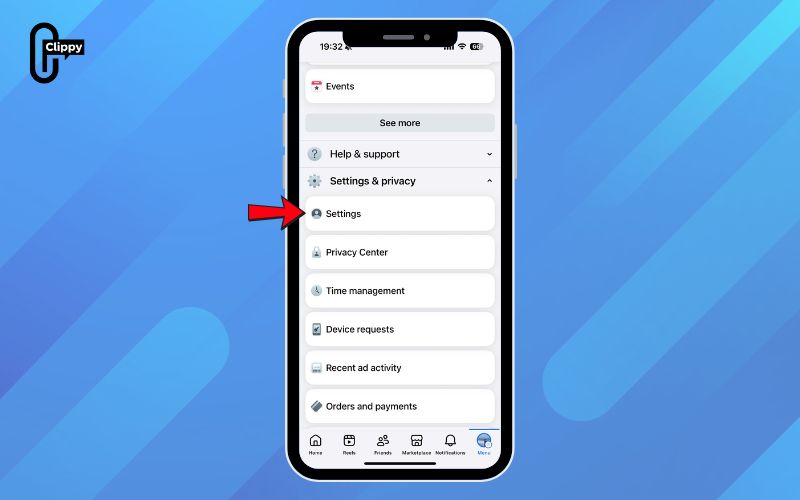
Step 3: Select “Settings & privacy”
This section contains various tools to manage your account activity.
>>> See Also: How to Facebook video call properly with clear video & audio
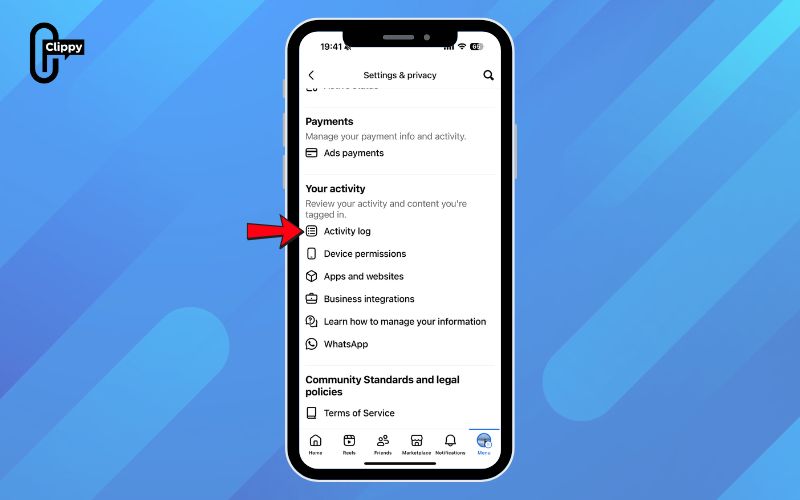
Step 4: Choose “Activity Log”
Here, Facebook displays a complete timeline of your interactions.
Step 5: Open the Interactions menu
Select Interactions to expand all activity categories linked to your account.
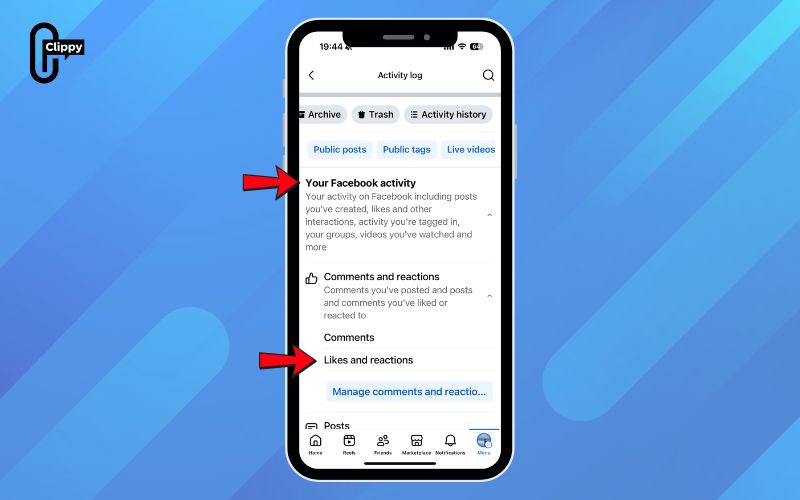
Step 6: Select “Likes and reactions”
You’ll see a chronological list of every post, photo, video, or comment you’ve liked.
Step 7: Unlike any item
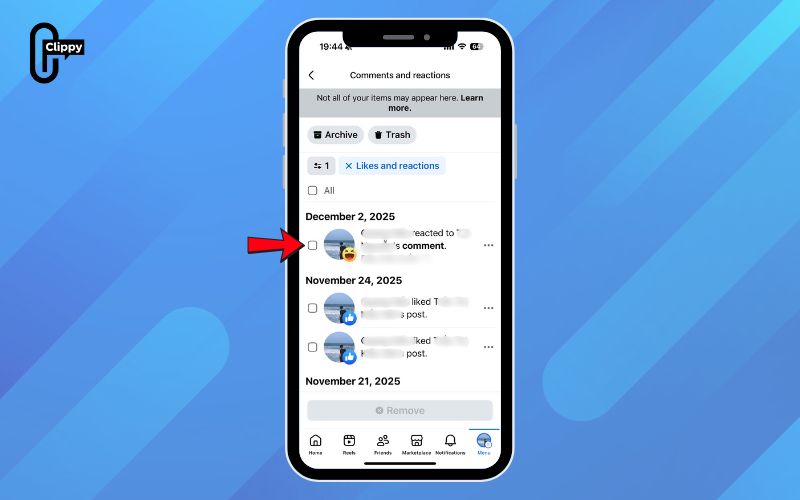
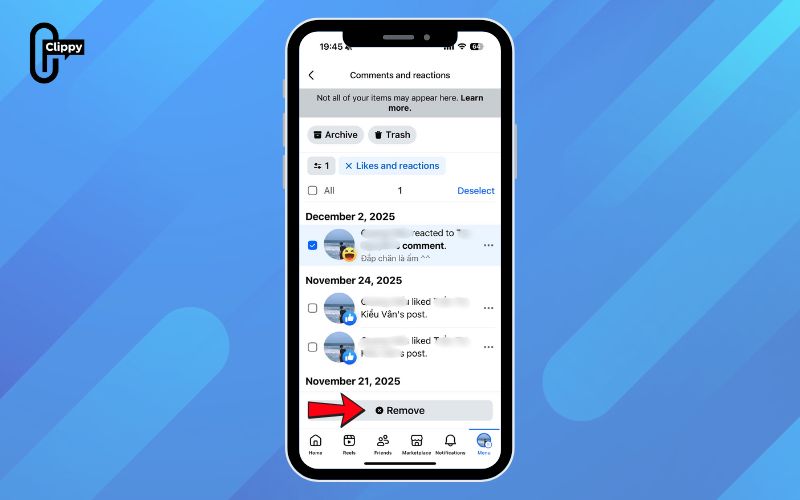
Click the three dots next to the post you want to remove and choose Unlike. The action is removed instantly and updated across your account.
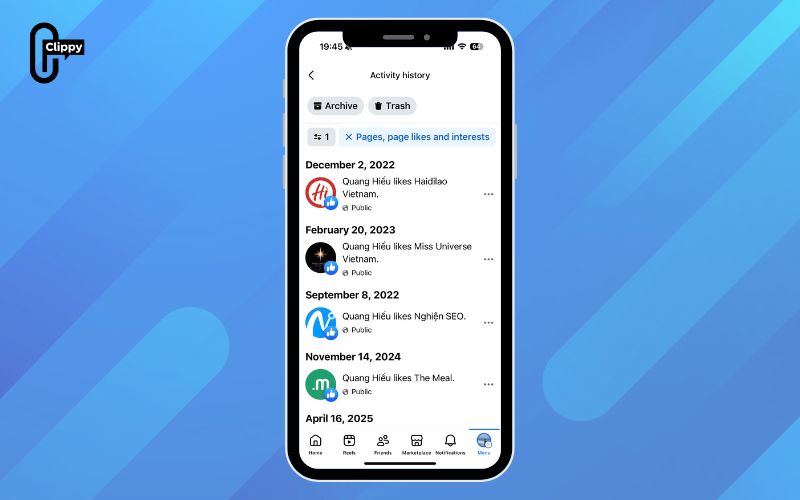
How to unlike pages from the Activity Log
If you want to remove old Facebook Page likes, the Activity Log gives you a simple way to manage them all in one place. This tool organizes your past activity so you can quickly find Pages you’ve followed over the years and unlike the ones you no longer want to see in your feed.
Step 1: Open your Activity Log
Follow the earlier steps to access Settings & privacy and then select Activity Log from your account menu.
Step 2: Navigate to the Connections section
On the left sidebar of the Activity Log, scroll down until you see Connections. This section lists all interactions tied to other profiles and Pages.
>>> See Also: How to record Facebook video even if download is blocked
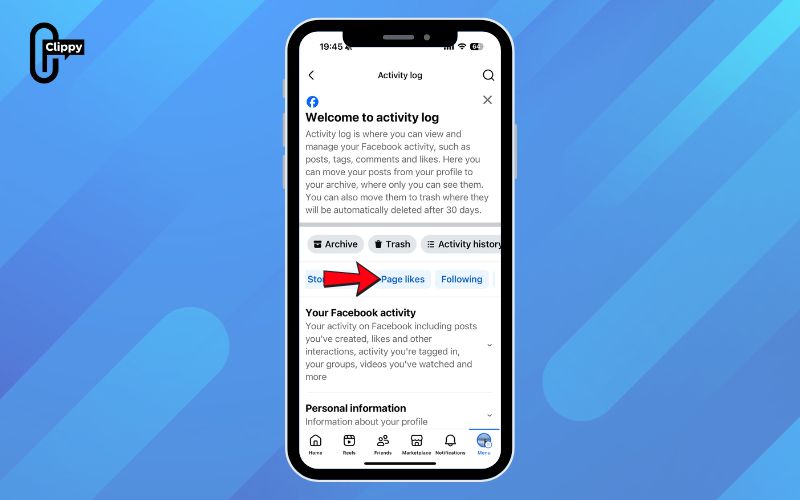
Step 3: Select “Pages, page likes, and interests”
Click this option to display a list of all Facebook Pages you’ve liked or followed.
Step 4: Find the Page you want to unlike
On the right side of the screen, scroll through the list until you locate the Page you previously liked.
Step 5: Unlike the Page
Click the three-dot menu next to the Page and choose Unlike. The change takes effect immediately.
FAQs about how to unlike a video on Facebook
If you’re having trouble unliking content on Facebook or want to understand how likes behave, these quick FAQs will help you solve common issues. Each answer gives you a clear explanation so you can manage your likes and page follows more effectively.
Why can’t I unlike a post on Facebook?
You may be unable to unlike a post due to temporary bugs in the Facebook app, browser, or the platform itself. Try clearing your cache, updating the app, or switching to another browser to fix the issue. In rare cases, a Page or post that has been removed can’t be unliked because Facebook no longer recognizes the original source.
What happens when you like and unlike something?
When you remove a like, Facebook simply updates the like count and removes your name from the list of people who reacted. The original poster does not get a notification when you unlike their content. This action is silent and won’t alert anyone on the platform.
How do I delete likes on movie Pages?
Open the movie’s Facebook Page and click the Like button again to remove it. When the icon changes from blue to gray, your like has been successfully removed. This works the same way for all Page categories across Facebook.
Can I remove the Like button from my profile?
No, Facebook does not allow users to delete or disable the Like button from their profiles. It is a built-in platform feature and cannot be modified or removed manually. You can only manage what you like not the button itself.
How do I unlike a Page that’s been deleted?
If a Page no longer exists, Facebook does not provide a way to remove it from your liked list. Because the link and backend data have been removed, the system cannot process an unlike action for a deleted Page. Unfortunately, the liked entry may remain indefinitely in your account.

Learning how to unlike a video on Facebook gives you more control over what you see and how the platform shapes your feed. Whether you manage your likes directly on a post or through the Activity Log, the steps are simple and work across all devices. By reviewing and removing unwanted likes, you help Facebook refine your recommendations and keep your experience relevant. With these methods, you can quickly undo any interaction and keep your profile and feed exactly the way you want.

