

If you’re wondering how to Facebook video call and stay connected with friends, family, or coworkers anywhere in the world, the good news is that Messenger makes it incredibly simple. This guide of Video Download Free will walk you through everything from starting a call, switching cameras, sharing your screen, to fixing common issues like “video call not working” or “no sound on Messenger”.
Key Takeaways
- Facebook video calls work on mobile, desktop, and laptop as long as you have Messenger and a stable internet connection.
- On mobile, you start a call by opening a chat and tapping the video camera icon.
- On desktop, you can video call directly from Messenger in your browser using the video chat button.
- A strong Wi-Fi connection is recommended to avoid lag, blurry video, or call drops.
- You can switch between front/rear cameras, mute audio, or turn off video anytime during the call.
- Video calls do not use phone minutes, but they will consume mobile data if you’re not on Wi-Fi.
- Messenger also supports screen sharing and group video calls across all major devices.
- If the video call button is grayed out, the other person may be offline or using an outdated Messenger version.
How to Facebook video call on Mobile
Making a Facebook video call on your phone is quick and intuitive, whether you’re using an iPhone or Android device. All you need is the Messenger app and a stable internet connection. Follow the steps below to start a smooth, high-quality video call and make sure the other person can see and hear you clearly.
Step 1: Open a Messenger conversation
- Open the Messenger app and tap the person you want to video chat with.
- You can also start a group video call by opening an existing group chat.
- Make sure everyone in the call is connected to the internet, or their video will not load.
>>> See Also: How to unmute sound on Facebook video if it stays muted

Step 2: Connect to Wi-Fi (recommended)
- Facebook doesn’t charge for video calls, but mobile carriers count it as data usage.
- Using Wi-Fi ensures you can talk as long as you want without consuming your data plan.
- A stronger connection also helps prevent lag and blurry video.
Step 3: Tap the Video Call icon
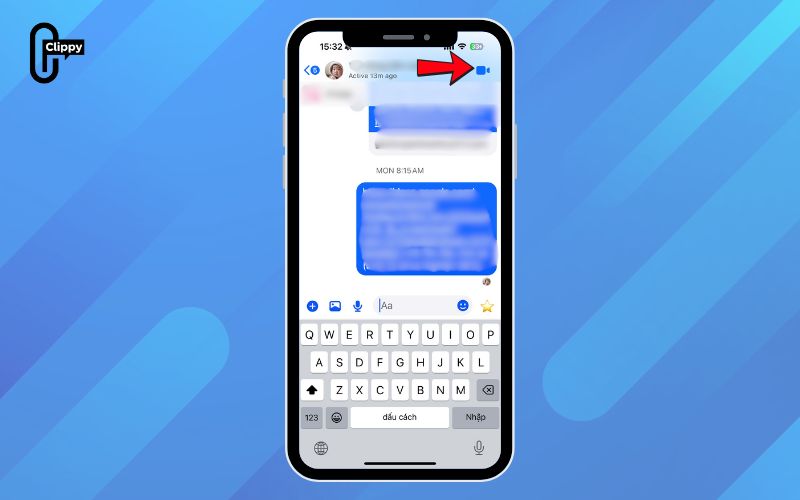
- Tap the video camera icon at the top right of the chat to start your call.
- A small preview window will show your face while the other person’s video appears full screen.
- If the icon is grayed out, the recipient may be offline or using an outdated version of Messenger.
- Sit in a well-lit area and hold your phone slightly away from your face so your video looks clearer.
- You may see a floating camera icon with sparkles tap it to access filters, effects, and fun tools.
- If the interface disappears while talking, tap the screen once to bring up all controls again.
>>> See Also: How to unlike a video on Facebook even if it disappears
Step 4: Switch cameras or adjust audio/video
- Tap the camera switch button at the bottom of the screen to toggle between front and rear cameras.
- Use this to show the other person your surroundings or something you want them to see.
- Tap the microphone icon to mute or unmute yourself during the call.
- Tap the video icon to turn your camera off your call will continue as audio only until you turn it back on.
Step 5: Answer incoming video calls
When someone calls you, the screen will look just like a regular phone call or voice call.
- Swipe or tap Accept to join the video call instantly.
- To change the ringtone, open Messenger → Settings → Notifications & Sounds → Ringtone.
- Note: You cannot change ringtones from the browser version—only from the mobile or desktop app.
- Video calls do not cost extra unless you are using mobile data.
Step 6: End the call
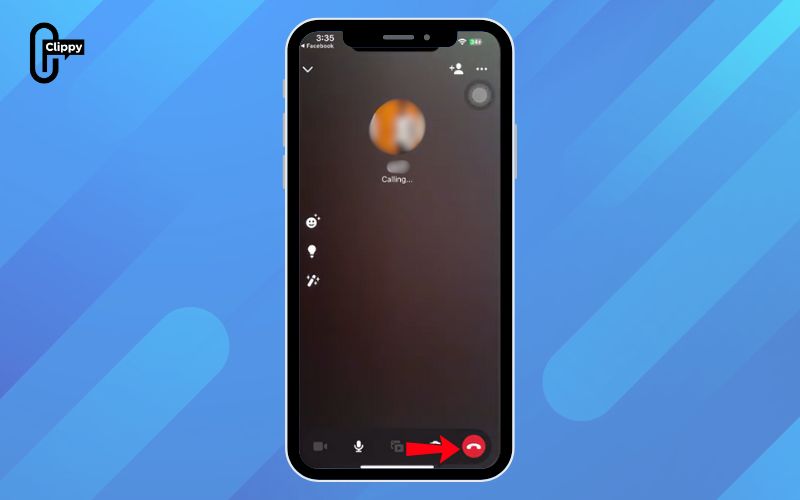
- Tap the red End Call button (phone receiver icon) to hang up.
- This immediately closes the video call for both sides.
>>> See Also: How to record Facebook video even if download is blocked
How to Facebook video call on laptop
Using Facebook Messenger on a computer makes video calling simple and convenient, whether you’re on a laptop with a built-in webcam or a desktop with an external one. All you need is a web browser, a stable connection, and your Facebook account.
Follow the steps below to start a smooth video call directly from Messenger on your computer.
Step 1: Log in to Facebook
- Open your preferred web browser and go to facebook.com.
- Sign in to your account if you haven’t already.
Step 2: Open Messenger
- On the Facebook home page, click Messenger from the left-hand sidebar.
- In the new Facebook interface, Messenger remains in the same general position as the older layout, making it easy to spot.
Step 3: Select the person you want to call
- Click on the name or avatar of the friend you want to video chat with.
- This opens your conversation thread in a right-hand panel.
Step 4: Start the video call
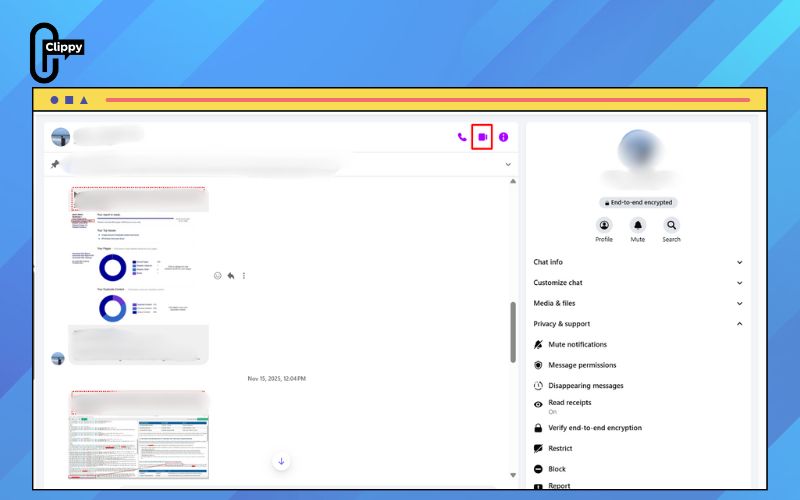
- Click the Video Chat icon in the top-right corner of the chat window.
- Once the call rings through and your friend answers, you’ll see their video in the center of the screen and your own preview in the bottom-right corner.

Step 5: Manage your audio and video
- Use the Video Camera icon to turn your camera on or off.
- Click the Microphone icon to mute or unmute yourself during the call.
Step 6: Share your screen (optional)
- Click the Monitor icon to share your screen with the other person.
- Choose whether to share your entire screen or a specific app window.
Step 7: End the call
Press the red Phone Receiver icon to end the video call when you’re finished.

Common Facebook video call problems and how to fix them
Facebook video calling is generally reliable, but technical issues can still appear unexpectedly from silent audio to missing camera feeds or laggy video quality. The sections below highlight the most common problems users face and provide quick, actionable fixes for each one across iPhone, Android, and desktop.
No sound during Facebook video calls
This issue occurs when your device or browser blocks microphone access, your volume settings are muted, or Bluetooth audio routes your sound incorrectly. As a result, you can’t hear the other person, or they can’t hear you.
How to fix it:
- Turn up your device’s media volume and disable Silent Mode (iPhone).
- Disconnect Bluetooth headphones or AirPods if they are auto-connected.
- Enable microphone access: Settings → Privacy → Microphone → Allow Messenger/Facebook.
- On desktop: open browser Site Settings → Microphone → Allow for Facebook or Messenger.
- Restart the Messenger app or browser to refresh audio routing.
Camera not showing (Black screen or camera not detected)
A missing camera feed usually happens when Messenger doesn’t have permission to use your camera or when another app is already using it. In many cases, laptop privacy shutters or browser restrictions also block camera access.
How to fix it:
- Allow camera access: Settings → Privacy → Camera → Allow Messenger/Facebook.
- Close apps using the camera in the background (Zoom, FaceTime, TikTok).
- Check physical laptop camera shutters or privacy switches.
- In the browser, enable camera permissions under Site Settings → Camera → Allow.
- Switch between front and rear cameras inside the call window.
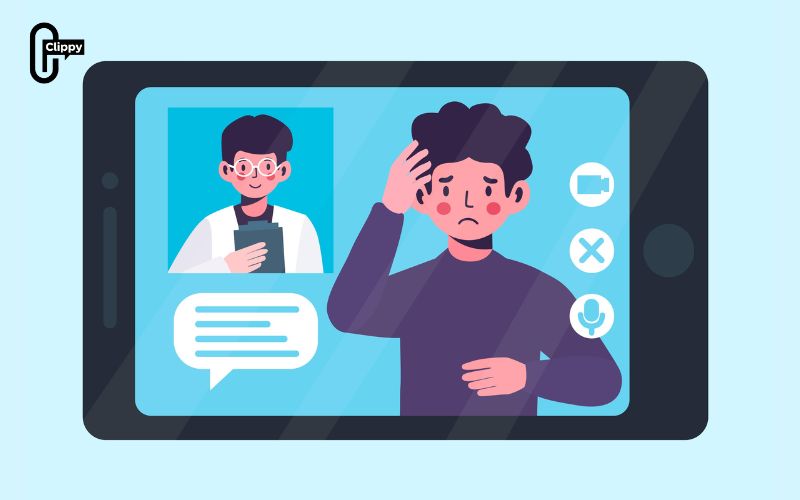
Blurry or laggy Facebook video calls
Blurry or choppy video often comes from weak internet connections, low-light environments, or excessive device load. Facebook automatically reduces video quality when your bandwidth drops.
How to fix it:
- Connect to a stable Wi-Fi network and stay close to the router.
- Turn off VPN or disconnect devices consuming bandwidth on the same network.
- Clean your camera lens to remove fingerprints and smudges.
- Sit in a bright area with front-facing light to improve clarity.
- Close background apps to free up performance resources.
Unable to make international Facebook video calls
International calls may fail due to regional restrictions, VoIP blocks from certain mobile networks, outdated Messenger versions, or privacy settings on the recipient’s account.
How to fix it:
- Ensure both users have the latest version of Messenger installed.
- Ask the recipient to enable incoming calls: Settings → Privacy → Who can call you → Everyone.
- Turn off VPN or switch to a server in your home country.
- Use Wi-Fi instead of mobile data to avoid VoIP restrictions.
- Log out of Facebook and log back in to refresh account permissions.

Messenger app crashing during video calls
Messenger may crash if the app cache is corrupted, your device is low on storage, or the installed version is outdated. When this happens, the app closes immediately when initiating or receiving a video call.
How to fix it:
- On Android: clear the app cache → Settings → Apps → Messenger → Storage → Clear Cache.
- On iPhone: offload and reinstall Messenger from iPhone Storage settings.
- Free at least 2 – 4 GB of storage space for stable performance.
- Update Messenger and your phone’s operating system.
- Restart your device before trying again.
“Call Ended Immediately” Error
This frustrating error appears when the network is unstable, permissions are blocked, or Messenger’s servers experience a temporary outage. The call drops the moment you tap “Video Call”.
How to fix it:
- Test your internet (minimum 5 Mbps upload/download recommended).
- Update Messenger to the latest version.
- Re-enable Camera and Microphone permissions in your device settings.
- Restart your phone or browser to clear temporary conflicts.
- Check if Messenger is down globally via Downdetector.
- Switch to another network or device to isolate the problem.

FAQs on how to Facebook video call
When using Facebook video calls, many users still have questions about how the feature works across different devices and settings. Below are clear explanations you can rely on when troubleshooting or learning to use Messenger more effectively.
How do I make a Facebook Messenger video call on a Windows phone?
To start a video call on a Windows phone, you need to install the Messenger app first because Facebook removed calling features from the main app. After installing, open Messenger, choose the contact you want to call, and tap the video camera icon at the top of the screen. This will instantly initiate a video call just like on iOS and Android.
Can I send messages while I’m in a Messenger video call?
Yes, you can continue texting while on a video call. During the call, tap the minimize icon at the bottom to shrink the video window, which allows you to return to the chat screen. From there, you can send messages, reactions, or even photos without interrupting the call.
How do I turn off the speaker during a Messenger video call?
Messenger does not allow users to disable the speaker or switch to an earpiece during a video call. This audio control is only available for voice calls. If you need privacy, the only workaround is to connect wired or Bluetooth headphones to redirect the audio output.
Mastering how to Facebook video call is easier than ever once you understand how to start a call, switch devices, adjust your audio and camera, and troubleshoot common issues. Whether you’re using Messenger on mobile or making a Facebook video chat from your desktop browser, the process is fast, intuitive, and completely free.

