

If you’re searching for how to record Facebook video, you’re not alone. Millions of users want a simple way to save Facebook videos, stories, livestreams, and video calls for offline viewing. In this guide, Video Download Free will explore the easiest ways to capture Facebook videos with clear audio and high resolution.
Key Takeaways
- You can record Facebook videos using built-in tools on iPhone, Android, Windows, and macOS.
- Third-party screen recorders offer higher quality and more control when capturing Facebook video or calls.
- Recording private Facebook content without consent may violate privacy laws and platform policies.
- Screen-recorded videos are saved automatically to your device’s gallery or chosen output folder.
- Always check audio settings (system sound + microphone) to ensure Facebook videos are recorded with full sound.
How to record Facebook video on PC
Recording Facebook videos on a PC is straightforward when you use the right tools and follow trusted methods. Below are expert-verified techniques that ensure high-quality recordings while keeping your device and data secure.
Use Wondershare DemoCreator
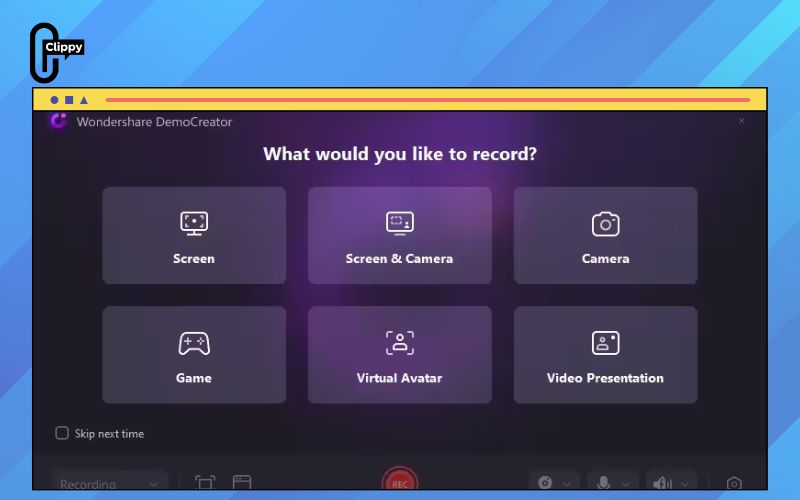
DemoCreator is a powerful yet beginner-friendly screen recorder that makes capturing Facebook videos on Windows incredibly simple. If you want high-quality recordings without complicated setup, this tool is one of the most reliable options for creators, marketers, and everyday users. Follow the steps below to start recording with DemoCreator and elevate your Facebook content.
Step 1: Download and install DemoCreator
Install the software on your computer, then launch it and sign in or create a new account. From the Home screen, select Video Recorder and choose your preferred recording mode.
- Compatible with Windows 7/8/10/11
- Compatible with macOS v10.15 or later
>>> See Also: How to unmute sound on Facebook video if it stays muted
Step 2: Set up your recording area
Choose the screen region you want to capture, then open Facebook and navigate to the video or story you plan to record. Click REC to start, and press Stop when finished.
Step 3: Enhance your recording
Once the capture is complete, DemoCreator automatically opens the editing interface. Trim unwanted parts, add annotations, and apply effects to make your video clearer and more engaging.

Step 4: Save and share your video
Export your final recording and share it across your social platforms to boost engagement or store it for later use.
>>> See Also: How to Facebook video call properly with clear video & audio

Use AppGeeker Screen Recorder
AppGeeker Screen Recorder is a reliable, professional screen-recording tool available for both Windows and macOS. It allows you to capture Facebook video calls, Zoom meetings, gameplay, Facebook Live sessions, and virtually any on-screen activity with ease. When recording a Facebook video or livestream, you can freely choose to include system audio, microphone input, or both—giving you full control over your final output.
To record a high-resolution Facebook video, follow these steps:
Step 1: Open the Facebook video you want to record.
Step 2: Launch AppGeeker and select “Video Recorder”.
Step 3: Choose Custom to manually match the capture frame to the Facebook window, or select Full to record your entire screen. Enable or disable System Sound and Microphone depending on what you want to include.
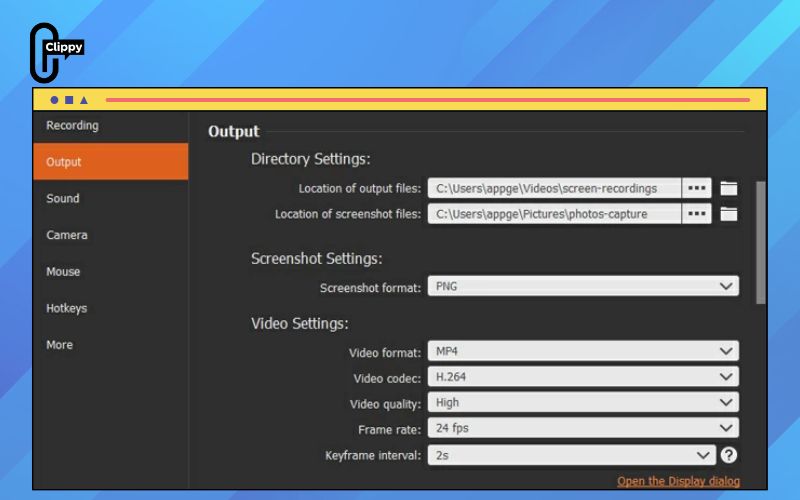
Step 4: You can fine-tune advanced options such as bitrate, frame rate, and output format to ensure the highest possible recording quality.
Step 5: Play the Facebook video on your screen.
Step 6: Click the “REC” button to begin recording. The tool will capture continuously until you manually stop it.
Step 7: When the livestream or video call ends, press the red “Stop” button.
Use EaseUS RecExperts
EaseUS RecExperts is one of the most user-friendly tools for recording Facebook video calls on both Windows and macOS. With flexible screen-capture modes, clear audio controls, and built-in editing features, it lets you save high-quality call recordings without any technical hassle. Follow the steps below to record your Facebook calls with ease and full control.
Step 1: Install and open EaseUS RecExperts
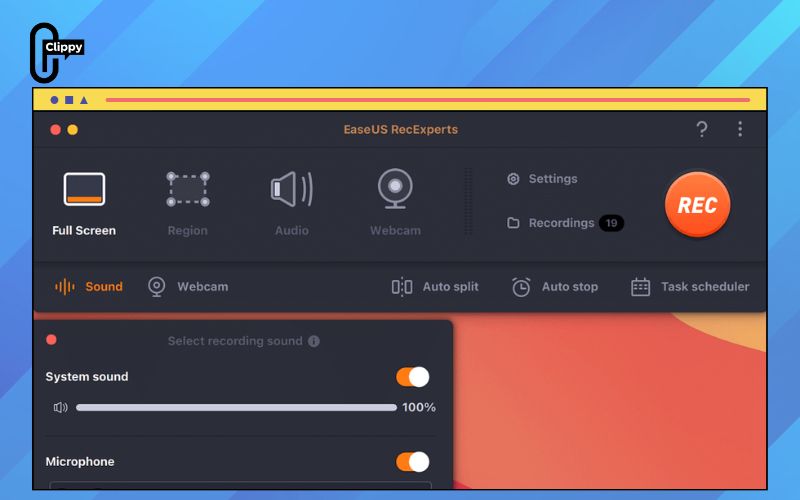
Launch the software and choose Full Screen for complete screen capture, or use Custom to manually select the area you want to record.
Step 2: Configure your audio settings
Decide whether you want to record system sound, microphone sound, or both by toggling the respective buttons. Start your Facebook video call and press the red REC button when you’re ready to record.
Step 3: Pause or stop the recording
Click the Pause icon (white double vertical bars) or press F10 to pause. To finish recording, click the Stop icon (red square) or press F9.
Step 4: Access your recorded files
After stopping the recording, go to My Library to view all saved Facebook call recordings.
Step 5: Play and edit your video
Open the recording to preview it. You can also trim unwanted parts, add a watermark, or use the transcription feature to enhance your final video.
>>> See Also: How to unlike a video on Facebook even if it disappears
How to record Facebook video on Android
Most Android smartphones now include a built-in screen recorder that makes capturing Facebook videos quick and effortless. However, not all models support recording Facebook video calls or Facebook Live directly through the native tool. If your device lacks this feature, you can rely on third-party Facebook recording apps available on Google Play.
Below is an example using a Samsung Galaxy device, but the same steps generally apply to other Android models such as Google Pixel, OnePlus, Xiaomi, and LG.
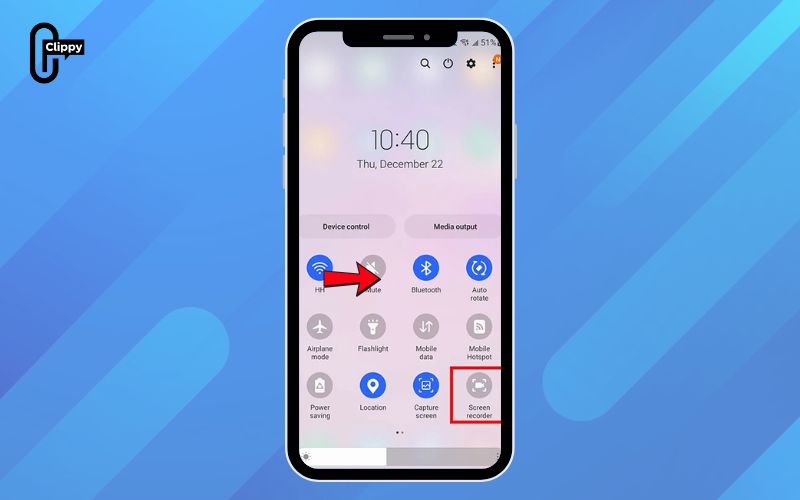
Step 1: Swipe down from the top of your screen to open the Quick Settings panel.
Step 2: Tap “Screen recorder” to begin recording. Your device will immediately start capturing your Facebook video call or livestream.
Step 3: Tap the “Stop” button to end the recording. The recorded video will be saved automatically to your Gallery or a designated screen-recording folder.
How to record Facebook video on iPhone
iPhones offer a built-in screen recorder that makes capturing Facebook video calls simple and reliable. With just a few quick settings, you can start recording high-quality video and audio directly from your device. Follow the steps below to enable and use this feature.
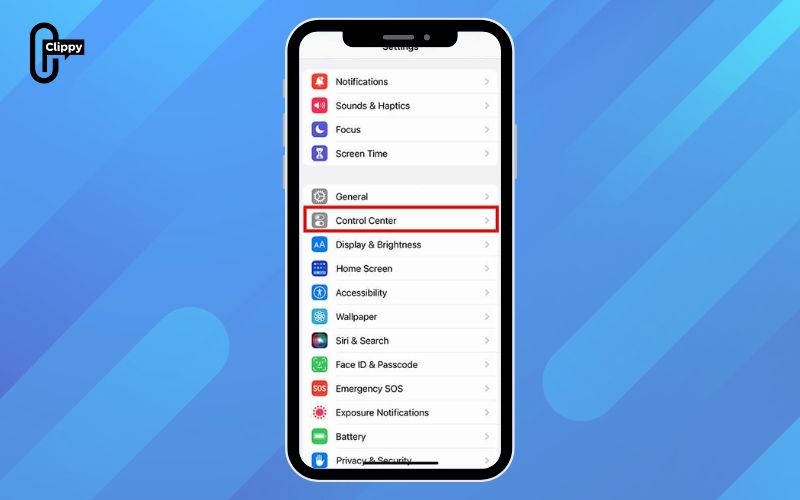
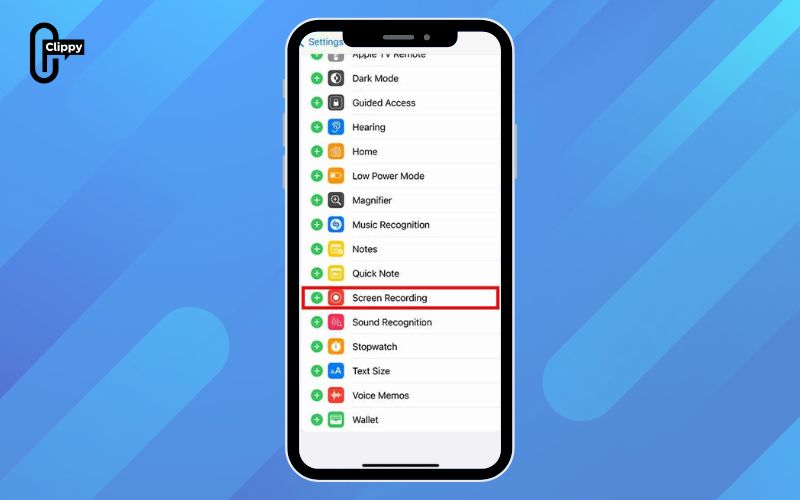
Step 1: Add Screen Recording to your Control Center
Go to Settings > Control Center > Customize Controls, then tap the green + icon next to Screen Recording to add it.
Step 2: Open Control Center on your iPhone
Swipe down from the top-right corner on newer iPhones. On models with a Home button, swipe up from the bottom of the screen.
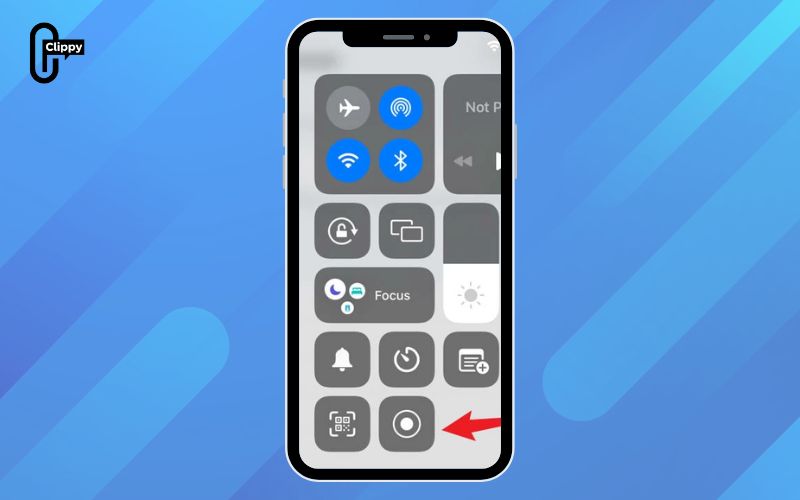
Step 3: Start the screen recording
In Control Center, tap the Screen Recording icon (a solid circle inside a thin ring). If you want to capture audio, tap Microphone Audio to turn it on. Then open Facebook and begin your video call.

Step 4: Stop the recording
A red status bar will appear at the top of your screen while recording is active. Tap the red bar, then tap Stop to end the session.
After stopping the recording, your Facebook call video will be automatically saved to the Photos app, where you can edit or share it as needed.

Is it legal to record a Facebook video? What you need to know
Recording Facebook videos may seem simple, but it involves important legal and ethical considerations. This section clarifies the rules around consent, public vs. private content, Facebook’s policies, and the ethical responsibilities users should keep in mind before capturing or sharing someone else’s video.
Consent
Consent is crucial whenever you record any type of video—especially if it contains personal or sensitive information. For Facebook video calls or private videos, you must obtain explicit permission from all participants before recording. This not only ensures legal and policy compliance but also respects the privacy and rights of everyone involved. Failing to get consent may lead to legal consequences and damage personal or professional relationships.
Public vs. private content
Whether recording is permitted largely depends on the visibility of the content. Videos posted publicly—such as those on a public Page—generally allow more flexibility. However, private content, including videos in closed groups, stories shared to friends only, or messages, is protected. Recording private material without permission can violate privacy laws and go against Facebook’s Terms of Service.
Platform policies
Facebook enforces strict rules regarding content usage, redistribution, and intellectual property rights. Unauthorized recording or sharing can result in account restrictions, takedowns, or even legal action. To stay compliant, always review Facebook’s Terms of Service and Community Standards before recording or distributing any content from the platform.
Ethical considerations
Legal permission is only part of the equation. Ethical behavior matters just as much. Respect the creator’s intent, and avoid capturing or sharing videos meant for a limited audience or private interaction. Consider the potential harm or misunderstanding that could arise from redistributing recorded content. Prioritize transparency, integrity, and respect for others’ privacy and intellectual property.

FAQs about how to record a Facebook video
Below are some of the most common questions users have when recording Facebook videos or calls. These answers provide clear, accurate guidance so you can record safely, legally, and without technical confusion.
How do I record audio and video from Facebook on iPhone for free?
Open Control Center (swipe down from the top-right corner), tap Screen Recording, and enable the Microphone if you want audio. Start playing the Facebook video, then tap the red bar to stop. Your recording will be saved automatically to the Photos app.
Can I screen-record a Facebook video call without them knowing?
Yes. Facebook does not send notifications when someone records a video call. You can use your device’s built-in recorder or a tool like AppGeeker Screen Recorder to capture the video privately and save it to your device.
How do I take a screenshot in the Facebook app?
On iPhone, press the Side (or Power) button + Home button at the same time (or Side button + Volume Up on newer models). On Android, press Power + Volume Down together. The screenshot will appear in your device’s photo gallery.
Learning how to record Facebook video gives you the flexibility to save livestreams, stories, and video calls for offline viewing anytime you need them. Whether you’re using iPhone, Android, Windows, or macOS, the methods in this guide help you capture Facebook videos with clear sound and high-quality resolution. Now that you know how to screen record Facebook video in multiple ways, you can preserve important content effortlessly.
If screen recording feels complicated, results in blurry footage, or simply doesn’t give you the quality you want, there’s an easier solution: Clippy. This tool lets you download Facebook videos directly to your device fast, safe, and completely free. Just paste the link, click download, and Clippy saves the video in high resolution without any watermark. It’s the perfect alternative when recording your screen isn’t convenient or doesn’t deliver the clarity you need.

