


Reposting content from Instagram is a common activity for both personal users and businesses. People repost content to share useful information, highlight creators they admire, promote collaborations, or keep valuable content visible to their audience. However, Instagram does not treat all types of reposting the same way, which often leads to confusion about what is allowed, how reposting works, and which method is best for each situation.
This guide of Free Download App Video explains in detail how to repost from Instagram using official features and safe manual methods. It also clarifies the differences between reposting, sharing, and resending content, outlines platform limitations, and provides best practices to ensure compliance with Instagram’s rules and creator rights.
Key Takeaways
- Instagram offers built-in repost and story-sharing features that are the safest and most reliable ways to repost content.
- Reposting options depend on content type, account privacy settings, and feature availability in your region.
- Content from private Instagram accounts cannot be reposted using native features and should never be shared without explicit permission.
- Manual reposting through screenshots or screen recordings may reduce quality and requires clear credit to the original creator.
- Respecting creator rights, privacy settings, and copyright rules helps prevent content removal and account restrictions.
What Does Reposting on Instagram Mean?
To understand how to repost from Instagram properly, it is important to first understand how Instagram defines content sharing. Unlike some platforms that use a single “repost” or “retweet” action, Instagram offers multiple ways to redistribute content, each serving a different purpose.
Reposting typically refers to publishing someone else’s content again in a public way, either on your own feed, in a repost section, or through Stories. The goal of reposting is usually to give visibility to content while maintaining attribution to the original creator. This is different from sending content privately or temporarily sharing it without creating a new post.
>>> See more: Photo Size Instagram: Best Dimensions for Posts, Stories, and Reels

Instagram intentionally separates these actions to protect user privacy, prevent content misuse, and ensure creators receive proper credit.
Difference Between Reposting, Sharing, and Resending on Instagram
Many users use these terms interchangeably, but they function very differently within the Instagram platform. Understanding the distinction helps users avoid mistakes and choose the correct action based on intent.
Action | Definition | Visibility | Typical Use Case |
Reposting | Republishing someone else’s content on your own profile or feed | Public | Promoting content or creators |
Sharing | Adding a post or reel to your Story | 24-hour visibility | Temporary recommendations |
| Resending | Sending a post via Direct Message | Private | One-to-one or group sharing |
Reposting is designed for broader exposure, sharing is meant for short-term visibility, and resending is intended for private conversations.

How to Repost From Instagram Using Built-In Features
Instagram has gradually introduced native reposting and sharing features to give users safer and more transparent ways to redistribute content. These built-in tools reduce reliance on third-party apps, preserve automatic attribution to original creators, and help ensure reposted content complies with Instagram’s platform policies.
Whenever possible, using Instagram’s official reposting options is the most secure and recommended approach, as these features are designed to protect both the person reposting and the original content owner
How to Repost Instagram Posts or Reels Using Native Repost
Instagram’s native repost feature allows users to repost public posts and reels directly within the app, depending on account eligibility, content settings, and regional availability. This feature functions similarly to reposting on other social platforms, while maintaining clear credit for the original creator.
To repost an Instagram post or reel using the native repost feature:
- Step 1: Open the Instagram app and navigate to the public post or reel you want to repost.
- Step 2: Look for the repost option near the engagement buttons, typically alongside the like, comment, and share actions.
- Step 3: Tap the repost option

Once reposted, the content appears in your followers’ feeds and on your profile, clearly identifying the original creator. Engagement, such as likes, comments, and views, continues to benefit the original post, which encourages ethical content sharing and proper attribution.
It is important to note that this feature may not be available for all users. Reposting is generally limited to public content, and some accounts or regions may not yet have access to the native repost option.
>>> See more: How to Follow an Instagram Hashtag (Update Latest)
How to Repost an Instagram Post or Reel to Your Story
Sharing a post or reel to your Instagram Story is one of the most widely available and commonly used reposting methods. This option allows users to highlight content temporarily without permanently publishing it to their feed, making it ideal for short-term visibility.
To repost a post or reel to your Story:
- Step 1: Open the post.
- Step 2: Tap the share button below the content.
- Step 3: Select the option to add it to your Story.
- Step 4: Adjust placement, add text if needed, and publish.

This reposting method automatically displays the original creator’s username and allows viewers to tap through to the original post. It is especially useful for recommendations, announcements, event highlights, or time-sensitive promotions.
How to Repost Instagram Stories
Instagram Stories follow stricter reposting rules because stories are designed to be temporary and more personal than feed posts. As a result, the ability to repost a story depends largely on whether the original creator has mentioned you.
Reposting a Story When You Are Tagged
When someone tags your username in their story, Instagram gives you direct permission to repost it. This is the only fully supported way to repost stories.
The process involves:
- Step 1: Opening the story mentions a notification in your direct messages.
- Step 2: Select the option to add the story to your own Story.
- Step 3: Editing or resizing the content before sharing.
This method automatically credits the original creator and clearly indicates that the content was reshared, ensuring transparency and respecting creator ownership.
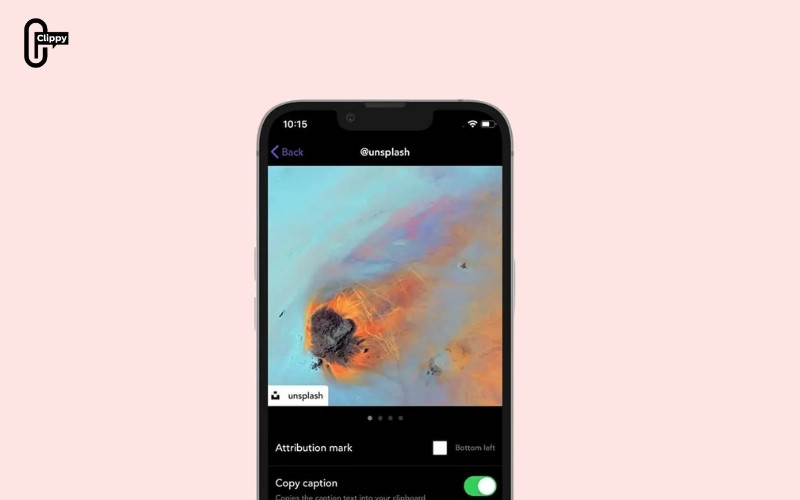
How to Repost a Story When You Are Not Tagged
If you are not tagged in an Instagram Story, the platform does not provide a built-in repost option. This limitation exists to protect user privacy and prevent stories from being redistributed without the creator’s knowledge or consent.
In these situations, users typically rely on alternative approaches, such as:
- Requesting the original creator to tag them in the story
- Taking a screenshot or screen recording of the story
- Reposting the content only after receiving explicit permission and providing proper credit
Manual reposting of stories should always be handled with care. Because automatic attribution is not applied, users should be especially mindful of privacy, consent, and accurate creator credit when sharing story content in this way.
Can You Repost From Private Instagram Accounts?
Instagram applies strict privacy controls to private accounts to ensure that shared content is only visible to users who have been approved as followers. Posts, reels, and stories from private profiles are not intended for public distribution, which significantly limits reposting options compared to public accounts.
When it comes to reposting content from private Instagram accounts, there are several important points to understand:
- Built-in repost and story-sharing features do not work with private accounts: Instagram does not allow native reposting or Story sharing for content published by private profiles, even if you follow the account.
- Manual reposting without the creator’s permission is strongly discouraged: Taking screenshots or screen recordings of private content and reposting it elsewhere can violate the creator’s expectations of privacy.
- Sharing private content publicly may breach platform rules and personal trust: Reposting content from a private account without consent can result in content removal, account reports, or damage to relationships with the original creator.
For these reasons, you should always request and receive explicit permission from the account owner before reposting any content from a private Instagram account. Respecting privacy settings helps protect both your account and the original creator while maintaining responsible content-sharing practices.
>>> See more: How to Reset Instagram Explore Page: Step-by-Step Guide
How to Repost From Instagram on iPhone and Android
While Instagram’s core features are consistent across devices, system tools can affect reposting workflows.
Reposting on iPhone
iPhone users benefit from integrated screen recording tools and early access to some Instagram features. Story sharing and repost options are generally stable and user-friendly on iOS.
Reposting on Android
Android users also have access to reposting features, though interface placement may vary by device manufacturer. Functionality remains equivalent when using official Instagram tools.
Common Problems When Reposting From Instagram
Even though Instagram offers several ways to repost content, many users still experience difficulties when attempting to repost posts, reels, or stories. These issues usually occur because of account privacy settings, feature limitations, or copyright restrictions. Understanding the most common problems and knowing how to fix them can help you repost content more smoothly and avoid unnecessary frustration.
- Common problems users face when reposting from Instagram include:
- Missing “Add to Story” option due to private or restricted accounts.
- Repost button is not appearing because the feature is not enabled.
- Reduced video quality from screen recordings.
- Copyright limitations affecting music in reposted reels.
To minimize these issues, users should keep the Instagram app updated, rely on native repost and story-sharing features whenever possible, and respect privacy and copyright settings set by the original creator.
Conclusion
Knowing how to repost from Instagram allows users to share content responsibly while respecting creator ownership and platform rules. By using built-in features whenever possible and following best practices for manual reposting, users can safely amplify content without risking account issues or credibility. Reposting, when done correctly, benefits both the sharer and the original creator and contributes to a healthier Instagram ecosystem.
Frequently Asked Questions About How to Repost From Instagram
Can you repost from Instagram without third-party apps?
Yes. Instagram provides official repost and sharing features for most content types.
Does reposting affect engagement or algorithm performance?
Reposting generally supports content distribution and does not negatively affect reach when done correctly.
Can reposted content be removed later?
Yes. Native reposts can be deleted at any time from your profile.
Will creators be notified when you repost their content?
Yes, especially when using native repost or story-sharing options.
>>> See more: Broadcast Channel Instagram: Full Guide for Creators and Followers

