

Learning how to add music to Reels on Facebook is the key to making your videos more emotional, dynamic, and algorithm-friendly. Whether you want to follow trending sounds, enhance storytelling, or build stronger engagement, choosing the right audio can completely transform your Reel. But many users still struggle with missing music options, copyright limits, or confusion between mobile and desktop features. In this guide, Video Download Free will show you exactly how to add music the right way – Discover right in this article!
Quick Guide
To add music to a Facebook Reel, start by creating or uploading your video, then tap the Audio (music note) icon. Search and select a song or sound, trim it with the slider, and fine-tune the volume if you’re talking in the video. Once the audio fits your reel, simply save the edit and publish.
How to add music to Reels on Facebook on Mobile
Music plays a powerful role in video creation, it sets the mood, enhances emotions, and makes your Reel more engaging. If you’re wondering how to add music to Facebook Reels, the good news is that the process is very simple. The Facebook app even provides a built-in library of royalty-free tracks across multiple genres for you to use.
Step 1: Update your Facebook app to the latest version and open it on your smartphone.
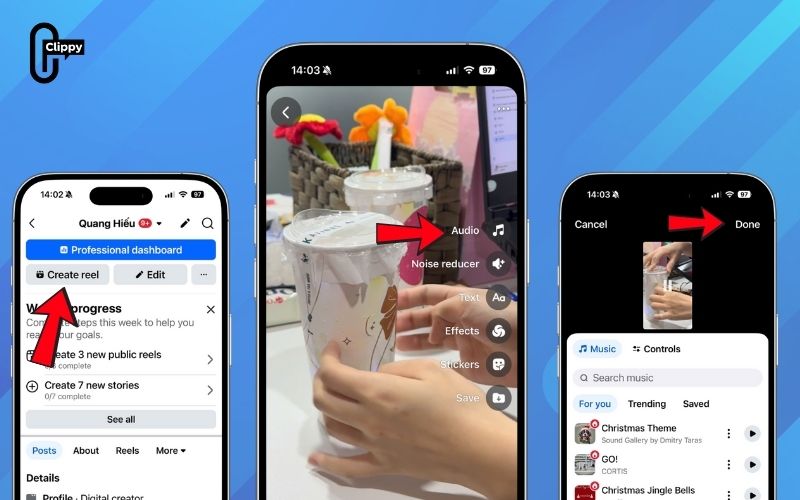
Step 2: From your Feed, switch to the Reels tab and tap Create reel.
Step 3: Choose a video length, then press Record to film a new clip or tap the photo icon to upload from your camera roll.
Step 4: Tap Audio to add music. Search for a track or artist, select the song you want, choose the part of the audio, and tap Done.
Step 5: After editing, tap Next, write a description, and hit Share reel to publish it on Facebook.
>>> See Also: How to find saved Reels on Facebook without digging menus
How to add music to Facebook Reels on desktop
Unlike the Facebook mobile app, the desktop version of Facebook whether through the app or the website does not include a built-in audio library. This means you won’t find an option to add music directly while creating a Reel on your computer. Instead, you’ll need to prepare your video beforehand by adding music through an external video editor, then upload the final version to Facebook Reels.
Important notes: Some videos may be muted in countries where Meta doesn’t hold music rights, and Facebook Reels uploaded from a computer cannot exceed 60 seconds, so longer clips must be trimmed before posting.
Step 1: Choose a song you want to use and add it to your video using a third-party video editor (e.g., CapCut, Premiere Pro, VN, iMovie).
Step 2: Export the edited video with the music already embedded.
Step 3: Open Facebook on your PC or Mac and go to the Reels upload section.
Step 4: Upload your video file and trim it if it exceeds 60 seconds.
Step 5: Add your caption and publish your Reel as usual.

Where to get royalty-free music for Facebook Reels
As mentioned earlier, using royalty-free music or sound effects is essential if you want to avoid your Reel being muted in regions where Meta doesn’t hold licensing rights. So, where can you safely source audio for your Facebook Reels?
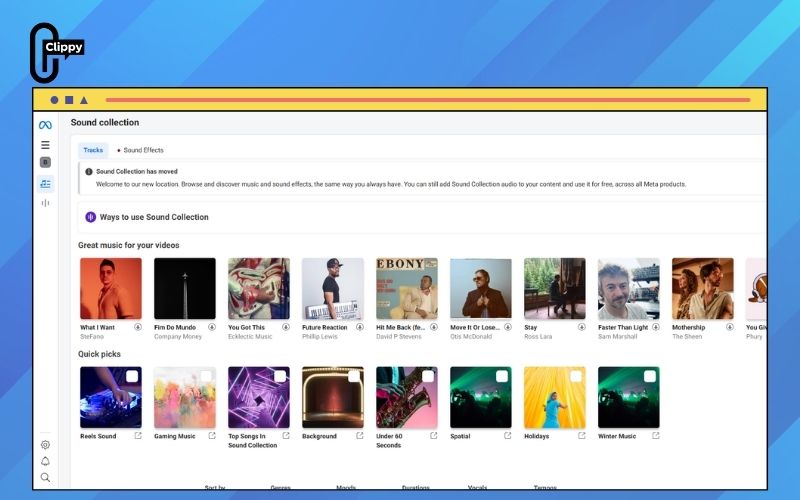
The Meta (Facebook) Sound Collection is the most reliable resource for discovering and downloading free, copyright-safe music and sound effects. This library features Meta-licensed tracks you can use across Facebook, Instagram, and other Meta apps whether you’re a creator, business, or casual user.
This audio library is only accessible on desktop, and while you can browse and download tracks, you cannot apply the music to videos directly on the site. You must download the audio first, then add it to your video using an editor. Here’s how:
Step 1: Log in to Facebook through your browser and visit https://www.facebook.com/sound
Step 2: Explore the music library or use the search bar to look up keywords. You can refine results by genre, mood, duration, vocals, or tempo to find the perfect track.
Step 3: Click Download to save a track to your device. The audio will be downloaded in WAV format.
>>> See Also: How to delete Facebook Reels history and wipe all data 2025
How to use somebody else’s audio
Using someone else’s audio on Facebook Reels is a great way to join trends, remix popular sounds, or add a creative twist to your own content. Facebook makes this process simple once you find a Reel with an audio track you like, you can instantly reuse it for your video.
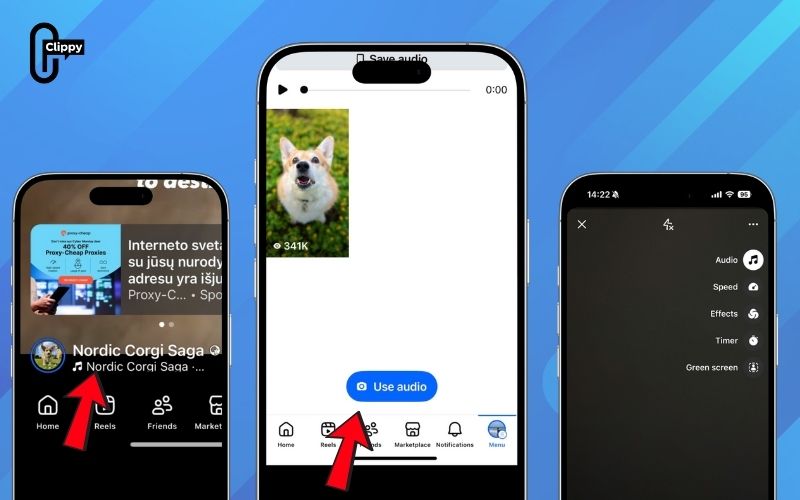
Step 1: Find a Facebook Reel that uses the audio you want.
Step 2: Tap the audio information displayed in the bottom-left corner of the Reel.
Step 3: Select Use Audio to open the Reel editor with that sound attached.
Step 4: Record a new clip or upload a video from your device to create your Reel.
FAQs about how to add music to reels on Facebook
Facebook Reels allows creators to enhance their videos with music, but you don’t always see all the audio options—sometimes due to copyright, sometimes due to temporary glitches. Below are brief, easy-to-understand answers to the most common questions about adding music to Facebook Reels.
Can I add music to a FB Reel?
Yes, just tap the Music icon when creating your Reel and choose a track from Facebook’s built-in library. All songs here are licensed for use, so you can add them safely.
Why is music not available on Facebook Reels?
Music may not appear because of regional licensing restrictions or rights issues. It can also be caused by an outdated app or temporary Facebook glitch.
How to use copyrighted music on Facebook Reels?
You cannot legally add copyrighted music manually unless you have permission from the owner. Use Facebook’s licensed library to avoid muting, takedowns, or account warnings.
Why is my Facebook Reel muted after uploading?
Your video may be muted if the music isn’t licensed in your country or Meta detects copyrighted audio. Re-upload using tracks from Meta’s Sound Collection to prevent muting.
Can I use someone else’s audio from their Reel?
Yes, tap the audio title in the bottom-left corner of the Reel, then choose Use Audio. You can record or upload your own video using that same sound.
Mastering how to add music to Reels on Facebook gives you the power to create videos that feel richer, more expressive, and more aligned with current trends. Whether you choose licensed tracks from Facebook’s library or add your own audio through editing tools, the key is understanding how each method works to avoid muting or copyright issues.
With the right sound, even simple clips become scroll-stopping content that captures attention instantly. Now that you know every method from mobile to desktop – it’s time to apply it and elevate your Reels to the next level.

