


YouTube is part of our everyday life, yet slow networks or no Wi-Fi often ruin the experience. That’s why downloading videos for offline viewing has become popular. If you’ve ever wondered how to download YouTube videos to phone, Video Download Free will walk you through simple steps in today’s News feature.
Steps to download YouTube videos to your phone with online tools
Numerous tools make it simple for users to download YouTube videos to their phones with only a few straightforward actions. Below are some practical options to help you easily save videos:
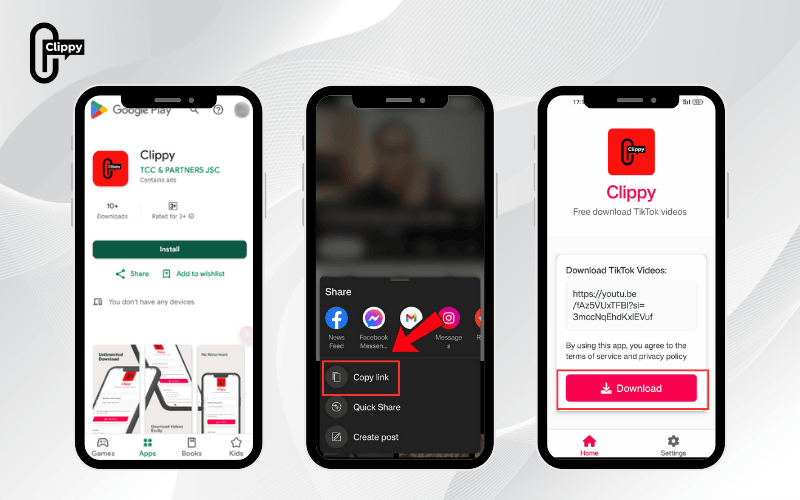
How to download YouTube videos to phone with Clippy
With Clippy, downloading YouTube videos onto your phone has never been easier. This app supports both iOS and Android, enabling you to save high-resolution videos in one simple step, ad-free and completely free.
- Step 1: Copy the URL of the YouTube video you want to download.
- Step 2: Paste this link into the designated field in the Clippy application.
- Step 3: Tap the Download option to begin the download.
- Step 4: Your chosen video will be stored directly on your device with no watermark.
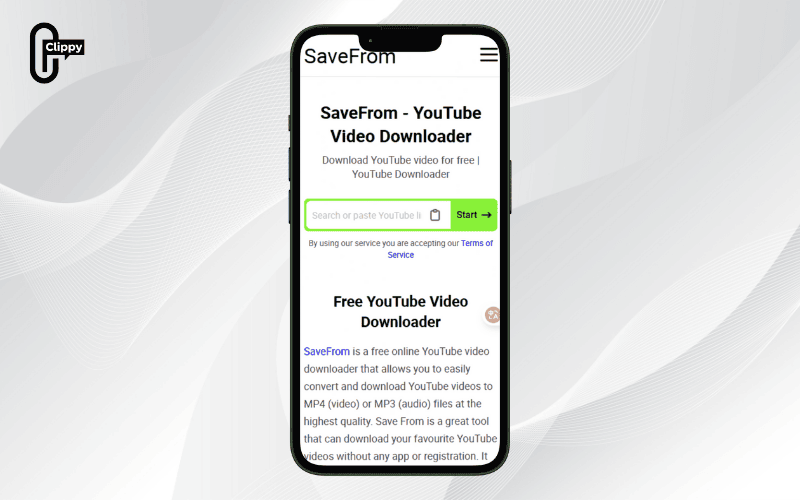
Downloading YouTube Videos to Your Phone via SaveFrom
Here’s the step-by-step process for using SaveFrom:
- Step 1: Open your desired YouTube video, tap Share, and then press Copy link to copy the video’s URL.
- Step 2: On your phone’s Chrome browser, paste the copied link. In the address bar, insert “ss” before “youtube” and ensure the link uses youtube.com instead of youtu.be.
- Step 3: The browser will redirect to SaveFrom.net. Pick the video resolution that suits you and tap Download.
- Step 4: Open the Downloads section on your device to locate the video, which is now stored and available to watch anytime you want.
>>> See Also: Why some YouTube videos cannot be downloaded? Easy guide here
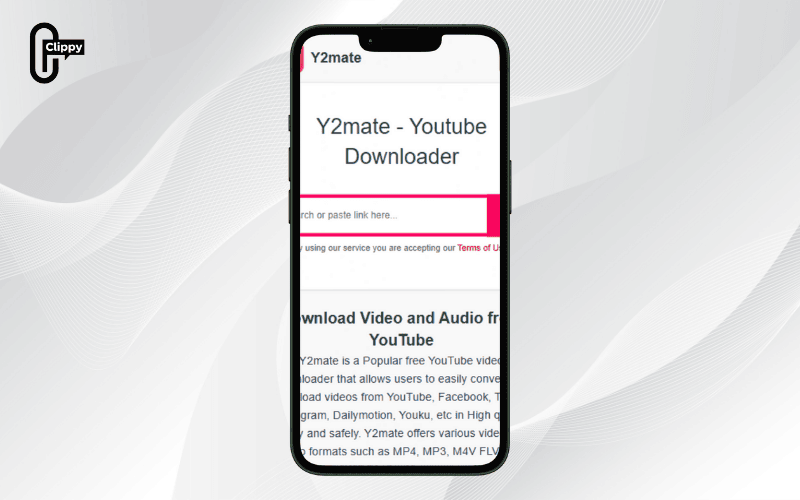
How to save YouTube videos to your smartphone via Y2Mate
To download YouTube videos to your phone using Y2Mate, follow these instructions:
- Step 1: Open the target YouTube video, press Share, and select Copy link.
- Step 2: Access y2mate.com through your smartphone browser, paste the link into the search field, and pick your preferred quality settings.
- Step 3: Tap Download .mp4 and confirm by pressing Download again to start saving the file.
- Step 4: When the download finishes, go to your device’s Files or Downloads folder to access and play the video anytime.
>>> See Also: How to download short YouTube videos on phone easily
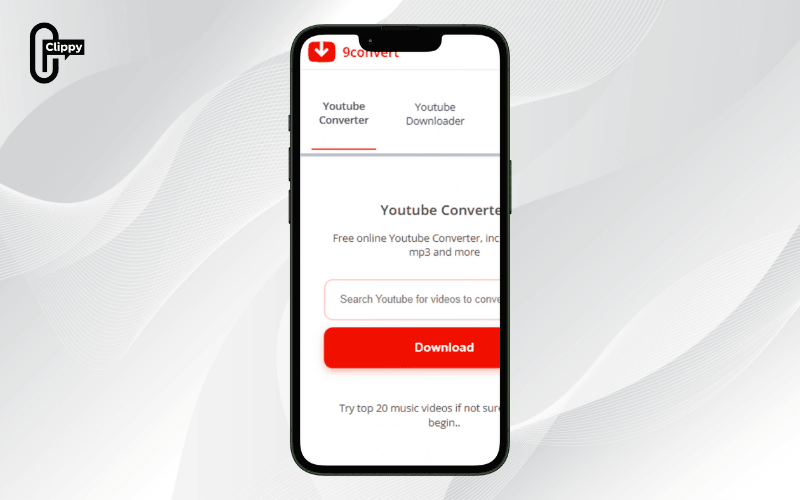
How to download YouTube videos to phone using 9Convert
You can easily save YouTube videos on your phone by following these steps with 9Convert:
- Step 1: Copy the link of the desired YouTube video.
- Step 2: Visit 9convert.com, paste the copied link into the search bar, and click Start so the system can process it.
- Step 3: Pick your desired video format and quality, then tap Download. The downloaded video will be stored in the Downloads or Files folder on your phone, allowing you to watch it whenever you like.
>>> See Also: How to download YouTube video from YouTube free no watermark
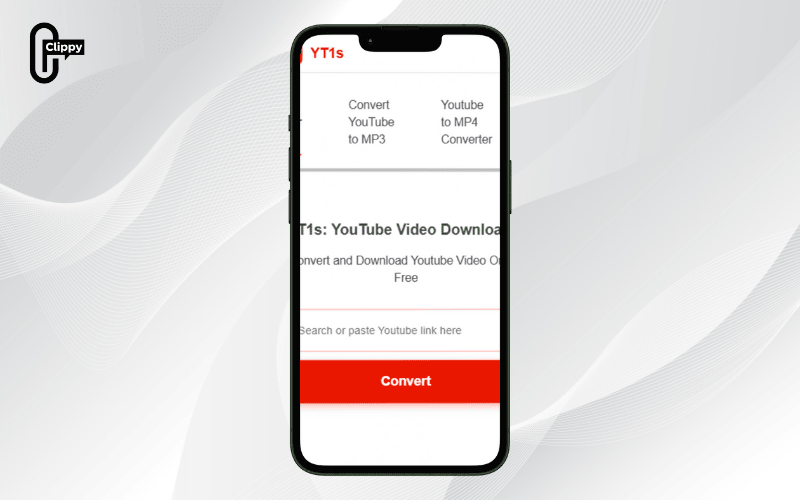
Steps to download YouTube videos to your phone using YT1s
With YT1s, downloading YouTube videos to your mobile device is fast and easy:
- Step 1: Open YouTube, play the video you wish to save, tap Share, and select Copy link.
- Step 2: In your phone browser, visit yt1s.com, paste the copied link into the search bar, and press Convert.
- Step 3: Once the system is done processing, choose your preferred format (video or audio) and quality. Then tap Get link to generate the download option.
- Step 4: Hit Download to save the video to your phone. It will be stored in the Downloads folder automatically.
>>> See Also: How to download YouTube video audio fast with Clippy app
How to download YouTube videos to phone with Clip Converter
Clip Converter offers a quick and easy way to download YouTube videos for free, with options to choose both quality and format.
- Step 1: Copy the YouTube video link that you’d like to download.
- Step 2: Open Clip Converter, paste the video link into the Media URL section, pick your preferred resolution and format, and click Start.
- Step 3: When the system has processed the video, click Download to save it directly to your mobile phone or computer.
Steps to save YouTube videos to your phone or PC with GenYouTube
With GenYouTube, you can quickly download YouTube videos in different qualities and formats, saving them directly to your device’s gallery for later viewing.
- Step 1: Copy the YouTube video link by tapping Share and selecting Copy link.
- Step 2: Open your browser and go to GenYouTube or another supported site.
- Step 3: Paste the link into the input field, then choose your preferred resolution (720p, 1080p, etc.) and format.
- Step 4: Hit Download to save the video. When finished, locate it in the Downloads folder or Photo Library of your device.
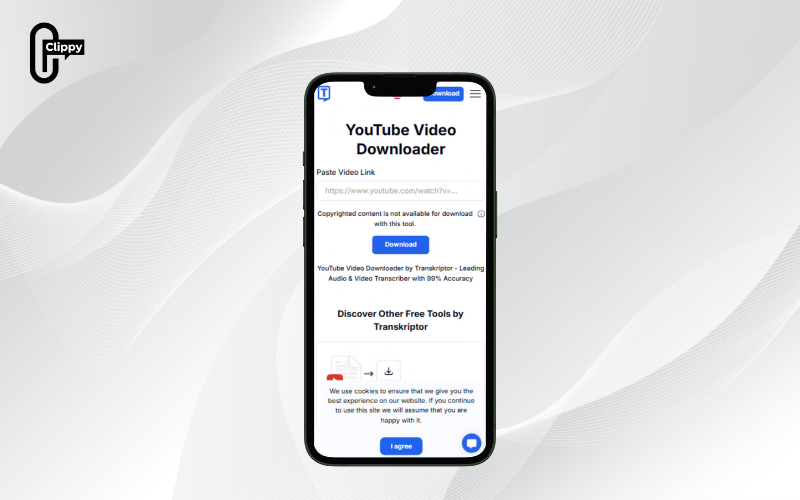
How to download YouTube videos to phone with Transkriptor
Transkriptor makes it simple to download YouTube videos and convert them into editable text or subtitles right from your browser or phone app.
- Step 1: Access Transkriptor’s website or install the app on your mobile device.
- Step 2: Copy the YouTube URL and paste it into Transkriptor’s search field.
- Step 3: Let the system process the video, extract the audio, and create a transcript or subtitle file.
- Step 4: Edit the content easily in the built-in editor if you wish.
- Step 5: Save or download the final document in different formats, such as TXT, DOCX, PDF, or SRT.
How to download YouTube videos to your phone using 4K Video Downloader
If you’re looking for a reliable way to download YouTube videos without watermarks, 4K Video Downloader is a great choice thanks to its intuitive design and high-speed performance.
- Step 1: Download and install the app from the official site 4kdownload.com.
- Step 2: On YouTube, copy the link of the video or playlist you’d like to save.
- Step 3: Launch the app and paste the URL into the designated field.
- Step 4: Select from available formats (MP4, MKV, MP3, etc.), choose the resolution, and specify your download folder.
- Step 5: Click Download to begin. The application will show a clear progress bar as your video downloads.
Steps to download YouTube videos on mobile with support apps
Apart from web-based tools, dedicated mobile applications are an excellent choice for downloading YouTube videos conveniently. These apps not only allow you to choose video resolution but also help organize and access downloaded content easily.
The following section provides detailed instructions on some widely used Android and iOS apps:
How to download YouTube videos to phone with YT3
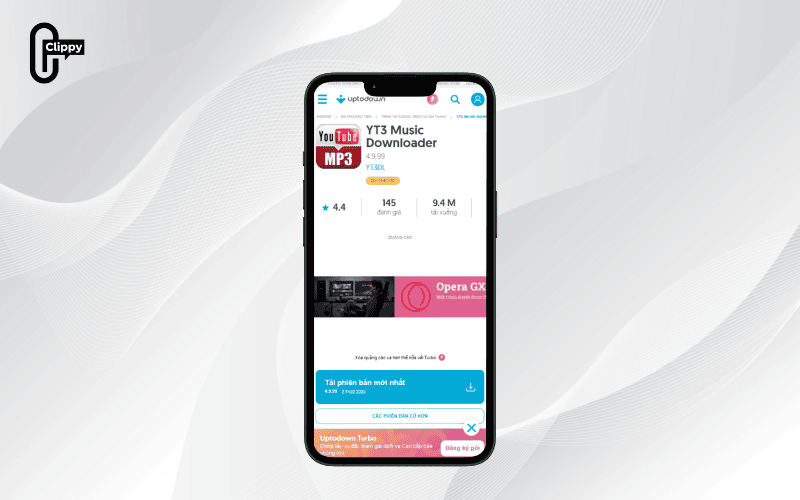
The YT3 app, available exclusively for Android, simplifies YouTube video downloads with its built-in search and direct download features:
- Step 1: Access the Google Play Store, look for YT3, and install it on your smartphone.
- Step 2: Open the YT3 app and type the name of the video you want in the search bar.
- Step 3: From the displayed results, pick your desired video and tap the download icon (an arrow or music note) to start downloading.
Steps to download 4K videos from YouTube to your mobile with SnapTube
SnapTube is a powerful Android app that lets you easily download YouTube videos in different resolutions, including 4K. Here’s how to download YouTube videos to phone:
- Step 1: Download and install SnapTube on your smartphone.
- Step 2: Open the app, enter the video title in the search bar, and press the download arrow next to the video.
- Step 3: Pick the video quality you prefer (4K, HD, SD) and tap Download.
- Step 4: Your video will be saved in SnapTube’s Downloads section, and you can find it under Album in the app.
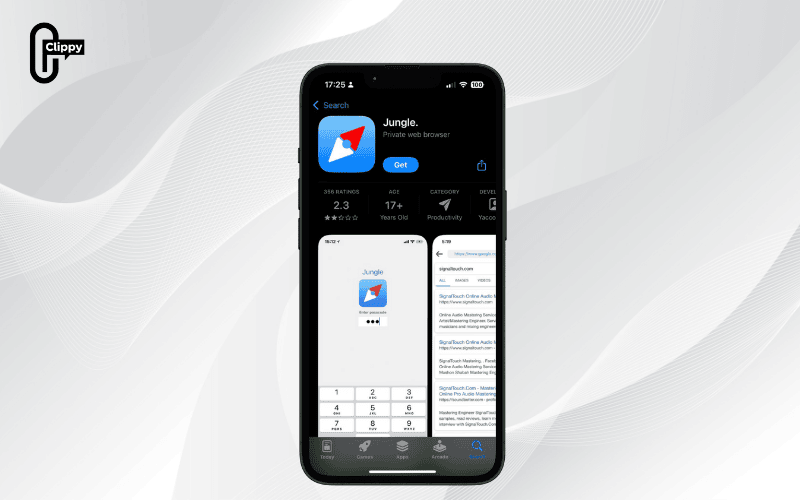
How to download YouTube videos to phone using Jungle
For iPhone and iPad users, Jungle provides a simple way to download YouTube videos for offline viewing.
- Step 1: Install Jungle from the App Store onto your iOS device.
- Step 2: On YouTube, find your desired video, tap Share, and choose Copy link.
- Step 3: Open Jungle, paste the copied link into the URL bar, and press the Download icon to save the video.
- Step 4: Access your downloaded content in Jungle’s Downloads tab, and view it later in the Album section.
Step-by-Step instructions for downloading YouTube videos to your phone via YouTube Vanced
YouTube Vanced is a third-party application designed as a replacement for the official YouTube app, giving users the convenience of downloading videos directly to their devices. Follow these detailed steps:
- Step 1: Install Vanced Manager on your phone to enable installation of the YouTube Vanced app.
- Step 2: Open YouTube Vanced, search for, and select the video you’d like to download.
- Step 3: Click Download, pick your desired video quality, and confirm with OK to start the process.
- Step 4: Navigate to the Library menu (bottom right) → choose Downloaded videos to review and play your saved content.
How to download YouTube videos to phone via TubeMate
TubeMate is a popular tool that makes downloading YouTube videos to your smartphone fast and easy. Here’s how to download YouTube videos to phone:
- Go to the TubeMate website: Navigate to tubemate.net and download the APK file.
- Install TubeMate: Enable installation from unknown sources in your settings, then install the app.
- Search for videos: Open TubeMate and use the built-in search bar to find your desired YouTube video.
- Begin download: Tap the red arrow icon, select your preferred quality, and press Download to start.
- Manage downloads: Head to the downloads section to track progress and watch your video after it finishes downloading.
How to download YouTube videos directly to iPhone or Android
On both operating systems, YouTube offers a built-in feature to download videos for offline viewing through its official app, making the process simple and secure.
However, depending on your region and account type, this feature may have limitations on video quality, so you’ll need to sign in with your Google account to use it. This is the most convenient way to save videos quickly without installing extra apps or visiting third-party websites.
>>> See Also: Discover the best app to download YouTube video in 2025

Key tips before saving YouTube videos to your mobile device
Although downloading videos makes offline watching simple and convenient, here are some things you should consider first:
- Storage capacity: High-definition files are large. To save space, select a lower resolution if necessary.
- Premium benefits: Only YouTube Premium subscribers can download Full HD videos for offline viewing.
- Internet requirements: Ensure you have a strong internet connection. Using 4G/5G instead of Wi-Fi may consume substantial data.
- Legal use: Keep your downloads for private viewing only. Avoid distributing or using them commercially to stay within copyright regulations.
- Device compatibility: Use download tools compatible with your system (iOS or Android) to ensure smooth performance.
With the 15 strategies on how to download YouTube videos to phone we’ve covered, you should now have the perfect way to save videos offline. Having your favorite content available anytime helps cut down on mobile data use and provides a smooth, enjoyable viewing experience. Start using Clippy so you never miss a single piece of engaging content on YouTube!

