


Have you ever heard a song on YouTube and wished you could turn it into your ringtone? You’re not alone. Many people want to customize their phone sounds with their favorite tracks. In this detailed guide, you’ll learn how to make a ringtone from YouTube video easily and safely. Let’s explore practical methods, useful tools, and a simple way to do it with Video Download Free learn the best approach for every device!
Why should you make a ringtone from a YouTube Video?
Turning a YouTube video into a ringtone is one of the easiest and most creative ways to personalize your phone. It lets you carry your favorite moments, sounds, or songs wherever you go. Here’s why it’s such a great idea:
- Express Your Personality: Create a ringtone from your favorite YouTube songs, viral clips, or soundbites that truly represent who you are.
- Instantly Access What You Love: No need to search through endless ringtone libraries. Use the exact audio you already enjoy watching on YouTube.
- Enjoy Full Creative Control: Cut, trim, and fine-tune the best part of any video. Add fade-ins or fade-outs to make your ringtone sound professional.
- Match Every Mood: From energetic beats to funny memes or movie quotes, you can set different ringtones to match your vibe or contacts.
- Give New Life to YouTube Content: Instead of using generic tones, repurpose your favorite YouTube clips into something uniquely yours.
How to make a ringtone from YouTube video by Clippy
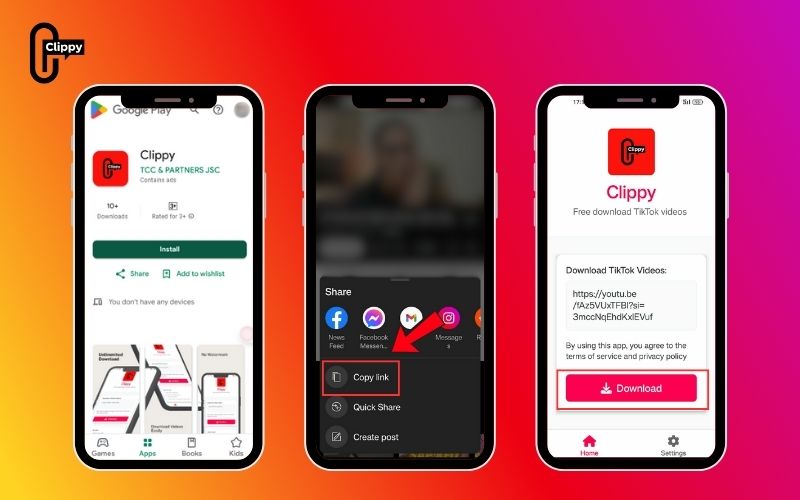
Clippy is a simple and fast app that helps you turn any YouTube video into a personalized ringtone in just a few taps. No complicated editing – just copy, paste, and download. Here’s how to do it:
- Step 1: Install the app on your Android device to get started.
- Step 2: Open YouTube, find your favorite video, and tap Share → Copy Link.
- Step 3: Open Clippy, paste the copied URL, and let the app extract the audio.
- Step 4: Select the audio download option, then download and set it as your ringtone instantly.
How to convert a YouTube video into a ringtone quickly and easily
Found the perfect sound on YouTube and want to make it your ringtone? Good news – it’s easier than you think! With just a few simple tools, you can transform any YouTube video into a custom ringtone that perfectly fits your style. Follow these quick and easy steps:
Step 1: Download the YouTube Video
Start by saving the YouTube video that contains your desired audio. You can use a YouTube downloader or a screen recorder to capture it.
Remember: Always ensure you have permission to use the video for personal purposes only.
Step 2: Import into PowerDirector
Open PowerDirector and create a new project. Then, import your downloaded YouTube video into the editor.
Step 3: Trim to Ringtone Length
Drag your video onto the timeline, and trim it down to a short clip – ideally between 15 and 30 seconds. This length works best for ringtones.
Step 4: Add Fade Effects (Optional)
For a smoother, more polished sound, you can adjust audio levels or add fade-in and fade-out effects.
Step 5: Export as MP4
Once you’re happy with your trimmed clip, export it as an MP4 file. This will prepare it for audio conversion.
Step 6: Convert to Ringtone Format
Go to Media.io (or any reliable online converter). Upload your MP4 file and convert it to:
- MP3 for Android devices
- M4R for iPhones
After conversion, download your audio file – your ringtone is almost ready!
Step 7: Set the Ringtone on Your Phone
- On Android: Go to Settings → Sounds → Ringtone, then choose your new MP3 file.
- On iPhone: Use iTunes or GarageBand to import your M4R file, then set it as your ringtone in Settings → Sounds & Haptics → Ringtone.
And that’s it! You’ve successfully learned how to convert a YouTube video into a ringtone – quickly, easily, and completely customized to your liking.
>>> See Also: 15 tips on how to download YouTube videos to phone easily

How to make a ringtone from YouTube video with CapCut
CapCut is a powerful yet beginner-friendly video editor that makes it easy to turn any YouTube video into a custom ringtone. If you don’t have CapCut yet, download and install it on your device — it’s free and quick to set up.
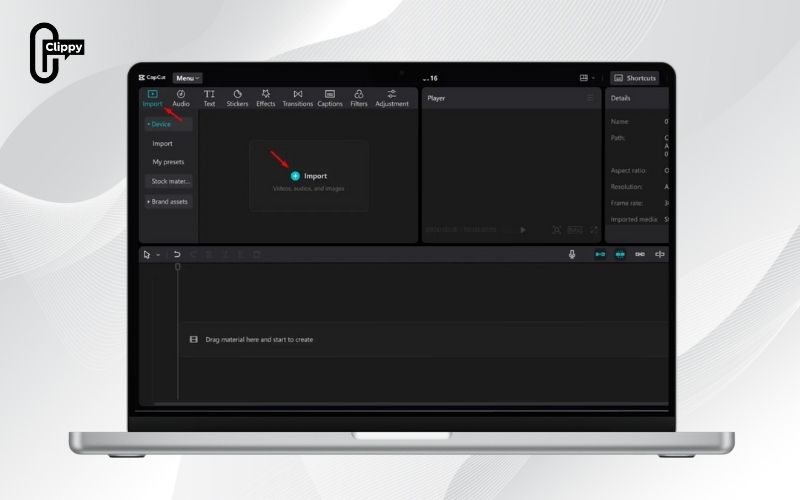
Step 1: Open CapCut and tap “New Project.” Select “Import” to upload the YouTube video you’ve downloaded from your device.
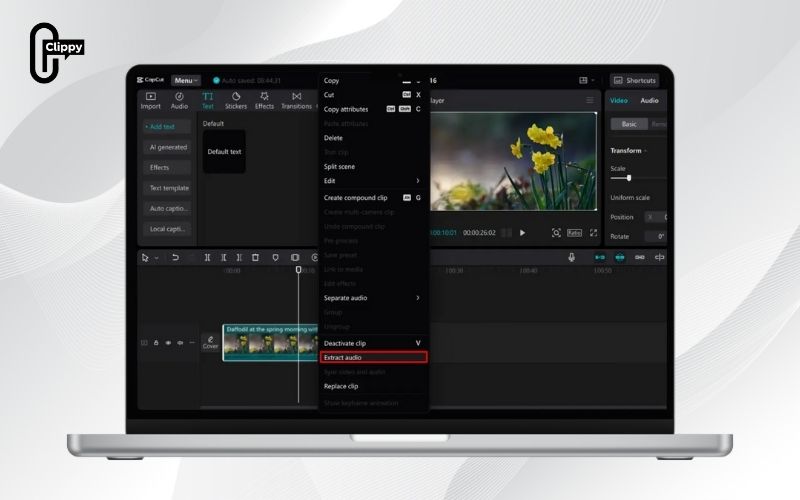
Step 2: Right-click the video on the timeline and choose “Extract Audio.” Then trim the part you want, and fine-tune it by adding fade effects, adjusting volume, or changing speed to make it sound just right.
Step 3: Go to the export settings, deselect the video option, and enable audio only. Choose the MP3 format and save your new ringtone directly to your device.
>>> See Also: How to download YouTube Shorts video free in HD quality

How to set a ringtone from a downloaded YouTube video
Once you’ve created and downloaded your custom ringtone from a YouTube video, the final step is to set it on your phone. The process is simple, but it differs slightly between Android and iPhone. Follow the guide below for your device.
How to Set a Ringtone from YouTube on Android
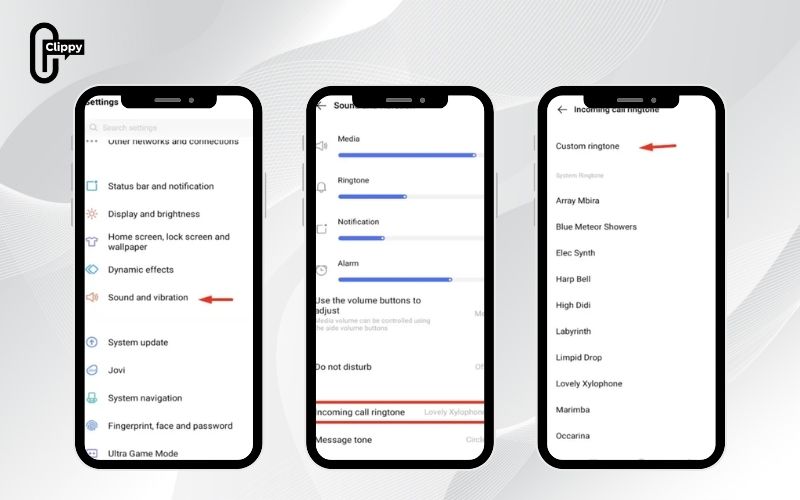
- Step 1: Open Settings on your Android device.
- Step 2: Go to Sound & vibration or Sound settings.
- Step 3: Tap Ringtone, then select Add or Custom ringtone.
- Step 4: Locate and choose the trimmed MP3 file you saved earlier.
- Step 5: Confirm your selection — your new YouTube ringtone is now set!
>>> See Also: Discover the best app to download YouTube video in 2025
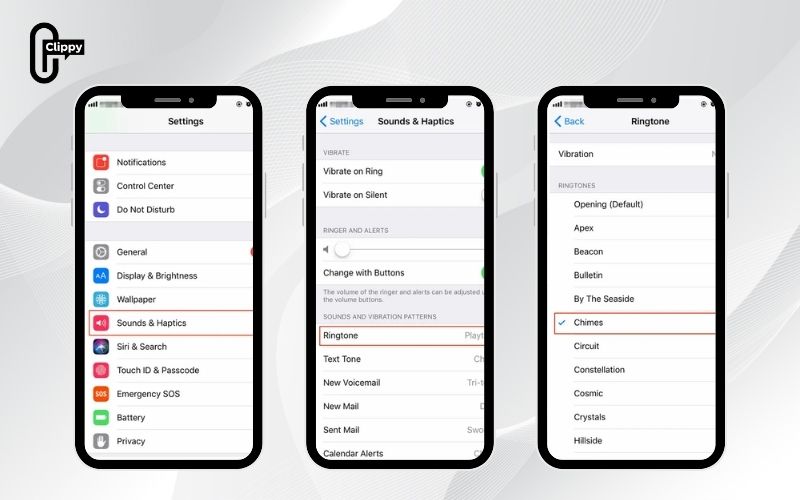
How to Set a Ringtone from YouTube on iPhone
- Step 1: Open Settings and go to Sounds & Haptics → Ringtone.
- Step 2: To add a custom tone, first sync it via iTunes.
- Step 3: Connect your iPhone to your computer, open iTunes, and import your ringtone file into your library. Then sync your iPhone to transfer the file.
- Step 4: After syncing, return to the Ringtone section, find your custom tone, and select it. Confirm to set it as your new ringtone.
>>> See Also: How to download YouTube video audio fast with Clippy app
Now you know exactly how to make a ringtone from YouTube video using different methods: manual downloading, converting, trimming, and transferring. But if you prefer the fastest and most convenient solution, Clippy is your go-to choice. It saves time, maintains high sound quality, and works perfectly on any device.
So next time you hear a catchy sound on YouTube, don’t just like the video – turn it into your new ringtone! Download Clippy today and enjoy a fully personalized ringtone experience.

