

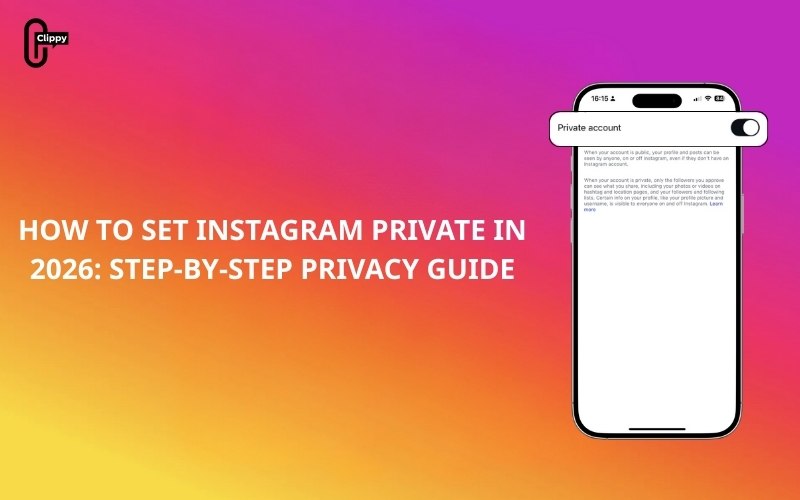
Knowing how to set Instagram private is important if you want full control over who can see your posts, stories, reels, and interactions. Whether you use Instagram for personal sharing, family updates, or private connections, switching to a private account helps protect your content from strangers, bots, and unwanted viewers.
This in-depth guide on Free Download App Video explains exactly how to make your Instagram account private on mobile and desktop, what changes after switching, how to manage followers and requests, limitations you should consider, and how to return to a public account if your needs change.
Key Takeaways
- Setting your Instagram account to private lets you control who can see your posts, stories, reels, and follower list.
- Only approved followers can access your content after your account is made private.
- You can make your Instagram account private using either the mobile app or a web browser in just a few steps.
- Existing followers keep access to your content, while new users must send follow requests.
- You can review, approve, ignore, or remove followers at any time without notifying them.
- Private accounts improve privacy but reduce public visibility and discoverability.
- You can switch your Instagram account back to public whenever you want without losing posts or followers.
What Does It Mean to Set an Instagram Account to Private?
When you set your Instagram account to private, only approved followers can view your content. This includes posts, reels, stories, highlights, followers list, and following list.
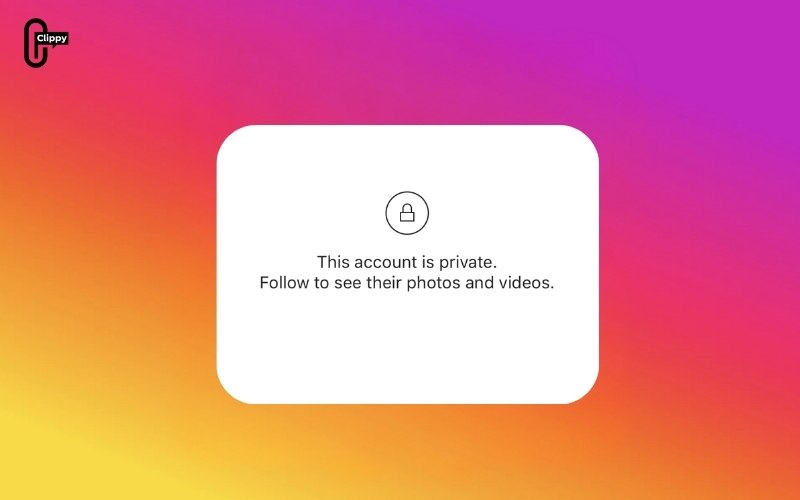
People who are not following you will only be able to see your username, profile photo, bio, and follower count. Any new user who wants access to your content must send a follow request, which you can approve or ignore. This setting gives you direct control over who can interact with your account.
>>> See more: How to hide following list on Instagram Step by Step

Many users choose a private account to protect personal photos, limit online exposure, or avoid spam and fake accounts. A private profile is especially useful for people who share family moments, travel updates, or daily life content intended only for a trusted audience.
Making your account private can also reduce unwanted messages, random profile views, and misuse of your content, while still allowing you to stay active on the platform.
How to Set Instagram Private on the Mobile App (iOS and Android)
Most users access Instagram through the mobile app, and this is the fastest way to change your account privacy. The steps below apply to both iOS and Android devices.
- Step 1: Open the Instagram app
- Step 2: Tap your profile picture in the bottom-right corner
- Step 3: Tap the menu icon in the top-right corner
- Step 4: Select Settings and privacy
- Step 5: Scroll down and tap Account privacy
- Step 6: Turn on Private account
- Step 7: Confirm the change when prompted
Once completed, your account becomes private immediately. Anyone who is not already following you will need to send a follow request to view your content.
>>> See more: How to Switch to a Personal Account on Instagram (Step-by-Step Guide)

How to Set Instagram Private on a Desktop or Web Browser
If you use Instagram on a laptop or desktop computer, you can also change your privacy settings through a web browser. The layout may differ slightly from the mobile app, but the steps are similar.
- Step 1: Go to Instagram.com and log in
- Step 2: Click your profile photo in the navigation menu
- Step 3: Select Settings

After that, you can do the next step:
- Step 4: Open Privacy or Account privacy
- Step 5: Enable the Private account option
- Step 6: Confirm your selection

Your privacy settings will sync across all devices, so you do not need to repeat the process on your phone.
>>> See more: How to Unsync Facebook and Instagram: Fast & Easy Methods
What Happens Immediately After You Make Your Instagram Account Private?
After switching your Instagram account to private, your existing followers will continue to see your posts, stories, reels, and highlights without any interruption. Nothing changes for people who are already following you.
New users, however, will no longer be able to view your content freely. Instead of instant access, they will see a follow request button on your profile. Until you approve that request, they cannot view, like, comment on, or interact with your posts.

Once your account is private, all follow requests appear in your notifications or follower management section. You can review each request individually and choose whether to approve or ignore it at any time.
If you ignore a follow request, the user will not receive a notification. They will simply remain unable to access your content unless you approve them later. Managing follow requests does not affect your existing followers.
All of your previous posts, reels, stories, and highlights remain the same after switching to a private account. The only change is who can see them. Approved followers retain full access, while non-followers lose visibility. Your content will also no longer appear in public hashtag pages or be accessible to users who do not follow you.
How to Remove Followers After Making Your Account Private
Switching your Instagram account to private does not automatically remove existing followers. Anyone who was already following you will continue to have access to your content unless you take action.
If you want to remove a follower, open your followers list, select the user, and choose the remove option. Once removed, that person will no longer be able to view your posts, stories, or profile content. To regain access, they must send a new follow request, which you can approve or ignore.
Can You Switch Back to a Public Account Later?
Instagram allows you to change your account privacy at any time, so switching back to a public account is quick and reversible.
To change your Instagram account back to public, follow these steps:
- Step 1: Open the Instagram app and go to your profile
- Step 2: Tap the menu icon in the top-right corner
- Step 3: Select Settings and privacy
- Step 4: Tap Account privacy
- Step 5: Turn off Private account
- Step 6: Confirm your choice when prompted
After switching back to public, all your posts and stories become visible to everyone on Instagram. New users can follow you instantly without sending a follow request.
Frequently Asked Questions About Setting Instagram Private
Can I switch my Instagram account between private and public anytime?
Yes. You can toggle between private and public modes whenever you want without losing posts, followers, or messages.
Will people be notified when I make my account private?
No. Instagram does not send notifications when you change your account privacy settings.
Can private Instagram posts be shared outside Instagram?
Only approved followers can see your content. Non-followers cannot access or share your private posts.
Does making Instagram private affect direct messages?
No. Your existing conversations and messages remain unchanged.
Conclusion
Understanding how to set Instagram private allows you to take full control of your content and online presence. A private account helps protect your posts, manage followers, and reduce unwanted interactions while keeping your Instagram experience personal and secure.
By following the steps in this guide, you can confidently adjust your privacy settings, manage your audience, and switch back to a public account whenever your goals change.
>>> See more: How Can You Know If Someone Blocked You on Instagram?

