


Watching YouTube Shorts can be fun, but sometimes you just want to move through videos a little faster — especially when creators upload longer content. If you’ve ever wondered how to speed up YouTube Shorts, you’re not alone. In this complete guide, we’ll show you several simple and effective ways to increase playback speed on both mobile and desktop. These methods work across devices and app versions, helping you save time and enjoy videos at your own pace. Let’s explore them all with Video Download Free!
Why You Might Want to Speed Up YouTube Shorts
YouTube Shorts were designed for quick, vertical viewing, usually under 60 seconds. However, some creators upload longer Shorts, and without speed control, watching can feel slow or repetitive. Learning how to speed up YouTube Shorts helps you:
- Save time when watching tutorials, vlogs, or commentary Shorts.
- Quickly browse through repetitive or slow sections.
- Improve focus by watching content at your preferred pace.
- Control your viewing experience instead of waiting for every clip to finish.
Unfortunately, the Shorts player doesn’t include built-in playback speed controls like regular YouTube videos but that’s where our solutions come in.
>>> See Also: How to download short YouTube videos on phone easily
How to speed up YouTube Shorts
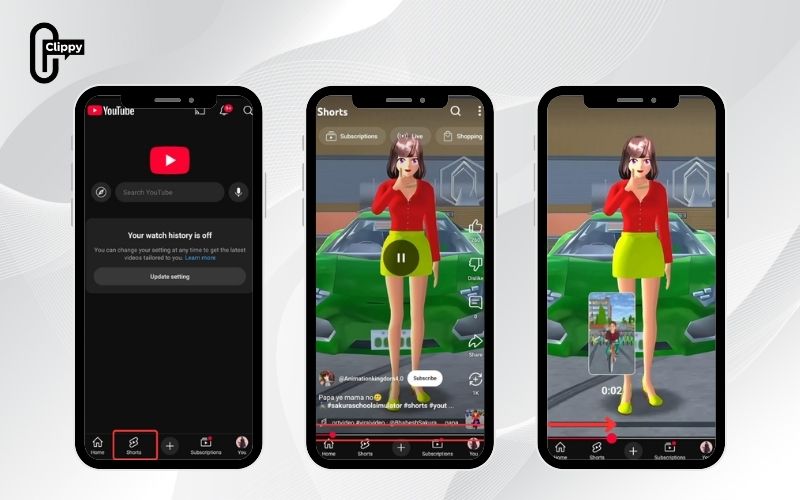
Use the Red Timeline to Manually Speed Through Shorts
One of the simplest methods to fast-forward or “speed up” a Short is to use the red timeline that appears at the bottom of the screen. This progress bar functions like the one in standard YouTube videos, allowing you to skip forward manually.
Here’s how to use it:
- Open the YouTube app on your phone or YouTube.com on your desktop.
- Go to the Shorts section and play a video.
- Tap once in the middle of the screen to pause the Short.
- A thin red line will appear at the bottom.
- Drag your finger or mouse along the red line to jump ahead.
If the timeline doesn’t appear, swipe up to the next Short and come back down again — it usually refreshes. This is one of the fastest ways to simulate how to speed up YouTube Shorts without external tools.
>>> See Also: How to download YouTube Shorts video free in HD quality
Modify the URL to Open Shorts in the Regular Player (Desktop Method)
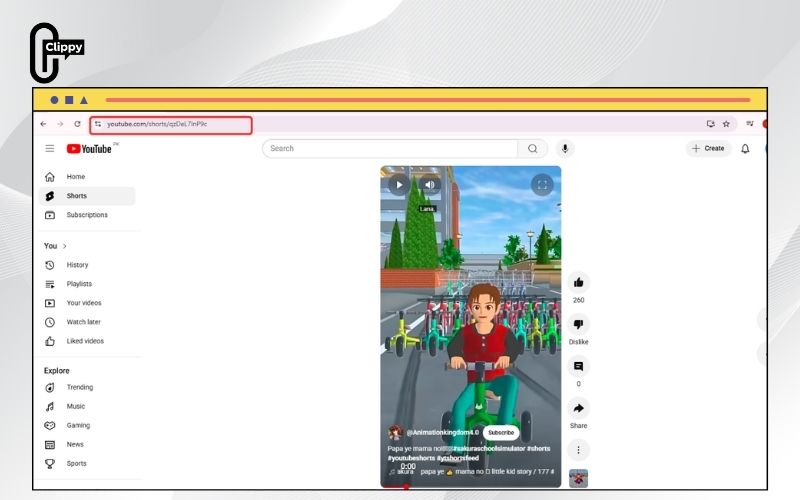
When using YouTube on a computer, Shorts open in a special vertical player that doesn’t have playback speed options. However, you can easily switch to the standard video player where speed controls are available.
Follow these steps:
- Play a Short on YouTube in your web browser.
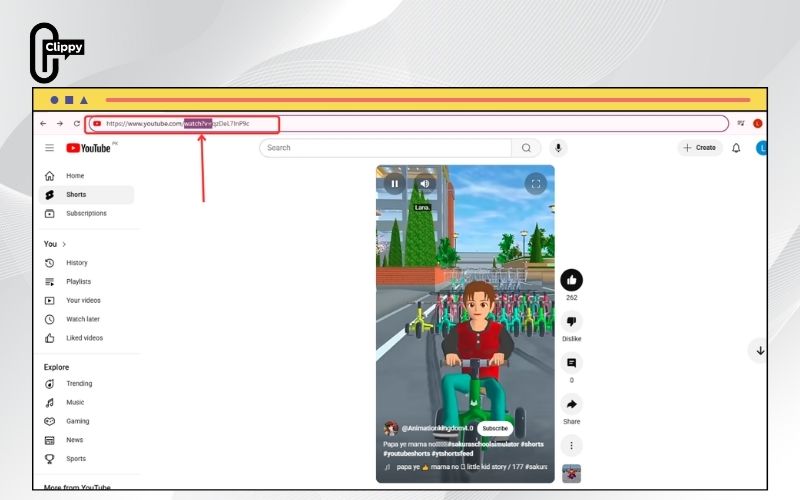
- Look at the URL in the address bar, it should look like this: https://www.youtube.com/shorts/abc123XYZ
- Replace /shorts/ with /watch?v= so it becomes: https://www.youtube.com/watch?v=abc123XYZ
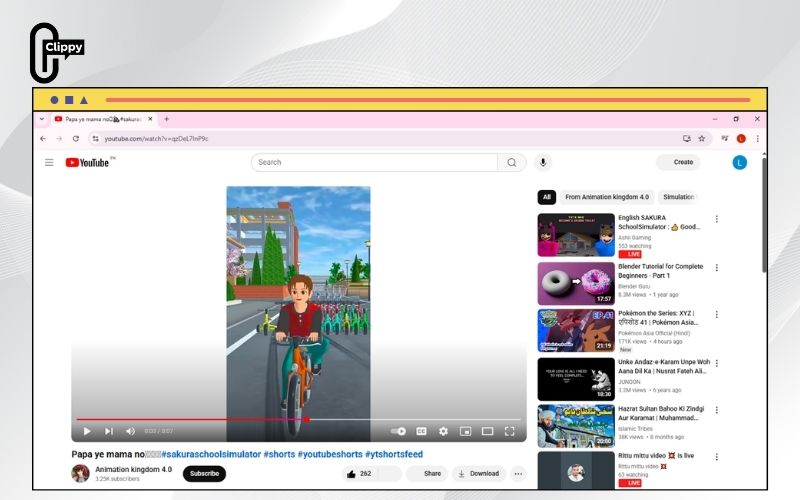
- Press Enter to reload the page.
Now the Short opens in the regular YouTube player. You can use the Settings icon → Playback speed to select 1.25x, 1.5x, or 2x. This trick gives you full control over playback — one of the best ways for how to speed up YouTube Shorts on a desktop.
>>> See Also: How to make a ringtone from YouTube video (Free & Easy)
Open the Short via “Watch on YouTube” or Browser Workaround (Mobile)
If you’re watching Shorts on the YouTube app, playback speed options aren’t available by default. But there’s a clever workaround using the “Watch on YouTube” or “Open in browser” feature.
Here’s what to do:
- While watching a Short, tap the three-dot menu in the corner.
- Select “Watch on YouTube” or “Open in browser.”
- This will open the Short in the full YouTube video player.
- Tap the gear icon → Playback speed, then select your preferred speed.
Once in the regular player, you can use speeds from 0.25x to 2x — the same as long-form videos. This is a practical method when learning how to speed up YouTube Shorts on mobile devices.
Add the Short to a Playlist or “Liked Videos” Section
Another way to access playback speed controls is to save the Short in a playlist or your Liked Videos list. From there, you can open it in the standard player and adjust the speed.
Here’s how:
- Step 1: While watching a Short, tap the Like button.
- Step 2: Go to your profile → Playlists → Liked Videos.
- Step 3: Find the Short you liked and open it.
Once opened, you’ll see the full video interface, allowing you to adjust playback speed from the gear menu. This trick works perfectly for anyone asking how to speed up YouTube Shorts without modifying links or downloading extensions.
Use Keyboard Shortcuts for Faster Playback (Desktop)
If you prefer to use YouTube on your computer, learning a few keyboard shortcuts can help you quickly control playback speed or skip ahead without menus.
Here’s a quick list of useful shortcuts when you open Shorts in the regular player:
- Right Arrow (→): Skip ahead by 5 seconds.
- L key: Jump forward by 10 seconds.
- Shift + Right Arrow: Longer jump (depending on settings).
- J key: Rewind by 10 seconds.
Combine these shortcuts with playback speed adjustments (like 1.5x or 2x) for the fastest, smoothest experience. That’s a professional trick in mastering how to speed up YouTube Shorts efficiently.
Try Third-Party Browser Extensions
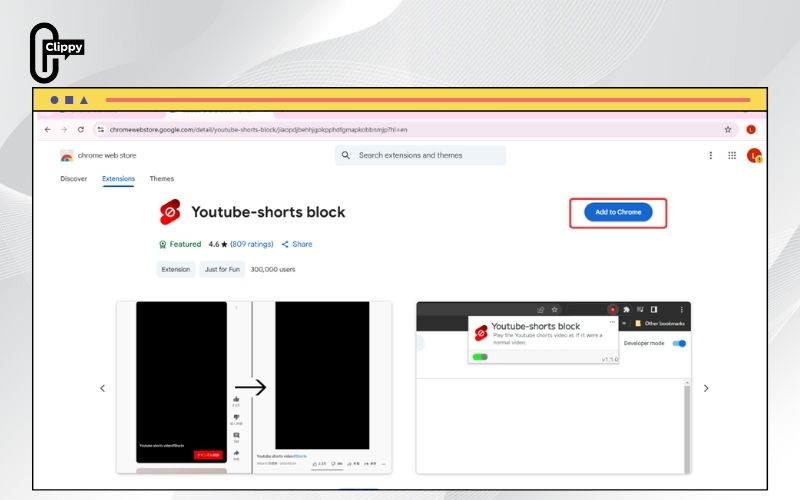
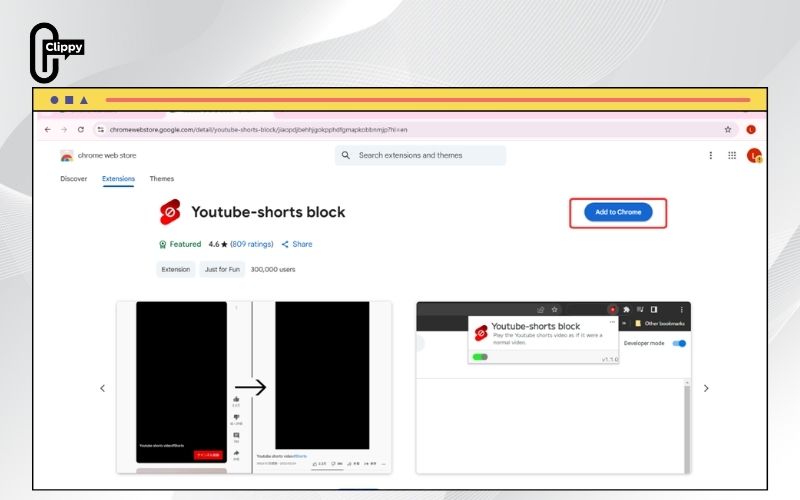
For desktop users who often watch Shorts, installing an extension can make playback control easier. Many extensions allow you to add custom playback speed buttons or force Shorts to open in the standard player.
Popular Chrome/Firefox extensions include:
- Enhancer for YouTube
- Better YouTube Shorts
- YouTube Video Speed Controller
Once installed, these tools let you press shortcut keys or add on-screen controls to adjust playback speed directly in the Shorts interface. It’s one of the most advanced methods of how to speed up YouTube Shorts automatically.
Use Download and Rewatch Method (Optional)
If you need precise control or want to watch a Short offline, you can download it first. After downloading, use a media player like VLC or Clippy Player, which lets you change playback speed freely.
Steps:
- Copy the link to the Short.
- Paste it into a trusted downloader tool (always follow YouTube’s fair use policy).
- Open the downloaded file in VLC or Clippy.
- Adjust the speed slider to your liking.
Although this takes an extra step, it’s effective for users who frequently ask how to speed up YouTube Shorts beyond what the app allows.
Tips and notes for best results
- YouTube may update its app frequently; some methods might vary by version or device.
- The Shorts interface is designed for quick swiping, not detailed playback — so timeline control may be limited.
- Avoid third-party apps that violate YouTube’s Terms of Service. Always use trusted extensions or browser workarounds.
- If one method doesn’t work, try another — mobile and desktop behaviors differ.
Learning how to speed up YouTube Shorts is all about finding the technique that suits your platform and watching habits.
>>> See Also: How to download YouTube video audio fast with Clippy app
FAQs about speeding up YouTube Shorts
Can you adjust playback speed directly in Shorts?
Not yet. The Shorts player doesn’t have built-in playback speed settings, but you can open the Short in the regular player to access them.
Does double-tapping the screen work for Shorts?
On some devices, yes. Double-tapping the right side may skip forward a few seconds. This feature isn’t available on all app versions.
Can I use Chrome extensions to speed up Shorts?
Yes! Extensions like “Enhancer for YouTube” add playback control buttons and speed adjustments to Shorts.
Are these methods safe to use?
Absolutely. All solutions listed here are legitimate and safe when used properly.
Why doesn’t YouTube just add a speed control option to Shorts?
Because Shorts are designed for quick, swipe-based viewing, YouTube limits playback options to keep the interface simple.
Mastering how to speed up YouTube Shorts gives you full control over your viewing experience, whether on mobile or desktop. From using the red timeline and URL tricks to leveraging browser extensions and playlists, each method offers a quick and reliable way to watch faster.
If you often save or rewatch Shorts, consider using Clippy App – a smart, lightweight tool to download and replay YouTube videos at any speed you want. Try it today and enjoy complete control over your favorite content!

