

Whether you’re a small business owner, a freelance designer, or someone who simply loves sharing moments online, Instagram has a place for you. But before you start posting Reels or running ads, there’s one important decision to make: which types of Instagram accounts should you use?
Instagram offers three main account types: Personal, Creator, and Business. Each is designed for different needs. Picking the right one determines what tools, analytics, and monetization options you’ll have access to. In this guide, you’ll learn exactly what each account type is, how they differ, and how to choose the right one for your goals with App Download Video Free.
The 3 Main Types of Instagram Accounts
Instagram accounts fall into two main categories: Personal and Professional. Professional accounts are divided further into Business and Creator types. Here’s what each one means and who it’s designed for.
Personal Account
A Personal Account is the default option when you sign up for Instagram. It’s designed for individuals who use the app to connect with friends, family, or communities, not necessarily to sell, promote, or analyze performance.
Key features of a Personal Account:
- You can make your profile private, giving you control over who sees your content.
- You can post photos, videos, Stories, and Reels as usual.
- You have access to Instagram’s full music library for Reels and Stories.
What you don’t get:
- No access to analytics (Insights) to track performance.
- No advertising tools, branded content partnerships, or scheduling options.
- No contact buttons (like “Call” or “Email”) on your profile.
Best for: Casual users who prioritize privacy and social connection over marketing or monetization.
If you use Instagram purely for personal sharing or creative expression, a personal account keeps things simple and distraction-free.
>>> See more: How to Unsync Facebook and Instagram: Fast & Easy Methods
Business Account
A Business Account is designed for companies, brands, and service providers that use Instagram for marketing, customer engagement, or sales.
It’s part of Instagram’s Professional Account family and unlocks a suite of tools built for growth and analytics.
Key features of a Business Account:
- Instagram Insights: Access metrics like reach, engagement, and audience demographics.
- Advertising tools: Boost posts and run campaigns through Meta Ads Manager.
- Instagram Shopping: Tag products and create a storefront right on your profile.
- Contact buttons: Add “Call,” “Email,” or “Get Directions” to your bio.
- Lead forms: Collect customer inquiries directly from your profile.
- Scheduling: Plan posts and Reels up to 28 days in advance.
- Facebook integration: Sync with your Facebook Page for cross-platform marketing.
Limitations:
- Access to trending music is limited because of copyright restrictions on commercial use.
- You won’t have features like gifts or subscriptions that are available for creators.
Best for: Retailers, restaurants, service providers, nonprofits, or any brand focused on growth, sales, or lead generation.
A Business Account gives you data and tools to turn followers into customers, perfect for anyone treating Instagram as a marketing or sales channel.
>>> See more: Broadcast Channel Instagram: Full Guide for Creators and Followers
Creator Account
A Creator Account is one of the types of Instagram accounts. It’s made for influencers, artists, educators, coaches, or public figures who want to build a personal brand and monetize their audience. It sits between a Personal and a Business account, offering flexibility, analytics, and monetization tools without requiring you to be a registered business.
Key features of a Creator Account:
- Professional Dashboard: Track audience growth and engagement trends.
- Monetization tools: Receive Gifts from fans, enable Subscriptions, or tag Branded Content partners.
- Full music access: Use popular or trending songs for Reels and Stories.
- Messaging tools: Organize messages into “Primary” and “General” tabs; save quick replies.
- Broadcast Channels: Send announcements to followers in a dedicated chat-style channel.
- Notes: Share short updates that disappear after 24 hours.
Limitations:
- No lead forms or business-specific action buttons.
- Fewer options for product tagging or e-commerce.
Best for: Content creators and public figures who focus on audience growth, storytelling, and partnerships rather than direct sales.
If you’re an influencer or building a personal brand, the Creator Account strikes the perfect balance between creativity and professional tools.
What are the different types of Instagram accounts?
Here’s a quick side-by-side comparison so you can easily see what each account type offers.
| Feature | Personal Account | Business Account | Creator Account |
| Purpose | Casual sharing and social use | Marketing, advertising, and lead generation | Content creation, audience growth, and brand partnerships |
| Privacy | Can be private or public | Always public | Always public |
| Analytics (Insights) | None | Available | Available |
| Advertising Tools | None | Full access (Ads Manager) | Boosting only |
| Shopping / Product Tags | None | Yes | Yes (limited) |
| Lead Forms & Contact Buttons | None | Yes | No |
| Monetization Tools (Gifts, Subscriptions) | None | Limited | Yes |
| Music Access (Reels & Stories) | Full | Restricted (commercial use only) | Full access |
| Scheduling Posts | Manual only | Native + third-party | Native + third-party |
| Audience Targeting | None | Yes | Yes |
| Best For | Individuals sharing privately | Brands and businesses selling or promoting | Influencers, artists, and creators are growing their audience |
How to Choose the Right Instagram Account Type
Choosing the right Instagram account type isn’t about what’s trendy; it’s about aligning your profile with your goals, audience, and the stage of your journey. The perfect setup gives you access to the tools you actually need while keeping your workflow simple.
Here’s a clear framework to help you make the right choice from the start.
Clarify Your Goal
Before switching settings, ask yourself: “What do I want to achieve on Instagram?”
- If your goal is to sell, promote, or generate leads, go with a Business Account. It gives you access to ad tools, product tagging, and contact buttons.
- If your goal is to build a personal brand or grow as a content creator, choose a Creator Account. You’ll unlock analytics, brand partnership tools, and full access to trending audio that helps you stay visible.
- If your goal is simply to connect with friends or share your life privately, keep a Personal Account. You’ll enjoy a straightforward experience without the clutter of professional tools.
Understand Your Audience
Who are you really posting for: customers, fans, or friends?
- Customers expect professionalism: clear calls-to-action, contact info, and a consistent brand image → Business Account.
- Followers or fans value authenticity, creative content, and personal connection → Creator Account.
- Friends and family prefer casual, private interaction → Personal Account.
Your audience determines not just your tone of voice, but also which Instagram tools will matter most.
Match Your Tools to Your Needs
Think about the features that support your day-to-day work.
- If you need ads, analytics, scheduling, or lead forms, a Business Account is essential.
- If you want to analyze engagement, grow your audience, or monetize with subscriptions, choose Creator.
- If you just post for fun or personal updates, the Personal Account keeps things simple.
Avoid overcomplicating your workflow with features you won’t use; it’s better to master a few tools that directly serve your goals.
Plan for Growth
Your Instagram strategy will evolve, and your account type can evolve with it. Start with the version that fits your next milestone, not your final destination. You can always switch later as your needs change.
For example:
- A freelance designer might begin with a Creator Account to share work and attract clients.
- Once the business grows and they start selling services, switching to a Business Account offers better marketing tools and analytics.
- If they later want a more personal, private feed, reverting to a Personal Account is always an option.
Instagram makes switching simple, so focus on what supports your current goals, not what you might need someday.

How to Switch Between Account Types
Switching Instagram account types is easy and free. You won’t lose your posts or followers, though some features may take time to update (like Insights or music access).
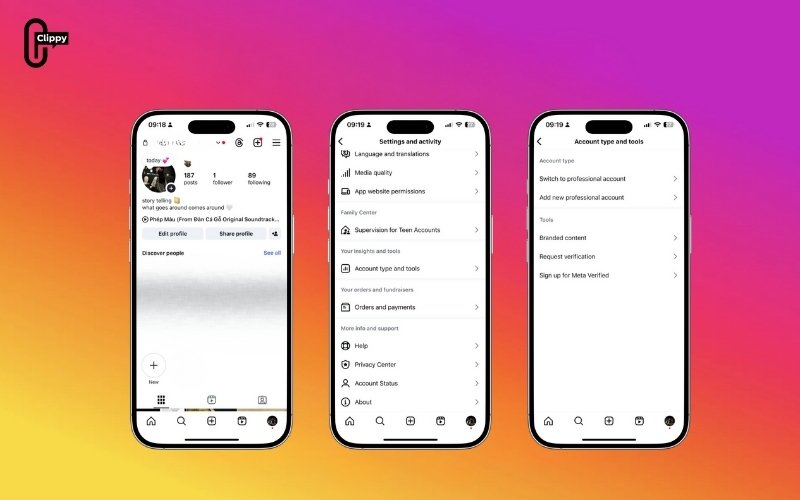
To switch to a Professional Account (Business or Creator)
- Go to your Profile and tap the Menu (☰) in the top-right corner.
- Select Settings and Privacy → Account Type and Tools.
- Tap Switch to Professional Account.
- Choose either Business or Creator.
- Follow the on-screen prompts to set up your category and contact info.
To switch between Business and Creator
- Go to Profile → Menu (☰).
- Select Business Tools and Controls or Creator Tools and Controls.
- Tap Switch Account Type.
- Choose your preferred account type.
To switch back to Personal
- Go to Profile → Menu (☰).
- Select Settings and Privacy → Account Type and Tools.
- Tap Switch to Personal Account and confirm.
Note: If you switch too frequently, Instagram may temporarily limit some features or delay analytics updates. It’s best to pick an account type and stick with it for a while.
>>> See more: How to Switch to a Personal Account on Instagram (Step-by-Step Guide)
Conclusion
Your types of Instagram accounts shape what you can do on the platform, from running ads to building a community. There’s no “one-size-fits-all” option, but here’s a simple way to remember:
- Choose a Personal Account if you’re posting for fun or privacy.
- Choose a Creator Account if you’re building an audience or personal brand.
- Choose a Business Account if you’re promoting a product, service, or company.
Whichever you choose, the beauty of Instagram is the flexibility that you can always switch as your goals change. So start where you are, use the tools that align with your goals, and grow your presence authentically.
>>> See more: How to Turn On Dark Mode on Instagram (Full Guide)

