

How to change Facebook Messenger background is one of the easiest ways to personalize your conversations, make chats more visually exciting, and express your style with themes, colors, or gradients. Whether you’re chatting with friends, managing group messages, or joining video calls, Messenger gives you multiple customization options across mobile, desktop, and Facebook. But many users still get confused about where these settings are, why themes sometimes disappear, or how background syncing works. In this guide, Video Download Free will walk you through every method step-by-step so you can update your chat look in seconds.
Quick Guide
To change your Facebook Messenger background (chat theme), open any conversation, tap the person’s name at the top, choose “Theme,” and pick a new color, gradient, or preset design. Your selection updates the background for everyone in the chat, and you can also customize video call backgrounds by tapping “Effects” during a call.
How to change Facebook messenger background on Mobile
Changing your Facebook Messenger background on mobile is quick and fully customizable, giving your chats a more personal look and feel. Below is the exact step-by-step process to update themes, colors, and gradients on both iPhone and Android.
For chat themes
Personalizing your Messenger background on mobile is one of the easiest ways to make conversations feel more fun, expressive, and uniquely yours. Just a few quick taps allow you to transform any chat with new colors, gradients, and themed designs.
Follow these steps to change your Facebook Messenger background:
Step 1: Open the Messenger app and navigate to the specific chat you want to customize. This can be an individual conversation or a group chat.
Step 2: Tap the chat name at the very top of the screen—this is where you normally see the person’s name, username, or the group title.
Step 3: Select “Theme” (or “Color” if you’re using an older Messenger version). This opens the full library of available design options.
Step 4: Choose your new background style: You can pick a solid color, a soft gradient, or one of Messenger’s exclusive themed packs such as Harry Potter, Love, Birthday, Tie-Dye, or Tetris. Each option instantly previews how your chat will look.
Step 5: Tap “Select” to apply your chosen design. Once applied, the background updates for everyone in the conversation, not just you.
>>> See Also: How to delete Facebook messenger and erase your data fast

For video call backgrounds
If you want your Messenger video calls to look more polished or fun, changing the background is a quick way to upgrade your on-camera appearance. Messenger offers built-in effects, preset visuals, and even AI-generated backgrounds to help you personalize every call.
Follow these steps to change your video call background on Messenger:
Step 1: Start a video call in Messenger by opening a chat and tapping the video camera icon.
Step 2: Tap “Effects” at the bottom of the screen (some devices may label this as “Lighting” or “Touch up”).
Step 3: Select “Backgrounds” from the menu to open the full background library.
Step 4: Choose your new background. You can pick from preset visuals, explore AI-generated options, or if supported upload your own photo for a custom look.
>>> See Also: How to unrestrict someone on Facebook Messenger fast 2026
How to change Facebook messenger background on Desktop
Messenger lets you personalize each conversation with unique themes, colors, and gradients, and any changes you make automatically sync across Messenger mobile, messenger.com, the desktop app, and Facebook messages. Keep in mind that in community chats, only admins can customize themes and emojis.
Change the theme of your Messenger chat on Desktop (messenger.com):
Step 1: From Chats, open the conversation you want to customize.
Step 2: Click Options, then choose Customize chat on the right-hand panel.
>>> See Also: How to find my Facebook messenger username most users skip
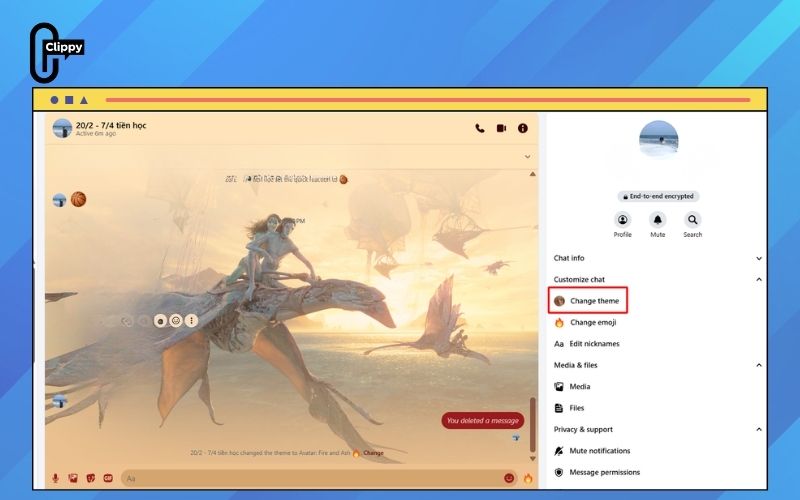
Step 3: Click Change theme, and browse the available themes, colors, and gradients.

Step 4: Select your preferred theme, then click Select to apply it to the entire conversation.
>>> See Also: How to play Facebook messenger games without any extra apps

FAQs about how to change Facebook Messenger background
Facebook Messenger background settings can be confusing, especially when features vary by device, region, or app version. Below is a quick FAQ to clear up the most common issues users face when customizing themes and backgrounds on Messenger.
Can I upload my own photo as a Messenger background?
No, Messenger currently does not allow uploading custom photos as chat backgrounds. You can only choose from Facebook’s preset themes and color options.
Why does my theme disappear after some days?
Themes may revert due to app updates, expired seasonal themes, or Meta’s A/B testing. Simply reapply the theme if it was removed automatically.
Do themes sync across devices?
Yes, once applied, chat themes sync across all devices logged into your account. However, temporary glitches or outdated app versions may cause delays.
Can the other person see the background I choose?
Yes, applying a theme changes the background for everyone in the conversation. Messenger updates the chat instantly on both sides.
Can I use custom backgrounds without extensions?
No, Messenger doesn’t support custom backgrounds natively. Third-party extensions exist but are not recommended due to privacy and security risks.
How often does Facebook update themes?
Meta rolls out new themes during holidays, events, or product updates. Most updates occur monthly or seasonally, depending on the rollout schedule.
>>> See Also: How to create group chat in Facebook Messenger for Beginners
Now that you’ve learned how to change Facebook Messenger background, customizing your chats has never been easier or more enjoyable. With vibrant themes, gradients, and video call backgrounds, you can instantly transform any conversation to match your style. These simple steps work across mobile, desktop, and Facebook, ensuring your chats always look exactly the way you want.

Clippy – A free tool for downloading TikTok, Douyin, Instagram Reels, and Facebook videos in high quality with no watermark – fast, simple, and works on both mobile and desktop. Save your favorite social media videos in just a few clicks, with multiple formats supported and no account required.