


Wondering how to delete Facebook Messenger but confused by Facebook’s ever-changing rules and hidden settings? You’re not alone – millions of users are looking for a clean break from Messenger to protect their privacy, declutter their devices, or simply take back control of their digital life. In this guide, Video Download Free breaks down every method step-by-step so you know exactly what can (and cannot) be deleted in 2026.
Key Takeaways
- You can delete individual messages or entire conversations on both mobile and desktop.
- “Remove for Everyone” is only available within 10 minutes of sending a message.
- Deleting the Messenger app does not erase your messages, they stay on Facebook’s servers.
- Full conversations can be deleted from the chat list with a swipe (mobile) or via the three-dot menu (desktop).
- Messenger is not fully private, as it tracks data and lacks default end-to-end encryption.
Why you may want to delete Facebook messenger
Although many people rely on Messenger for daily communication, it isn’t designed with privacy as a priority. In fact, it collects the same sensitive data as Facebook and continues storing it even after you deactivate your main account. Here are the key reasons users choose to remove Facebook Messenger for good:
- Your data is extensively collected and widely shared: Facebook gathers detailed information about your habits, interests, and behavior. Worse, this data is often sold or shared with advertisers and you have very limited control over how it’s used.
- Facebook’s business model depends on data harvesting: After major incidents like the Cambridge Analytica scandal, concerns about how Facebook handles personal data have skyrocketed. The platform is now viewed as one of the least privacy-friendly messaging options available.
- Past security breaches raise ongoing safety concerns: Facebook has suffered several large-scale data leaks over the years. With a history of exposed user information, it’s difficult to fully trust how securely your data is stored.
- Messenger lacks meaningful privacy protections: The app tracks user behavior, does not offer default end-to-end encryption, and does not encrypt old conversations. It also requests access to your microphone, camera, contacts, and other sensitive data.
- No independent verification of its security: Messenger’s code is closed-source, meaning experts cannot freely examine it to confirm how secure it truly is. Its security architecture also lacks transparent documentation.
- More privacy-focused alternatives exist: While you can take steps to minimize Facebook tracking, there are messaging apps built specifically to protect user privacy making them safer choices for secure communication.
How to delete a Facebook messenger on mobile
Removing messages on the Messenger app is quick and easy once you know where to look. Whether you want to delete a single message just for yourself or erase it for everyone in the chat, you can do it directly from the conversation screen on your phone.
Step 1: Open the Messenger app
Launch the Facebook Messenger app on your phone and go to the chat that contains the message you want to remove.
Step 2: Tap and hold the message
Press and hold the specific message for a moment until a small menu appears on your screen.
>>> See Also: How to unrestrict someone on Facebook Messenger fast 2026

Step 3: Select “More…” from the options
When the action menu pops up, tap More… to see additional controls related to that message.

Step 4: Choose the “Remove” option
In the next popup menu, select Remove to begin deleting the message.
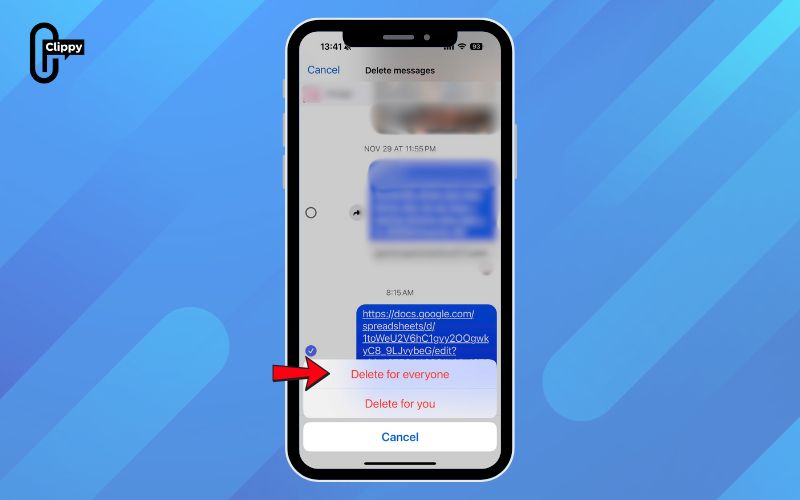
Step 5: Pick how you want it removed
If less than 10 minutes have passed since sending the message, you can choose Remove for Everyone or Remove for You. After the 10-minute window, Messenger will only allow Remove for You.
How to delete a Facebook message on your computer
Deleting messages on Messenger from your computer is simple once you know where the controls are located. Follow the steps below to remove a message from a conversation using Facebook’s web interface.
Step 1: Open Facebook in your web browser
Start by visiting Facebook on your computer and make sure you’re logged in.
Step 2: Access your Messenger inbox
Click the Messenger icon in the top navigation bar, or scroll down the left sidebar and select Messenger to open your full inbox.
Step 3: Open the conversation and find the message
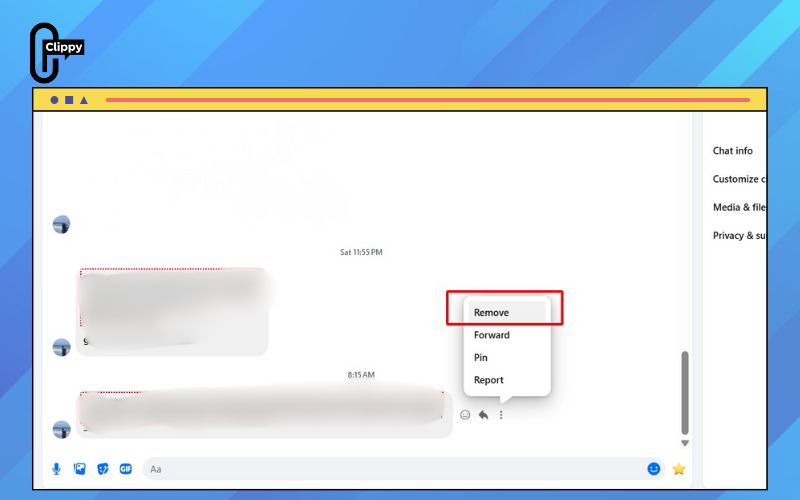
Choose the chat where the message appears. Hover your cursor over the specific message, click the three-dot menu that appears beside it, and select Remove.
Step 4: Choose the removal option
If fewer than 10 minutes have passed since you sent the message, you’ll see two choices: Remove for Everyone or Remove for You.
After the 10-minute window, you will only be able to select Remove for You.
>>> See Also: How to find my Facebook messenger username most users skip
How to delete a full Facebook Messenger conversation on mobile
If you want to remove an entire chat instead of deleting messages one by one, the Messenger app lets you clear the whole conversation in just a few steps. Here’s how to do it on your phone:
Step 1: Open Messenger and view all your chats
Launch the Facebook Messenger app and make sure you’re in the Chats tab, where all your conversations are listed.
Step 2: Locate the conversation you want to remove
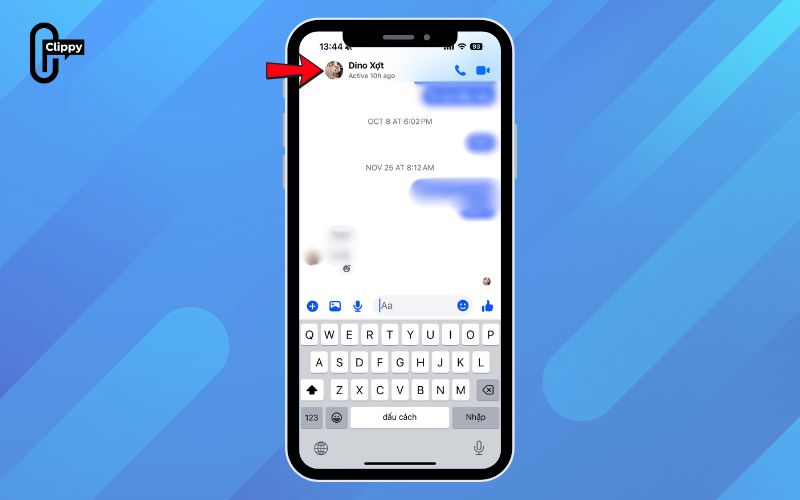
Scroll through your chat list, find the thread you want to delete, and swipe left on that conversation.
>>> See Also: How to play Facebook messenger games without any extra apps

Step 3: Delete the chat permanently
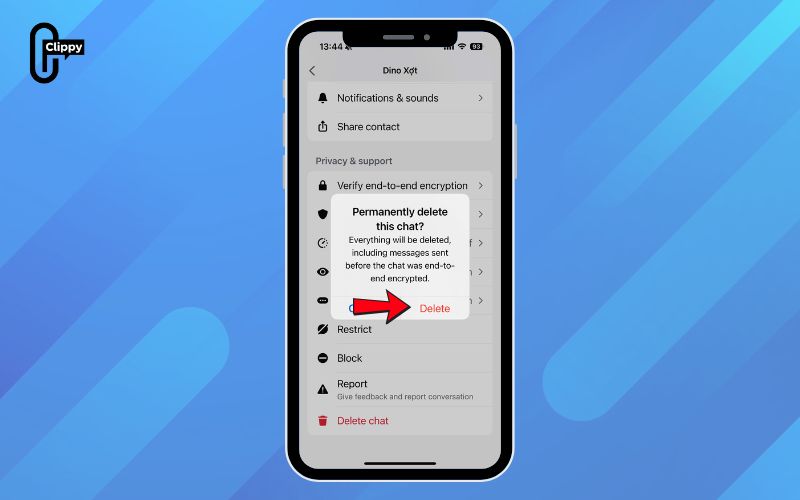
Tap the red Delete icon (the trash can symbol), then confirm your choice by selecting Delete Chat to remove the entire conversation from your app.
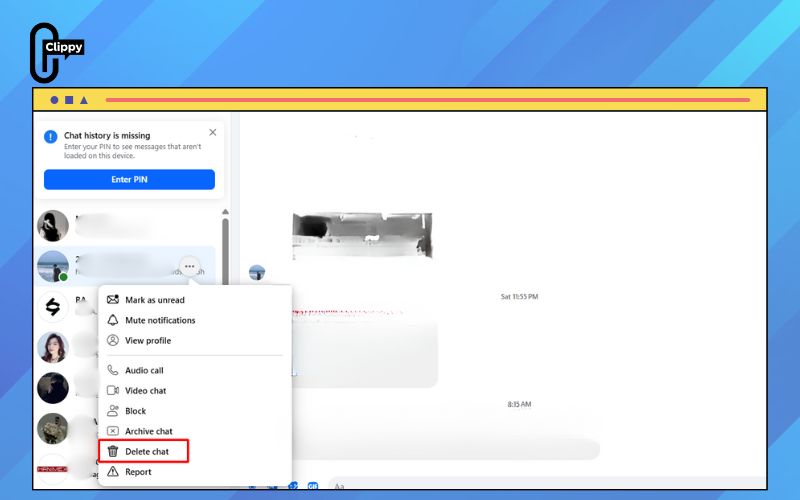
How to delete an entire Facebook conversation on your computer
If you prefer clearing an entire chat instead of deleting messages one by one, you can easily do it from Facebook on your desktop. Just follow the steps below:
Step 1: Visit Facebook on your computer and make sure you’re logged into your account.
Step 2: Click the Messenger icon in the top navigation bar, or select Messenger from the left-hand menu on your homepage.
Step 3: Hover over the conversation in the list until a three-dot icon appears. Click it and choose Open in Messenger to view the full chat.
Step 4: Inside Messenger, hover your cursor over the conversation again and click the three-dot menu that appears.
>>> See Also: How to create group chat in Facebook Messenger for Beginners

Step 5: From the dropdown menu, select Delete to begin removing the chat.
Step 6: A confirmation window will appear, click Delete once more to permanently erase the entire conversation.
Smart ways to protect your privacy and stay safe online
Staying private on the internet takes more than just deactivating Facebook Messenger, it’s about building habits that reduce your exposure and keep your data secure. Below are practical steps you can take to strengthen your online safety and minimize third-party tracking.
- Use a VPN: A VPN hides your real location and encrypts your traffic, keeping you safer on public Wi-Fi or unsecured networks. It helps prevent snooping, tracking, and unwanted data collection.
- Limit what you share online: Posting less personal information makes you a smaller target for ads, data harvesting, and online scams. The less people know about you, the harder it is for threats to reach you.
- Adjust your social media privacy settings: Even if you’ve left Facebook, review the privacy options on apps you still use. Turn off location sharing, disconnect unused third-party apps, and enable two-factor authentication for stronger security.
- Use built-in threat protection tools: Security features like Threat Protection Pro can scan files for malware, block dangerous websites, and stop trackers. These tools add an extra layer of defense without requiring extra work from you.
- Review app permissions regularly: Many apps request access they don’t really need, such as location or contacts. Remove apps you no longer trust and revoke permissions that feel unnecessary.
- Keep your software updated: Installing updates promptly ensures your device has the latest security patches. Hackers often exploit old vulnerabilities, so staying updated significantly reduces your risks.
- Use Facebook’s Secret Conversations when needed: If you ever return to Facebook Messenger, remember it offers an encrypted chat mode called Secret Conversations. It keeps your messages protected with end-to-end encryption, even though the feature isn’t widely visible.
>>> See Also: How to change Facebook Messenger background with hot topics

FAQs on how to delete Facebook messenger
If you’re unsure how to delete Facebook Messenger or what happens when you remove or deactivate the app, you’re not alone. Facebook’s rules can be confusing. This FAQ section answers the most common questions users have about how to delete Facebook Messenger and what options you actually have.
Can I delete Messenger without deleting Facebook?
No. You cannot delete Messenger while keeping your Facebook account active if the two are linked. In the past, users could sign up for Messenger as a standalone app, but Facebook removed that option.
Now, Messenger is tied directly to your Facebook account which means deleting Facebook is the only way to remove Messenger completely.
If I deactivate my Facebook account, will Messenger still work?
Yes. Your Messenger will continue to work even if you deactivate your Facebook account. You can still send and receive messages unless you choose to deactivate Messenger separately.
Does deleting the Messenger app delete my messages?
No. Removing the Messenger app from your device does not delete any messages. All conversations are stored on Facebook’s servers and will reappear once you log back in.
How do I permanently delete my Messenger account?
You cannot delete Messenger on its own. To permanently remove your Messenger account, you must delete your Facebook account. Once your Facebook account is permanently deleted, Messenger will be deleted as well.
Can I turn off Messenger without deleting it?
Yes. You can disable Messenger by choosing Deactivate Messenger in the settings. When deactivated, you won’t receive messages or notifications, but your data remains intact and can be restored anytime.
Now you know exactly how to delete Facebook Messenger from removing single messages to clearing entire conversations or disabling the app entirely. Whether you’re protecting your privacy, freeing up storage, or stepping away from social media, the right method is now in your hands. As Facebook’s features evolve, staying informed is the key to keeping your data safe. Follow these steps and take control of your digital space today.

