

If you’ve ever struggled to find the logout button on Facebook or worried that you might still be signed in on another device, you’re not alone. Learning how to log out of Facebook properly is essential for protecting your privacy whether you use the app on your phone, tablet, or computer. To avoid unnecessary security risks, read Video Download Free’s detailed instructions below.
Quick Method:
To log out of your Facebook account on all devices, open Menu > Settings & privacy > Settings, then go to Accounts Center > Password and security > Where you’re logged in. Select the account you want to manage, choose Select devices to log out, pick the devices you want to remove, and tap Log out.
How to log out of Facebook on phone
Logging out of your Facebook app only takes a moment, and you can do it on both iOS and Android with just a few taps. Follow the steps below to safely sign out of your account without affecting your profile or activity.
Step 1: Open the Facebook app on your device. The icon appears as a white “f” on a blue background and is available in the App Store (iOS) or Google Play Store (Android).
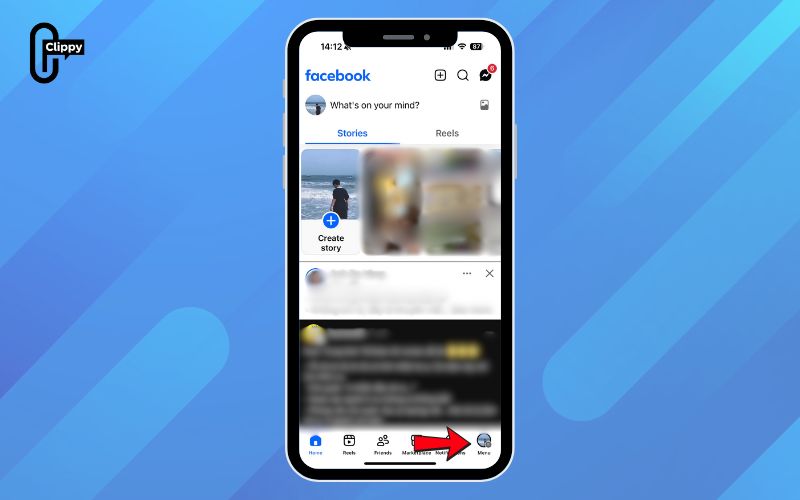
Step 2: Tap the ☰ menu icon. On iPhone, it’s located in the bottom-right corner; on Android, you’ll find it in the top-right corner.
>>> See Also: How to make Facebook private and hide all your info easily
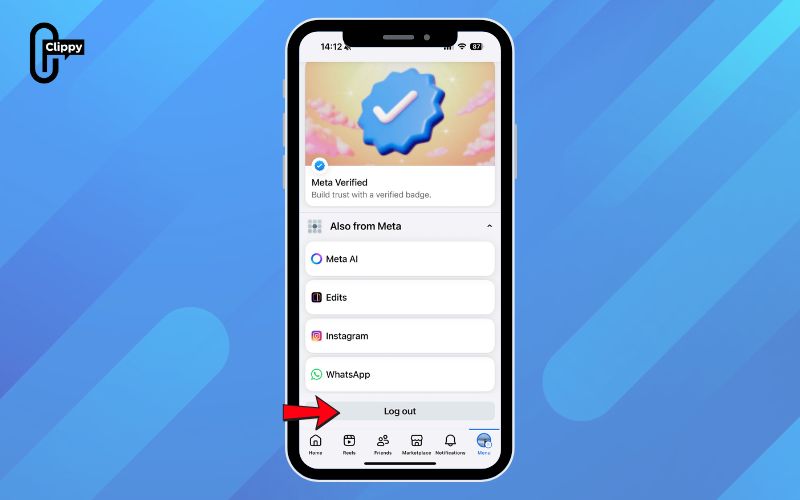
Step 3: Scroll down and select Log Out. It’s the grey button at the very bottom of the menu. Facebook may ask whether you want to save your login information—choose Not now or Save based on your preference.
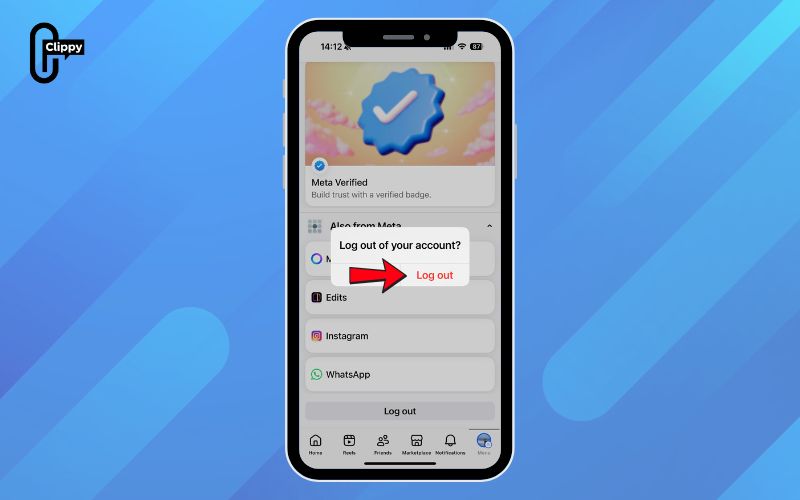
Step 4: Tap Log Out again to confirm. This signs you out immediately and takes you back to the login screen.
>>> See Also: How to deactivate Facebook account securely with zero hassle
If you run into any issues logging out, try restarting your device and attempting the steps again.
How to log out of Facebook on Computer
Logging out of Facebook on a computer is quick and straightforward, and you can do it from any web browser. Just follow the steps below to sign out safely and return to the login screen.
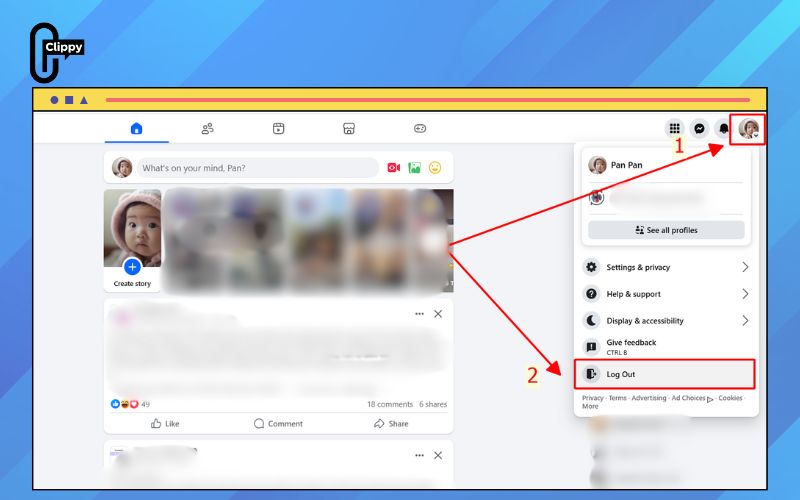
Step 1: Open your browser and go to https://www.facebook.com/. If you’re already signed in, your news feed will appear on the homepage.
Step 2: Click your profile picture in the top-right corner, right beside the notifications icon. This will open a drop-down menu.
Step 3: Select Log Out from the menu. Facebook will immediately sign you out and take you back to the login screen.
On the login page, you may see tiles showing accounts you’ve used recently. To remove one, simply hover over the account and click the X icon.
>>> See Also: How to change Facebook profile picture for a fresh look
How to log out of Facebook remotely using your phone
If you forgot to log out of Facebook on another device like a school computer, a work laptop, or a friend’s phone, you can remotely end those sessions from the Facebook app on your phone. Just make sure you’re logged into the same account you want to sign out elsewhere, and follow the steps below.
Step 1: Open the Facebook app on your device. This method also works for signing out of active Messenger sessions.
Step 2: Tap the ☰ menu icon. On iPhone, it appears in the bottom-right corner; on Android, it’s at the top-right.
Step 3: Select Settings & Privacy. Tap Settings to open the full settings page.
Step 4: At the top, choose See more in Accounts Center.
Step 5: Tap Password and security under the Account Settings section.
>>> See Also: [Updated 2025] How to sign in Facebook safely on any device
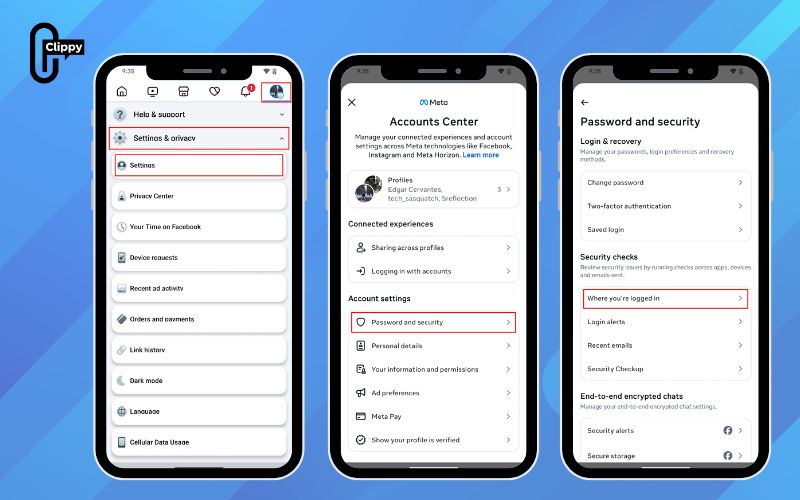
Step 6: Select Where you’re logged in this shows all active sessions across devices.
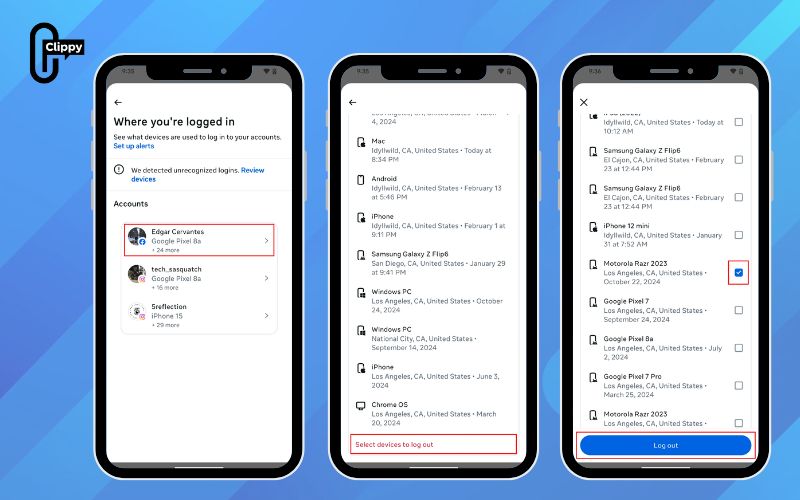
Step 7: Tap the account you want to manage if you have multiple profiles linked.
Step 8: Choose Select devices to log out.
Step 9: Tap the specific device you want to remove, then hit Log out. Messenger sessions will be labeled clearly underneath the device name.
Step 10: Tap Log out again to confirm. This will instantly remove your account from those devices, ending access immediately for anyone currently viewing your Facebook session.
How to log out of Facebook remotely using your Desktop
If you forgot to sign out of Facebook on another device—like a public computer, a work laptop, or someone else’s phone—you can remotely log out all sessions using Facebook’s desktop site. This method also works for closing active Messenger sessions on mobile devices. Follow the steps below to securely remove access.
Step 1: Open a web browser and log in to https://www.facebook.com/ with the account you want to manage.
Step 2: Click your profile picture in the top-right corner to open the drop-down menu.
>>> See Also: How to sign up to Facebook: Secure, Quick, Step-by-Step
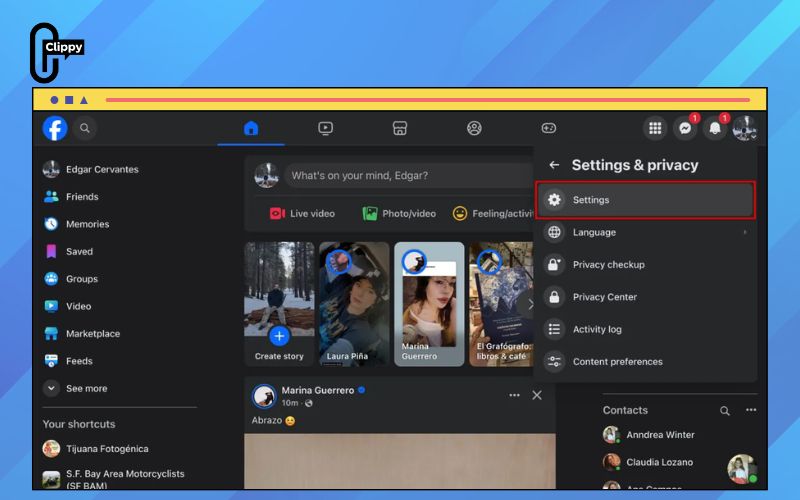
Step 3: Select Settings & Privacy. Click Settings to open the full settings dashboard.
Step 4: In the left sidebar, choose See more in the Accounts Center.
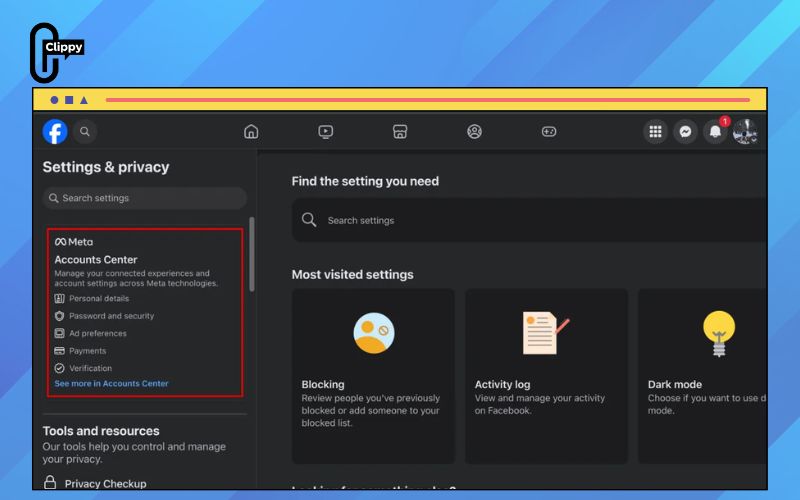
Step 5: Click Password and security, found under the Account Settings section.
Step 6: Select Where you’re logged in, which shows a list of all active sessions across devices.
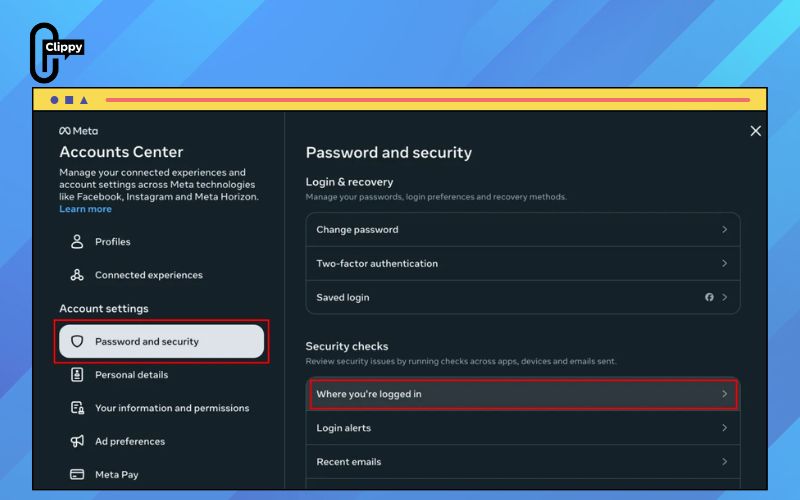
Step 7: Click your account if you have multiple profiles linked to your Facebook login.
Step 8: Choose Select devices to log out to manage remote sessions.
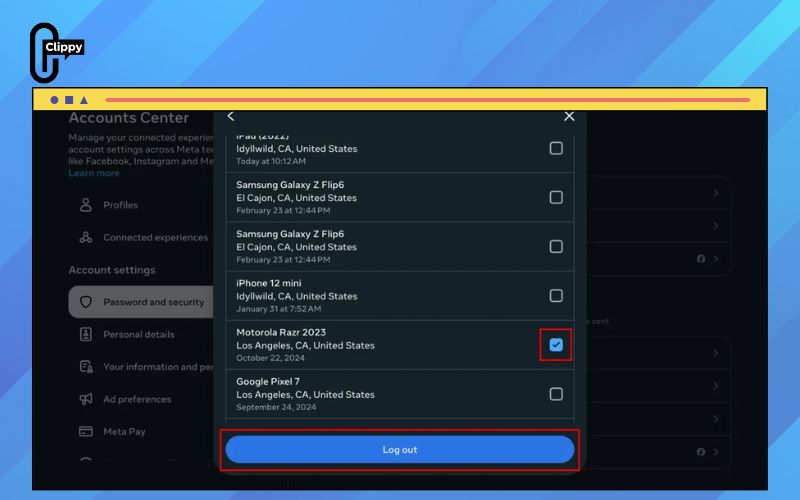
Step 9: Click the device you want to remove, then select Log out. Messenger sessions will be clearly labeled under each device. To log out everywhere at once, choose Select all, then click Log out.
Step 10: Click Log out again to confirm. Facebook will immediately disconnect your account from those devices, cutting off access for anyone currently using your session.
>>> See Also: How to lock Facebook profile to stop stalkers immediately
FAQs about how to log out of Facebook
Logging out of Facebook seems simple, but issues can appear when the app freezes, devices stay logged in, or the logout button is hard to find. Below are the most common questions users ask—and the clearest solutions to help you sign out safely on any device.
What should I do if Facebook won’t let me log out?
If the logout button isn’t responding, try closing the app completely and reopening it. If that fails, restart your device or as a last option, uninstall and reinstall the Facebook app to force all sessions to reset.
Is there a quicker way to log out without scrolling back to the top of the page?
Yes. You can refresh the page or tap the browser’s Home button to instantly jump to the top, avoiding the need to scroll manually. Reopening Facebook in a new tab will also position you at the top section immediately.
If I change my Facebook password, will it log me out of other devices?
Yes. Facebook automatically signs your account out of all existing devices once you reset your password, except the one used to create the new password. This helps protect you from unauthorized access.
Why does Facebook show old login sessions even after I log out?
Facebook sometimes keeps “inactive sessions” in your security list for a short period. These sessions no longer have access to your account, but Facebook displays them briefly for transparency and security tracking.
Can someone still see my messages after I log out of their device?
No. Once you remotely log out or sign out of Messenger on another device, that person immediately loses access to your chats. They will be kicked out of the app and must log in again to view anything.
Now that you know exactly how to log out of Facebook on any device, you can manage your sessions confidently and keep your account safe from unauthorized access. Whether you’re switching phones, sharing a computer, or simply tightening your security, logging out correctly is a small step that makes a big difference. Regularly check where you’re logged in to limit security risks.
Continue following Video Download Free for more tips on protecting your account and optimizing your social networking experience.

