


Keeping your personal information safe on social media has never been more important, and knowing how to make Facebook private is the first step toward taking control of your digital footprint. In this guide, Video Download Free will walk you through every essential setting you should update to stay secure online. Let’s dive in and tighten your privacy together.
Key Takeaways
- Lock your profile to hide photos, posts, and details from the public.
- Use Privacy Checkup to review and adjust key privacy settings.
- Set post visibility to Friends or Only Me to stay more private.
- Make your friends list, profile info, and past posts visible only to trusted people.
- Enable two-factor authentication to strengthen account security.
How to make Facebook private on mobile
Before you lock down your Facebook privacy, it’s important to understand where all the key settings live on mobile. The steps are simple but knowing exactly what each option does will help you stay safer and more in control of your personal information.
If you’re under 18, Facebook automatically applies stricter privacy settings in certain areas to help protect your experience. And if you create a Facebook account while under 16, you’ll be offered our recommended privacy presets designed to keep your account safer and more private.
You can review or adjust your privacy settings at any time in the Audience and Visibility section under Settings & Privacy. Here are some of the categories you can customize:
- Profile information
- How people find and contact you
- Posts
- Stories
- Pages
- Reels
- Followers and public content
- Profile and tagging
- Blocking
Note: Some settings may vary depending on your account type.
Accessing Privacy Settings on Mobile
Managing your Facebook privacy on mobile is straightforward. Follow these steps on both Android and iOS:
- Step 1: Open the Facebook app.
- Step 2: Tap the three-line menu (top right on Android, bottom right on iOS).
- Step 3: Scroll down and select Settings & Privacy.
- Step 4: Tap Settings, then choose Privacy Settings.
Using the Privacy Checkup Tool
Facebook’s Privacy Checkup tool helps you quickly review and fine-tune your privacy controls:
- Step 1: In Privacy Settings, look for Privacy Checkup.
- Step 2: Tap it and follow the on-screen prompts.
- Step 3: The tool walks you through important areas like:
- Who can see your posts
- What profile information is visible
- How people can find or contact you
>>> See Also: How to deactivate Facebook account securely with zero hassle

Adjusting Privacy for Posts and Profile Details
To control who can view your posts and personal information:
Set Post Visibility:
- Step 1: Go to Privacy Settings.
- Step 2: Tap Who can see your future posts?
- Step 3: Choose Friends or Only Me for stricter privacy.
Hide Profile Information:
- Step 1: Visit your profile and tap Edit Profile.
- Step 2: Select a specific detail you want to adjust.
- Step 3: Use the audience selector to choose Only Me, Friends, or any preferred option.
>>> See Also: How to change Facebook profile picture for a fresh look

Managing How People Find and Contact You
You can limit who can search for you or send you friend requests:
Control Friend Requests:
- Step 1: In Privacy Settings, open How People Find and Contact You.
- Step 2: Tap Who can send you friend requests?
- Step 3: Select Friends of Friends to reduce unwanted requests.

Limit Search by Email or Phone Number:
- In the same section, adjust:
- Who can look you up using the email address you provided?
- Who can look you up using the phone number you provided?
- Choose Friends or Only Me for maximum privacy.
How to make Facebook private on computer
Keeping your Facebook account private on a computer is easier than you might think. Once you know where each setting lives, you can quickly control who sees your posts, profile details, photos, and even how people find you on the platform.
Here’s a simple step-by-step guide to make your Facebook account more private on desktop.
Accessing privacy settings
To start adjusting your Facebook privacy on a computer:
- Step 1: Click the downward arrow in the top-right corner of Facebook.
- Step 2: Select Settings & Privacy, then click Settings.
- Step 3: From the left-hand menu, choose Privacy Checkup.
Inside the Privacy Checkup, you’ll find options to control who can view your posts, who can send you friend requests, and how people can look you up on Facebook.
>>> See Also: [Updated 2025] How to sign in Facebook safely on any device


Changing default sharing settings
Make sure your future posts are only visible to the audience you trust:
- Step 1: In Settings & Privacy, go to Default Audience Settings.
- Step 2: Select Custom Audience, then click Next.
- Step 3: Next to Who can see your future posts?, click Edit.
- Step 4: Choose Friends or Only Me to limit visibility.


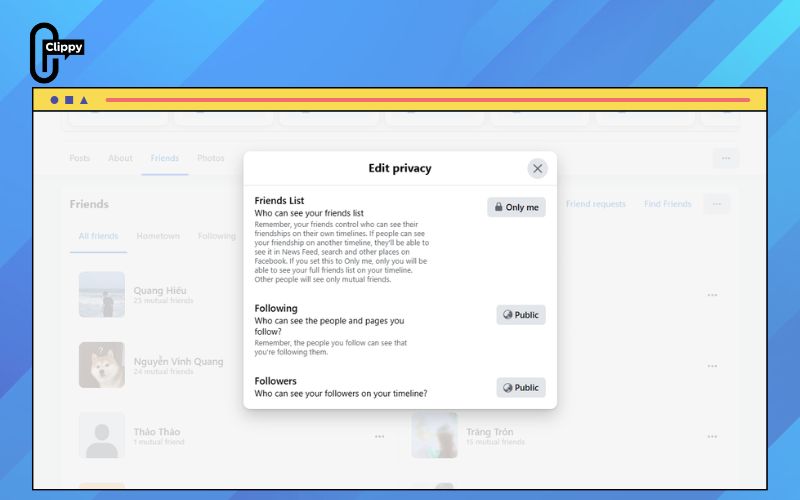
Making Your Friends List Private
To prevent others from seeing your full friends list:
- Step 1: Go to your profile and click Friends.
- Step 2: Click the three dots and select Edit Privacy.
- Step 3: Under Who can see your friends list?, choose Only Me or another restricted option.
>>> See Also: How to sign up to Facebook: Secure, Quick, Step-by-Step

Adjusting Profile Information Visibility
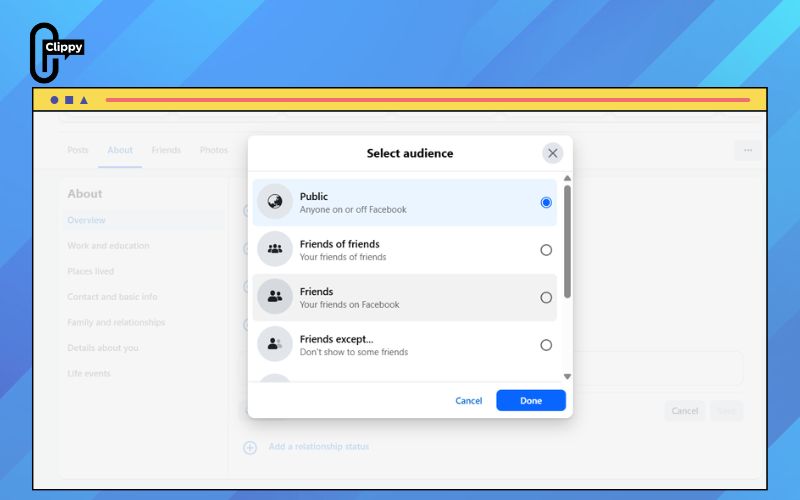
Hide personal details such as your birthday, phone number, or email:
- Step 1: Visit your profile and click About.
- Step 2: Find the section you want to adjust and click the audience icon next to it.
- Step 3: Select Edit and change visibility to Only Me or your preferred audience.
Limiting Audience for Past Posts
If you want to restrict older posts to a smaller audience:
- Step 1: Under Audience and Visibility, click Posts.
- Step 2: Select Limit Past Posts to change old Public or Friends of Friends posts to Friends Only.
- Step 3: Confirm your choice to apply the update to all past posts.
>>> See Also: How to log out of Facebook on all devices 2026

Setting Privacy for Photo Albums
Ensure your private photos stay private:
- Step 1: Go to your profile, then click Photos.
- Step 2: Select Albums, and open the album you want to secure.
- Step 3: Click the three dots and choose Edit Album.
- Step 4: Change the audience to Only Me or any restricted option you prefer.


How to enable Facebook privacy checkup reminders
It’s easy to overlook your privacy settings as time goes by, especially when your online habits change. Fortunately, Facebook lets you schedule Privacy Checkup reminders so you can review and update your settings regularly.
Here’s how to turn on these reminders:
Step 1: Open the Facebook website and sign in to your account.
Step 2: Click your profile picture in the upper-right corner, then select Settings & Privacy.
Step 3: In the submenu, choose Privacy Checkup.
Step 4: On the next page, click the three horizontal dots and select Set up reminders.
Step 5: Choose how often you want Facebook to prompt you for a privacy review, then click Save.
These reminders help ensure your Facebook privacy settings always stay up-to-date and aligned with your needs.
>>> See Also: How to lock Facebook profile to stop stalkers immediately

FAQs on how to make Facebook private
Staying in control of your Facebook privacy can feel overwhelming, especially with so many settings spread across different sections. To make things easier, here are the most common questions users ask—along with clear, simple answers to help you keep your information protected.
Can I stop the public from seeing my profile picture?
Yes. By locking your profile, your profile picture and other key details become visible only to your friends.
How do I preview my profile the way others see it?
Go to your profile and use the “View As” feature. This lets you check how your profile appears to strangers or to a specific friend.
How do I keep my friends list completely hidden?
Go to your profile, open Friends, click Edit Privacy, and set Who can see your friends list? to Only Me.
How can I make all my old posts private?
In Privacy Settings, find Limit Past Posts under Your Activity. Confirm the action to change all previous posts to Friends Only.
Does Facebook offer tools to help me review my privacy regularly?
Yes. The Privacy Checkup tool in Privacy Settings walks you through key areas posts, profile info, and how people find you so you can make updates anytime.
What extra steps can I take to improve my account security?
Enable two-factor authentication, update your password regularly, and turn on security alerts in Security and Login to protect your account from unauthorized access.
Learning how to make Facebook private is one of the fastest ways to protect your personal information and take control of what others see about you online. With just a few key settings, you can hide old posts, restrict your friends list, lock your profile, and manage how people find you on the platform.

