

If you’re worried about strangers viewing your photos, posts, or personal details, learning how to lock Facebook profile is one of the fastest ways to take control of your privacy. This feature instantly limits who can see your timeline, full-size profile picture, and stories making your account far more secure. Join Video Download Free to learn how to do it and important security tips you should know.
Quick Method:
To lock your Facebook profile instantly, open the Facebook app, go to your profile, tap the three-dots menu next to Edit Profile, and select Lock Profile. Confirm your choice, and Facebook will immediately restrict your photos, posts, and personal details to friends only.
What actually happens when you lock your Facebook profile?
Locking your Facebook profile puts your privacy on a much tighter level. Once activated, only your Facebook friends can see what you post, including your full-size profile picture and cover photo. Any content previously set to “Public” automatically switches to “Friends Only.”
Facebook also hides most of your About information from people who aren’t connected to you, and your Stories become visible to friends only. Tools like profile review and tag review turn on by default, giving you more control over what appears on your timeline. From that moment on, every new post you share is restricted to your friends.
However, keep in mind: locking your profile does not affect how people can search for or find your account on Facebook.
How to lock Facebook profile on mobile
Locking your Facebook profile only takes a few moments, and the process works exactly the same on both Android and iPhone. Once you’re signed in to the account you want to secure, just follow the simple steps below to activate full-profile protection.
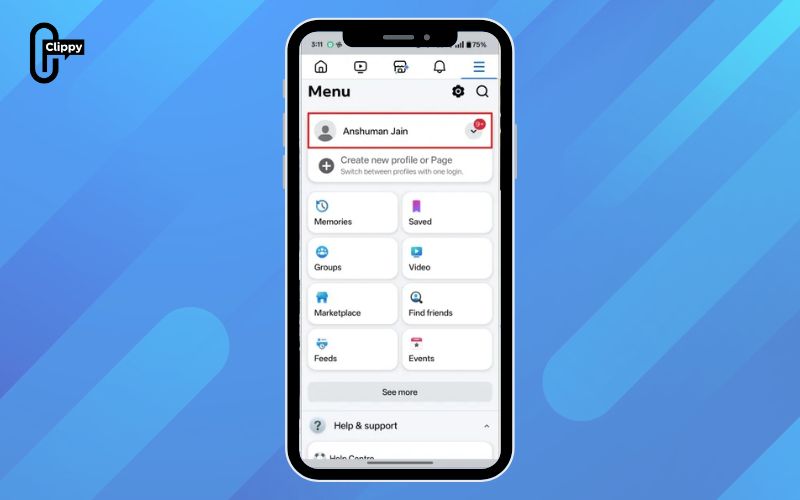
Step 1: Open the Facebook app and tap your profile icon – found at the top right on Android or bottom right on iPhone.
Step 2: Tap your Facebook name at the top to open your profile page.
>>> See Also: How to make Facebook private and hide all your info easily
Step 3: Tap the three-dots menu next to the Edit Profile button.

Step 4: In the Profile Settings screen, select Lock Profile.
>>> See Also: How to log out of Facebook on all devices 2026

Step 5: Tap Lock Your Profile at the bottom of the confirmation screen.

Step 6: Hit OK to finish the process.
Once done, Facebook will instantly apply the lock and show a confirmation message saying “You locked your profile”.
How to lock Facebook profile on computer
Locking your Facebook profile on a computer is just as simple as doing it on the mobile app. If you prefer using the desktop site, follow the steps below to secure your account in seconds.
Step 1: Open your web browser and go to Facebook.com.
Step 2: From the left sidebar, click on your Profile name to open your profile page.
Step 3: On your profile header, click the three-dots menu at the top.
>>> See Also: How to deactivate Facebook account securely with zero hassle

Step 4: In the dropdown list, select Lock Profile.

Step 5: When the confirmation box appears, click Lock Your Profile.

Step 6: Click OK in the final pop-up to complete the process.

Once finished, your Facebook profile will be successfully locked and we highly recommend keeping this setting enabled to strengthen your online privacy and keep your personal information secure.
How to unlock your Facebook profile
If you changed your mind or accidentally locked your Facebook profile, you can easily reverse it by retracing the same steps and make your profile visible to everyone again.
Unlock Facebook profile on Android and iPhone
If you’re using Facebook on your iPhone or Android, unlocking your profile only takes a few quick taps. Just follow the steps below to restore your profile’s normal visibility settings.
Step 1: Open the Facebook app and go to your profile page.
Step 2: Tap the three-dots icon next to the Edit Profile button.
Step 3: Scroll down the menu and select Unlock Profile.
Step 4: Tap Unlock, then choose Unlock Your Profile at the bottom of the confirmation screen.
After finishing these steps, your Facebook profile will instantly return to its original visibility settings.
>>> See Also: How to change Facebook profile picture for a fresh look

Unlock profile using Facebook website
If you prefer using Facebook on your computer, you can unlock your profile just as easily through the desktop site. Follow the steps below to restore your profile’s public visibility.
Step 1: Open Facebook in your desktop browser and sign in.
Step 2: From the left sidebar, click on your profile name to open your profile page.
Step 3: Click the three-dots icon located beneath your profile banner.
Step 4: From the menu that appears, select Unlock Profile.
>>> See Also: [Updated 2025] How to sign in Facebook safely on any device

Step 5: On the confirmation page, click the Unlock button.

Step 6: Finally, select Unlock Your Profile to complete the process.
>>> See Also: How to sign up to Facebook: Secure, Quick, Step-by-Step

Once these steps are done, your Facebook profile will be fully unlocked and visible again to everyone.
FAQs about how to lock Facebook profile
Locking your Facebook profile is a powerful way to control who can see your personal information, but many users still have questions about how the feature works and why it may not appear for everyone. Below are the most common FAQs to help you understand the feature and manage your privacy with confidence.
Why can’t I find the “Lock Profile” option on my Facebook account?
The Lock Profile feature is only available in select countries, which means some users simply won’t see the option on their accounts. If the feature isn’t supported in your region, you can still protect your privacy by manually adjusting your audience settings for posts, photos, and profile details to limit who can view your content.
Is locking my Facebook profile a good idea?
Yes, locking your profile is a smart move if you want tighter control over your personal information. When enabled, only your Facebook friends can see your full-size photos, Stories, and new timeline posts, while all public content automatically becomes visible to friends only, giving you a more secure online presence.
Does locking my profile hide old public posts?
When you lock your profile, Facebook automatically changes your past public posts to the “Friends” audience. However, posts shared to “Public” inside groups or pages remain unchanged, so you may need to adjust those manually for complete privacy protection.
Can people still send me friend requests if my profile is locked?
Yes. Locking your profile does not affect how others discover or contact you on Facebook. People can still search for your name, view your limited public info, and send friend requests, but they won’t be able to see your detailed timeline or full-size photos unless you accept them as friends.
Learning how to lock Facebook profile is one of the simplest yet most powerful ways to safeguard your personal information online. With just a few taps, you can instantly limit who sees your posts, photos, and stories giving you full control over your digital footprint. Whether you’re using Facebook for personal sharing or professional networking, mastering these privacy settings ensures a safer and more comfortable experience.

