


Updating your Facebook profile photo seems simple, but doing it the right way can make a big difference in how others perceive you. If you’ve ever wondered how to change Facebook profile picture smoothly without glitches, you’re in the right place. Whether you’re using a phone or computer, the process is easier than you think. This guide of Video Download Free walks you through every step and how to choose the perfect photo.
Key Takeaways
- Why your Facebook profile picture matters
- How to choose the perfect profile photo
- Steps to change profile picture on iPhone, Android, and Web
- Common mistakes to avoid
- FAQs on changing Facebook profile picture
Why does your Facebook profile picture matter?
Your Facebook profile picture is often the very first thing people see when they land on your profile. Whether it’s a new connection, a potential employer, or an old friend stopping by, that small image quietly communicates who you are before you ever say a word. Studies even show that people form impressions within seconds making your profile photo a surprisingly powerful part of your online presence.
- First impressions count: Research shows that people quickly judge personality, professionalism, and approachability based on a single photo. A clear, authentic picture helps create a positive impression from the start.
- Your digital identity: Think of your profile picture as your “digital handshake.” It represents you across Facebook and shapes how others perceive your online identity.
- Engagement & social signaling: Bright, clear images with natural expressions tend to attract more reactions and comments. A strong profile photo signals confidence and helps boost engagement.
- When to change your profile picture: Refreshing your photo during seasonal shifts, major events, or personal milestones keeps your profile current. It also shows that you’re active and present on the platform.
>>> See Also: How to deactivate Facebook account securely with zero hassle
Preparing the perfect Facebook profile picture
Before you hit “Upload,” it’s worth taking a moment to choose an image that truly represents you. Are you aiming for a polished, professional look? Something casual and friendly? Or maybe you want to highlight a special milestone like a graduation or an unforgettable trip? The right photo sets the tone immediately.
Here’s how to pick a standout profile picture:
- Choose clear, high-quality images: Avoid blurry or pixelated photos. Aim for a sharp picture with a minimum resolution of 180×180 px, ideally in JPG, PNG, or GIF formats for best results.
- Use natural lighting and good composition: Face a natural light source like a window for brighter skin tones and better detail. Keep your face centered and the background simple to avoid distractions.
- Let your personality come through: A genuine smile, confident posture, or even a candid moment can make your profile feel more inviting and authentic.
- Mind your background: A clean, uncluttered background helps keep the focus on you. If needed, use tools like a Free Background Remover to switch to something cleaner.
- Enhance with editing tools (but keep it realistic): Light touch-ups can help your photo look polished. Tools like AI Photo Editor can improve clarity and color without over-editing.
- Choose between temporary and permanent photos: Temporary profile pictures are great for celebrating events, holidays, causes, or short-term moods. Permanent photos work best for long-term personal branding and consistency.
Preparing your Facebook profile picture thoughtfully ensures you look your best and makes your profile feel welcoming, memorable, and true to who you are.
>>> See Also: How to make Facebook private and hide all your info easily

How to change Facebook profile picture easily
Changing your Facebook profile picture doesn’t have to be confusing or time-consuming. With just a few simple steps, whether you’re on iPhone, Android, or a computer, you can update your photo in seconds and keep your profile looking fresh.
How to change Facebook profile picture on iPhone, Android
Step 1: Open the Facebook app and tap your profile picture in the upper-left corner to access your profile.
Step 2: Tap your current photo, then select “Select Profile Picture” You can either snap a new picture using your phone’s camera or choose an existing one from your photo gallery.
Step 3: Adjust the image so it fits nicely within the profile frame. On some devices, you can also tweak brightness, contrast, and other basic settings. When everything looks good, tap Save to upload your new profile picture.
>>> See Also: [Updated 2025] How to sign in Facebook safely on any device
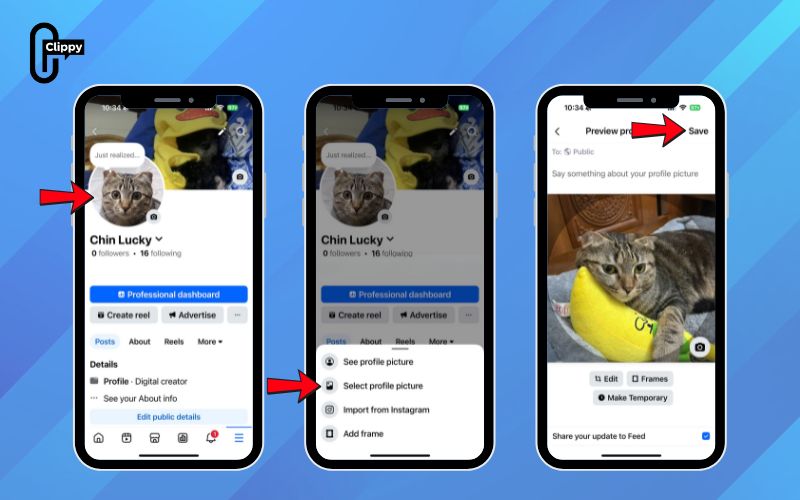
How to change Facebook profile picture on Desktop
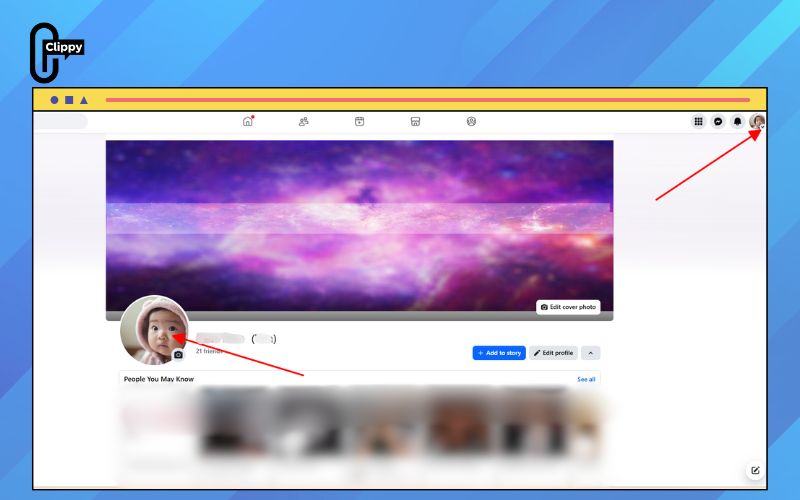
Step 1: On the Facebook homepage, click your name at the top-left corner or simply tap your profile photo in the upper-right corner. This brings you straight to your profile. From there, click your current profile picture and choose “Choose Profile Picture”. You can also hit the small camera icon on your cover photo as a shortcut.
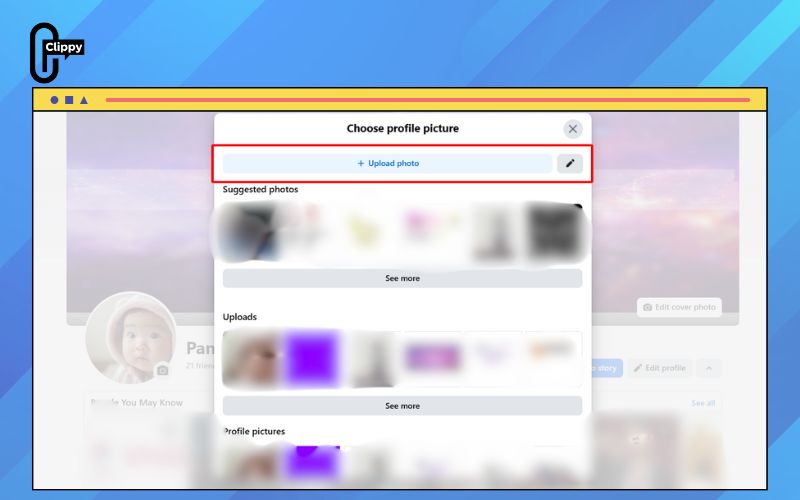
Step 2: Select “Upload Photo” to add a new image from your computer. If you prefer something fun and personalized, choose “Create an Avatar Profile Picture” to design your own avatar.
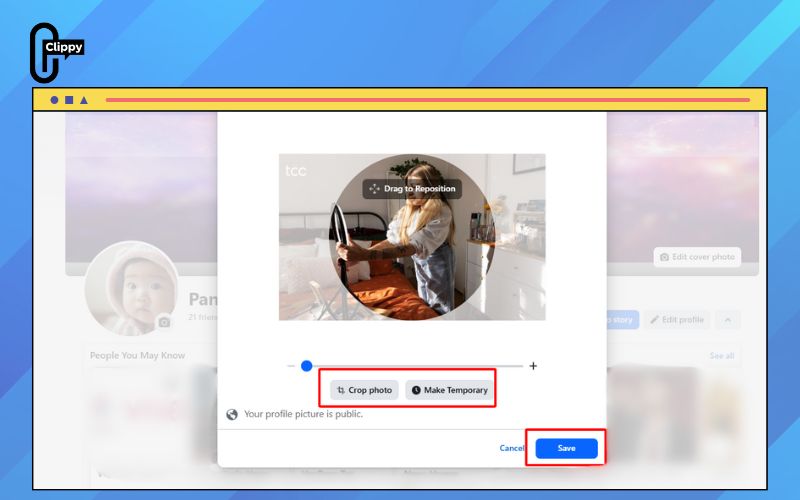
Step 3: After picking your image, adjust the crop and reposition it until it fits the circular frame nicely. Click Save to update your profile picture instantly.
If you only want the new photo to appear for a short time, choose “Make Temporary” and set how long it should stay active.
Common mistakes to avoid when uploading photos
Even though changing your profile picture is simple, a few common mistakes can take away from the clean, professional look you want. Keep an eye out for these pitfalls:
- Incorrect image size: Photos that are too small or extremely large can get stretched, zoomed in, or appear blurry once uploaded.
- Overlooking privacy settings: You might intend for your picture to be public but accidentally keep it locked down or the other way around.
- Poor lighting or shaky quality: Dim lighting or low-resolution photos can make your profile picture look dull and unclear.
- Skipping the preview: Always check how your image appears on both desktop and mobile, since the crop can vary by device.
- Busy backgrounds: Distracting objects behind you pull attention away from your face and weaken the overall impression.
A bright, crisp photo with a simple background and your face clearly centered almost always delivers a strong, polished look. Skipping these small details can make even a great picture fall flat.
>>> See Also: How to sign up to Facebook: Secure, Quick, Step-by-Step

How to make your profile picture pop
Looking to add a little extra flair that grabs attention? These simple yet effective tips can help your profile picture leave a lasting impression:
- Refresh regularly: Updating your profile photo every few months signals that you’re active and engaged. Knowing how to change Facebook profile picture correctly ensures each update looks polished and professional.
- Let your personality shine: Add touches that reflect who you are, maybe a pop of color, a favorite accessory, or a subtle background detail.
- Light It right: Natural light can do wonders for skin tones and clarity. Position yourself facing a window for the best results.
- Keep a consistent style: If you’re networking professionally, make sure your Facebook profile photo aligns with your other social media accounts to maintain a cohesive personal brand.
Social media experts note that using consistent lighting and a clean, simple background can boost profile photo engagement by over 20% – a surprisingly big impact from a small tweak!
FAQs on how to change Facebook profile picture
This quick FAQ section covers the most common issues, tips, and fixes so you can change your profile picture smoothly and confidently.
How do I change my Facebook profile picture without it being cropped?
Currently, Facebook automatically crops profile pictures into a circular frame, so there’s no direct way to avoid it. However, you can:
- Choose a wide-angle photo with yourself centered.
- Crop the image before uploading.
- Create a custom frame to hide the edges that might be cropped.
>>> See Also: How to lock Facebook profile to stop stalkers immediately
Can I use a transparent image as my Facebook profile picture?
Facebook only accepts solid-colored profile pictures. Attempting to upload a transparent image will either result in an error or display a blank profile picture.
How do I change the expiration of a temporary Facebook profile picture?
When updating your profile picture, you can use the Make Temporary feature to set the expiration time according to your preference.
How often should I change my Facebook profile picture?
It depends on your personal style and goals. Some people like to update their photo a few times a year to keep it fresh, while others stick with a favorite image for longer. If you use Facebook for networking, updating your profile picture every few months helps keep your profile engaging.
Can I use a video as my Facebook profile picture?
Yes! Facebook allows you to set a short looping video as your profile picture, adding a lively touch that attracts attention.
Are there any restrictions on what I can use as a profile picture?
Your profile picture must follow Facebook’s Community Standards, meaning it should be appropriate and not violate copyright. It’s best to use your own photos or images you have permission to use.
How can I make sure my new profile picture is visible to everyone?
Check your privacy settings when uploading. Set the audience to Public if you want everyone to see your profile picture.
How do I change my profile picture without posting a notification?
Set the privacy of your profile picture to Only Me. This way, your photo updates without notifying others.
How do you edit your profile picture thumbnail?
Select your profile picture and click Update Profile Picture. Then, click the Edit (pencil icon) to adjust the size, zoom, or crop of your thumbnail.
>>> See Also: How to log out of Facebook on all devices 2026

You now know exactly how to change Facebook profile picture without hassle, ensuring it displays beautifully across devices. With the right lighting, size, and preview checks, updating your look only takes a moment. These simple practices help you refresh your profile with confidence. And if you want to download Facebook videos easily, try the Clippy app for fast, seamless downloads.

