


Changing your name on Facebook might seem simple, but many users get stuck or rejected without knowing why. From name rules to approval delays, Facebook has strict policies you need to follow. This guide explains how to change your name at Facebook step by step without mistakes. Follow along with Video Download Free to explore all details in this article.
Quick Guide
To change your name on Facebook, go to Settings & Privacy > Settings > Account Center > Profiles, select your profile, tap “Name,” edit your details, then “Review change” and “Save changes,” keeping in mind you can only change it every 60 days
How to change your name at Facebook app on Mobile
Changing your name on Facebook is a straightforward process, but it must follow Facebook’s naming policies to be approved. Whether you’re updating your name due to a life change or correcting an error, you can do it directly from the Facebook app in just a few minutes by following the steps below.
Step 1: Open the Facebook app and tap the Menu icon (three horizontal lines). On Android, it appears in the top-right corner; on iOS, you’ll find it at the bottom-right.
Step 2: Scroll down and select Settings & privacy, then tap Settings to access your account options.
Step 3: Tap Accounts Center or See more in Accounts Center, where Facebook manages shared profile information across Meta apps.
Step 4: Choose Profiles, then select your Facebook account from the list.
Step 5: Tap Name to open the name-editing screen.
>>> See Also: How to change Facebook profile picture for a fresh look

Step 6: Enter your first name, middle name (optional), and last name exactly as you want them to appear on your profile.
Step 7: Tap Review change to preview how your updated name will look, then select Save changes to confirm.
>>> See Also: How to deactivate Facebook account securely with zero hassle

How to change your name at Facebook on Desktop
If you’re using Facebook on a computer, updating your name can be done directly from your account settings in just a few simple steps. Facebook routes name changes through the Accounts Center, so the update may also apply across other Meta services. Follow the guide below to change your name on Facebook using a desktop or laptop.
Step 1: Log in to Facebook on your computer and click your profile picture in the top-right corner of the screen.
Step 2: From the dropdown menu, select Settings & privacy, then click Settings to open your account settings page.
>>> See Also: How to write a Bio on Facebook that gets noticed effectively

Step 3: In the left-hand menu, click Accounts Center, where Meta manages shared profile details.
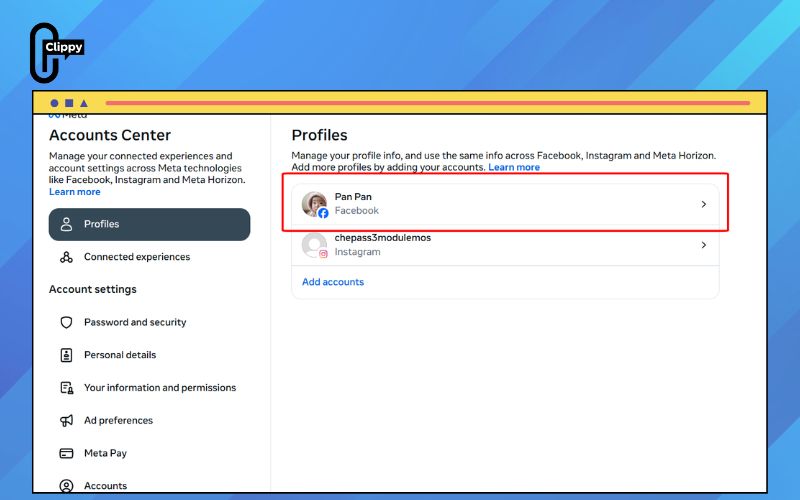
Step 4: Select Profiles, then choose your Facebook account from the list shown.
Step 5: Click Name to access the name editing section.

Step 6: Enter your updated first name, middle name (if applicable), and last name in the provided fields.
Step 7: Click Review change to preview how your new name will appear on your profile.
Step 8: If everything looks correct, click Save changes to confirm.
>>> See Also: How to lock Facebook profile to stop stalkers immediately

How to add another name to your Facebook account
Adding an additional name to your Facebook profile is just as easy as updating your main name. This feature is useful if you want to display an alternative name, such as a nickname, birth name, or maiden name, alongside your official profile name.
Although Facebook allows some users to use a nickname as their primary name, you may prefer to show both your legal name and your nickname at the same time. In that case, the “Other Names” option is a helpful solution. Keep in mind that Facebook may ask for official identification if the added name isn’t a common variation of your legal name.
Unlike your main profile name, which appears prominently at the top of your profile, additional names are shown in a lighter font and placed in parentheses next to your official name. As a general safety tip, avoid sharing excessive personal details, as oversharing can increase your risk of Facebook-related scams.
How to add a name to your Facebook account on a computer
Adding an alternate name to your Facebook profile allows you to display a nickname, birth name, or other variation alongside your main name. This is helpful if friends know you by a different name or if you want your profile to be easier to recognize, while still keeping your official name intact.
Step 1: Click your profile picture in the top-right corner of the screen to open your profile.
Step 2: Select About, then click Details about you to view your personal information.
Step 3: Scroll to the Other names section and click Add a nickname, birth name.
Step 4: Under Name type, choose the category that best describes the name you want to add (such as nickname, maiden name, or birth name).
>>> See Also: How to make Facebook private and hide all your info easily

Step 5: Enter your additional name in the provided field.
Step 6: If you want this name to appear next to your full name at the top of your profile, check the box labeled Show at top of profile.
Step 7: Click Save to apply the changes.

How to add a name to your Facebook account on Facebook mobile
Adding an extra name to your Facebook profile on mobile is a quick way to show a nickname, birth name, or other name variation alongside your main profile name. This can help friends recognize you more easily while still keeping your official name unchanged.
Step 1: Open the Facebook app and tap the Menu icon—located at the bottom-right on iPhone or the top-right on Android.
Step 2: Go to Settings & privacy, then tap Settings, followed by Personal information and Name.
Step 3: Select Add a nickname, birth name to open the additional name options.
Step 4: Choose the appropriate name type from the drop-down menu.
Step 5: Enter your other name and tap Save to apply the changes to your profile.

Important things to know before changing your Facebook name
Before updating your Facebook name, it’s important to understand a few key rules that can affect whether your change is approved. Keeping these considerations in mind helps you avoid delays, rejections, or account restrictions after submitting a name update.
- 60-Day Name Change Limit: Facebook only allows you to change your name once every 60 days. After saving a new name, you’ll need to wait until this period ends before making another change.
- Facebook Name Standards: Your name must reflect the name you use in everyday life and follow Facebook’s naming policies. This means no unusual capitalization, symbols, emojis, titles, or numbers.
- Identity Verification Requests: If you change your name frequently or use an uncommon variation, Facebook may request official identification. This step helps confirm your identity and prevent impersonation or misuse of accounts.

FAQs about how to change your name at Facebook
Changing your name on Facebook often comes with questions about rules, limits, and approval requirements. The FAQs below address the most common concerns to help you update your name smoothly and avoid common issues.
Why am I unable to update my Facebook name?
Facebook may reject a name change if it doesn’t meet its naming policies, such as including symbols, numbers, or unusual formatting. Your request can also be denied if you’ve changed your name within the last 60 days or if it doesn’t match the name on your official ID.
Can I have more than one Facebook account?
No. Facebook allows only one personal account per user. If you want to display another name, you should add it as an additional name on your existing profile instead of creating a new account.
How long does it take for Facebook to approve a name change?
Most name changes are approved within a few minutes to 24 hours. However, if Facebook requests identity verification, the review process may take several days.
Can I change my Facebook name back to my old name?
Yes, but only if you haven’t changed your name in the last 60 days. Facebook still requires the name to follow its policies and may review repeated changes more closely.
Will changing my Facebook name affect my friends, messages, or posts?
No. Changing your name does not delete your friends, messages, photos, or posts. Only the name displayed on your profile is updated across Facebook.
If you’ve ever struggled with rejected name changes, understanding how to change your name at Facebook makes all the difference. Small details like formatting and timing can impact approval. This guide gives you clarity before you submit your request. Follow the rules, and the process becomes much easier.

